
Some activities, such as emails you send through AwardSpring, are tracked automatically. For example, an email that's been scheduled or sent through the Emails > Compose screen will be visible under the User Activity tab of the donor profile.
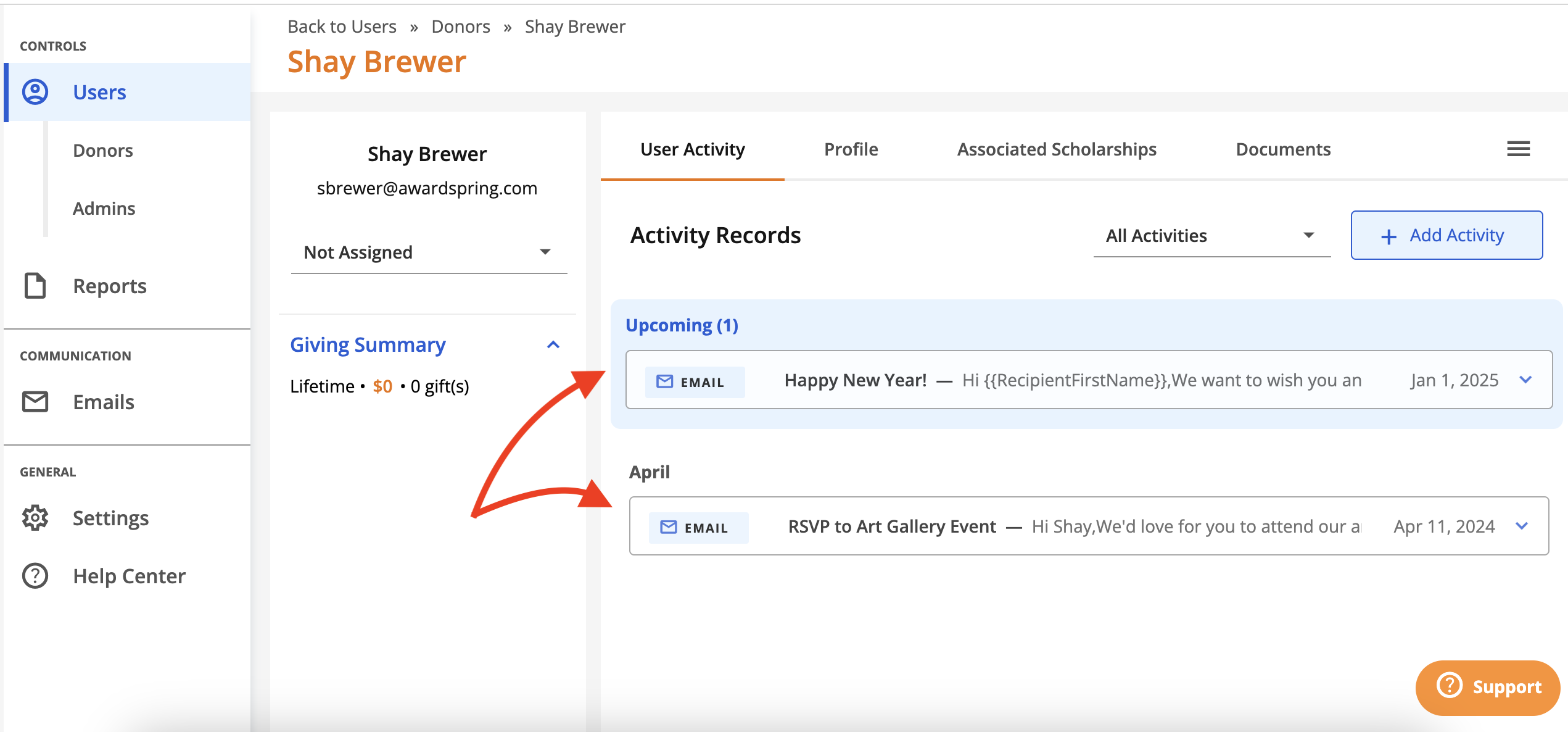
Other types of activities can be track manually. It might be helpful to consider activities as either Engagement Activities or Fundraising Activities.
Engagement Activities
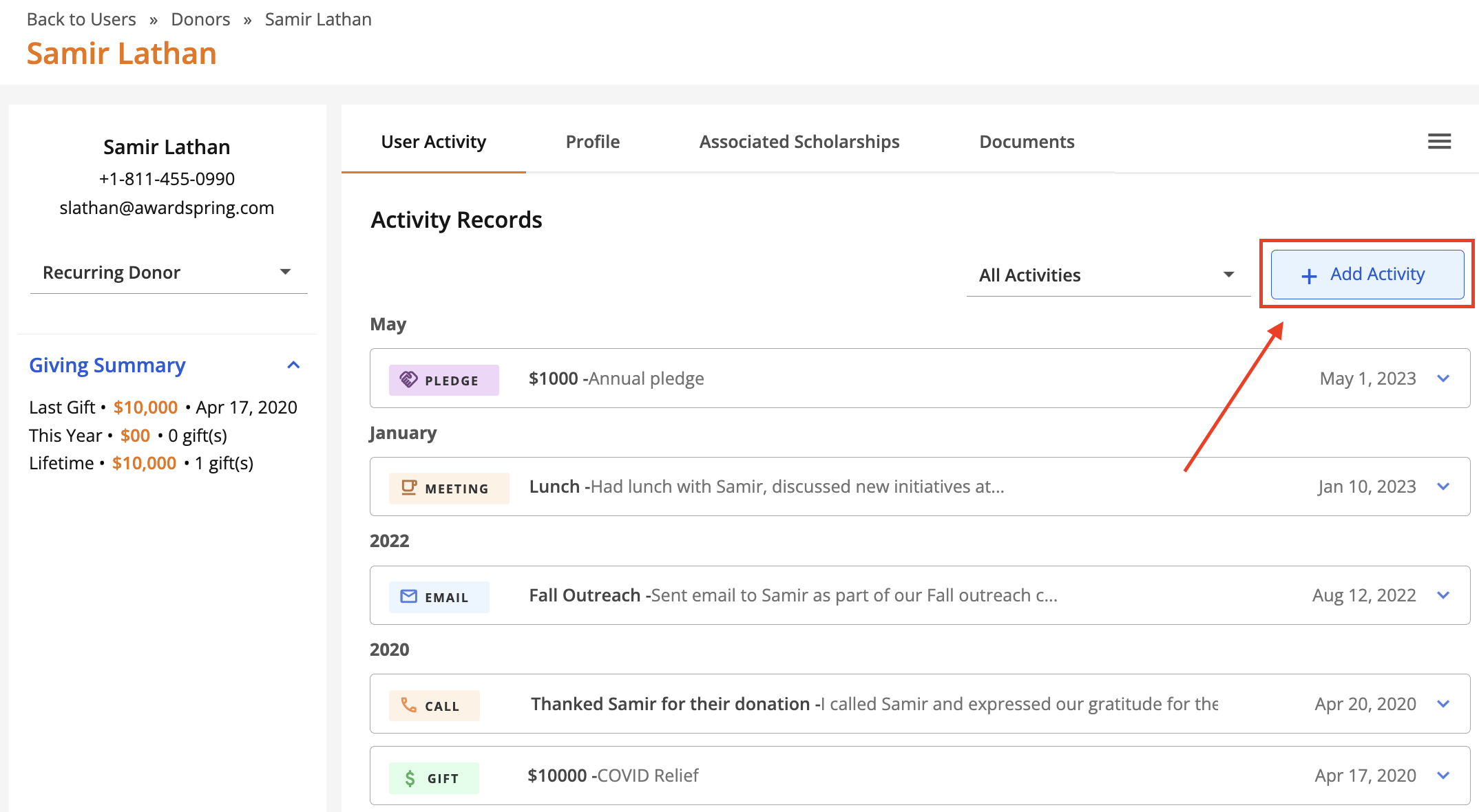
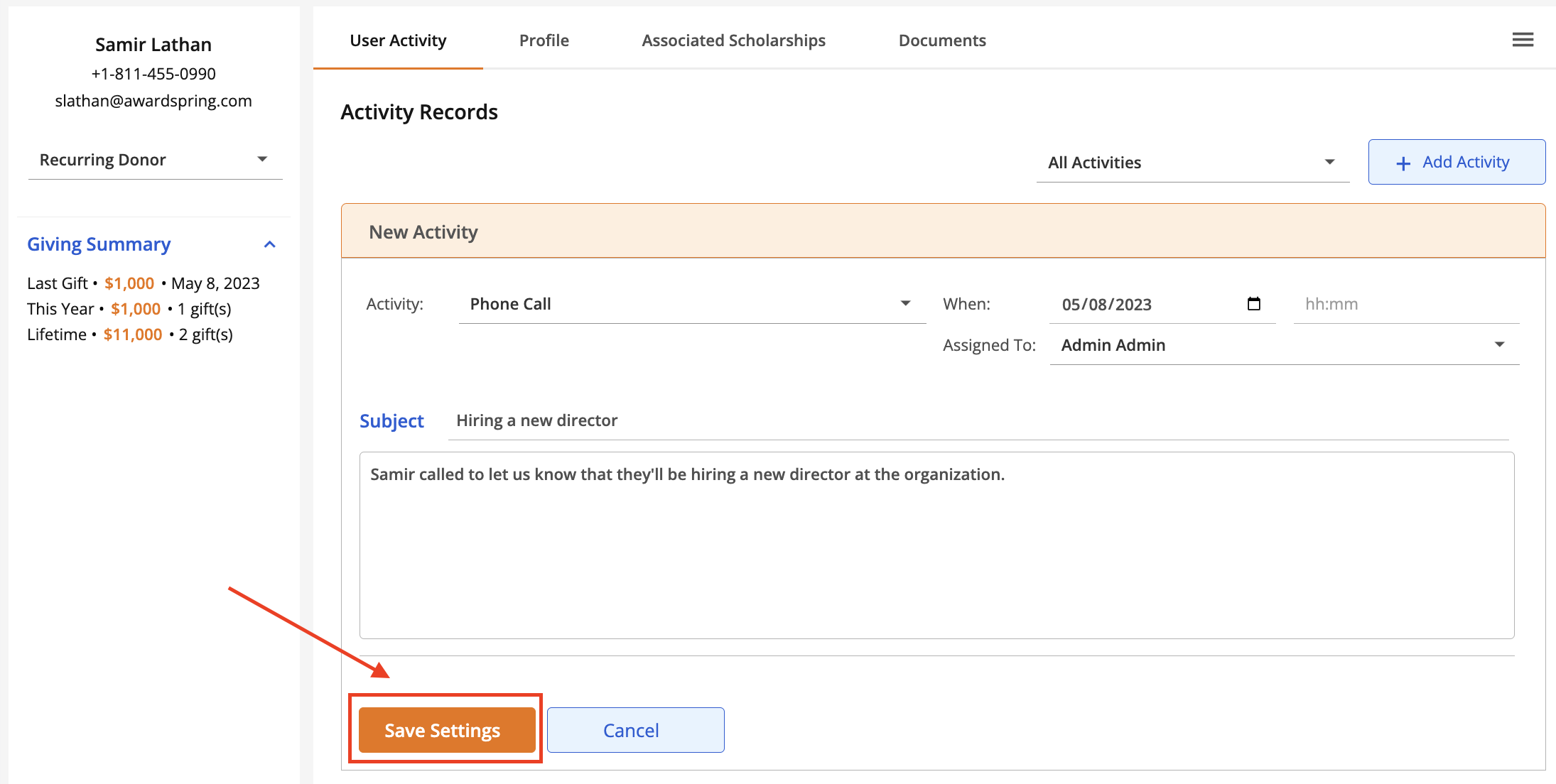
Engagement-type activities include emails, phone calls, meetings and notes. To get started, click 'Add Activity'.
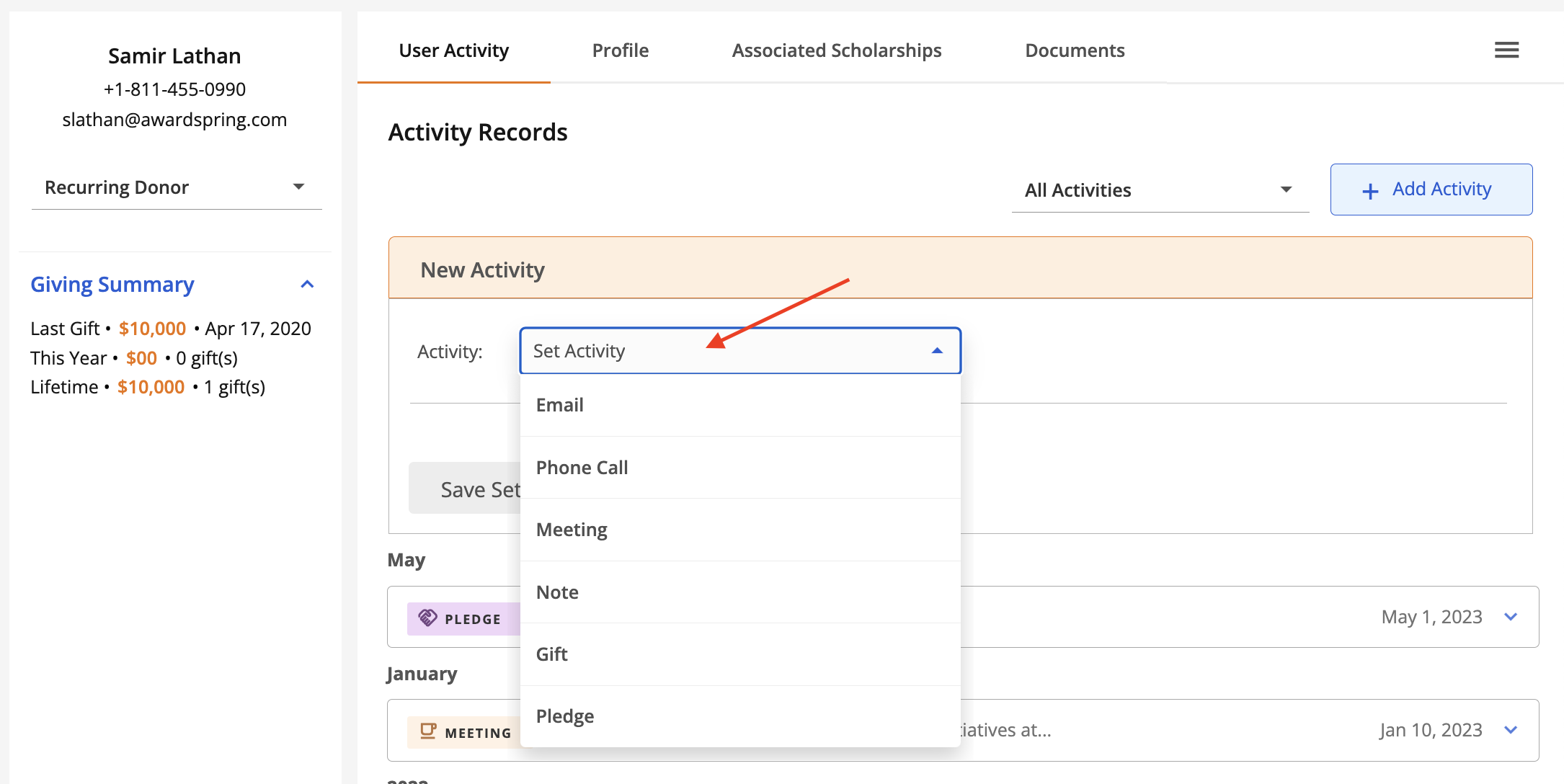
Click the 'Set Activity' dropdown to select the activity type.
For the Email, Phone Call, Meeting and Notes activity types, the following fields are available:
- When: the date and (optionally) time that the activity occurred.
- Assigned To (optional): the activity owner. This defaults to the admin who is logging the activity but can be changed to another admin or 'Not Set'.
- Subject: the subject of the activity.
- Details: details of the activity.
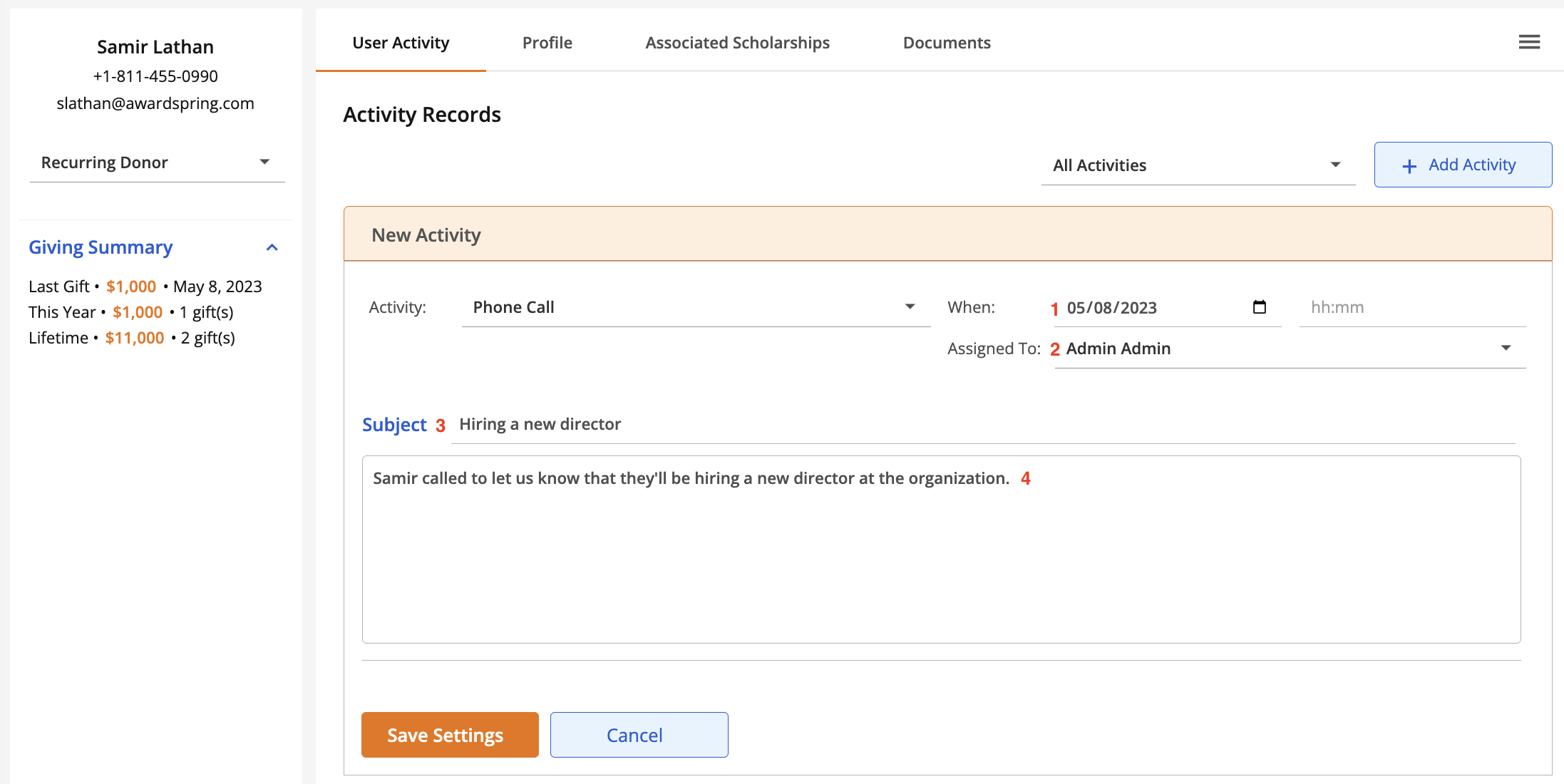
Once you've selected the activity type and filled in any applicable fields, click Save Settings.
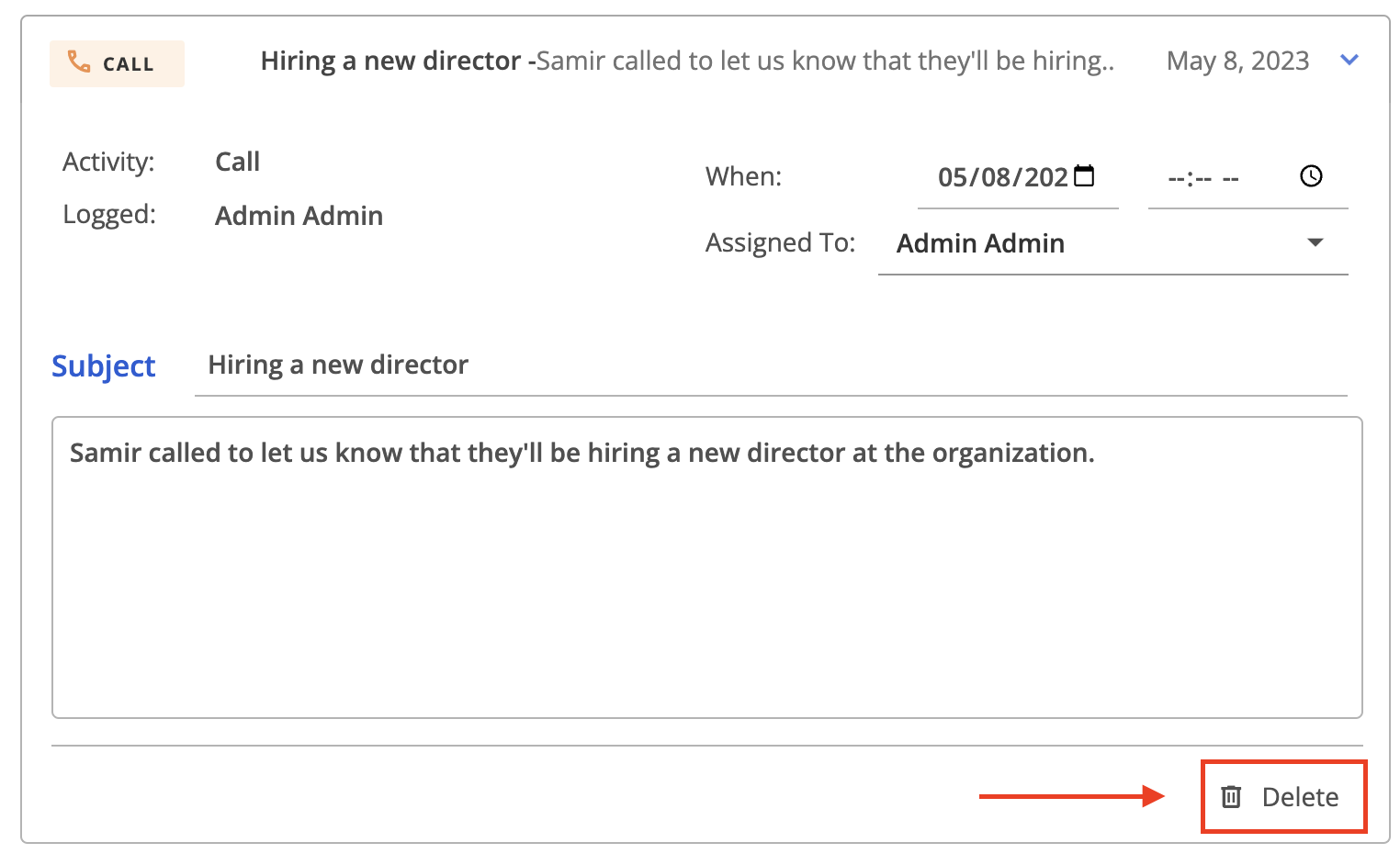
To update or make changes to an activity, simply click the arrow to expand it and make the appropriate changes. Your changes will be saved automatically.
To delete an activity, click the arrow to expand it and click the Delete button.
Fundraising Activities
Fundraising-type activities include pledges and gifts (both one-time and recurring). To get started, click 'Add Activity'.
Click the 'Set Activity' dropdown to select the activity type.
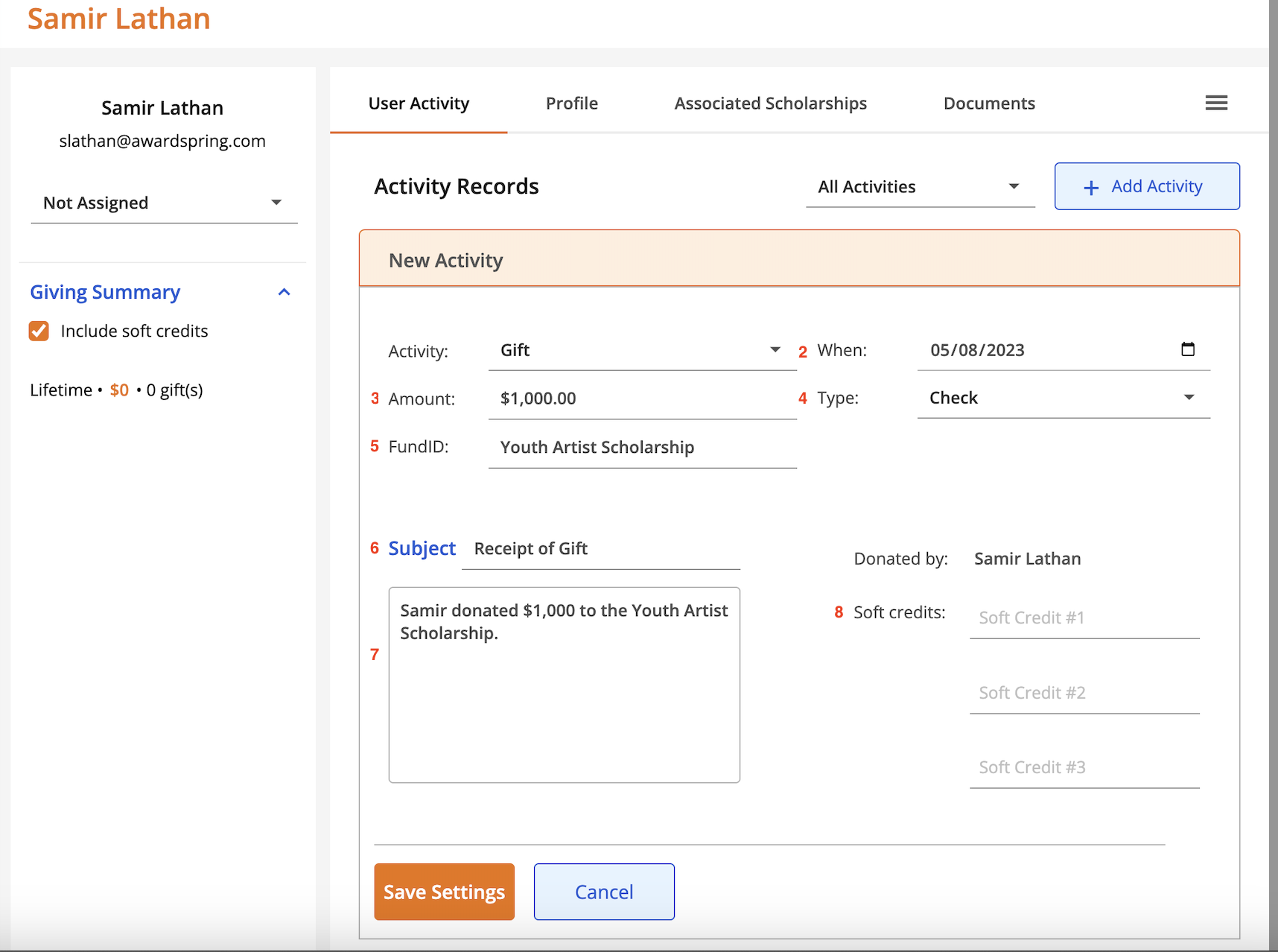
The following fields are available depending on the activity type (Gift, Pledge or Recurring Gifts).
- Repeat every (recurring gifts): how often the gift will be repeated.
- When: the date and (optionally) time that the activity occurred/will occur.
- Amount: the amount of the pledge or gift.
- Type (one-time gifts): a menu with options to choose from is available for you to select how you received the funds (In Kind, Bank Transfer, Cash, Check, Credit/Debit card, Stock or Property, Other).
- FundID (optional): the fund the pledge or gift is intended for.
- Subject: the subject of the activity.
- Details: details of the activity.
- Soft Credits (one-time gifts): donations made by an organization or group that were influenced by the primary donor. Click here to learn more about soft credits.
Gifts can be logged as one-time or recurring.
One-time gifts
Recurring Gifts
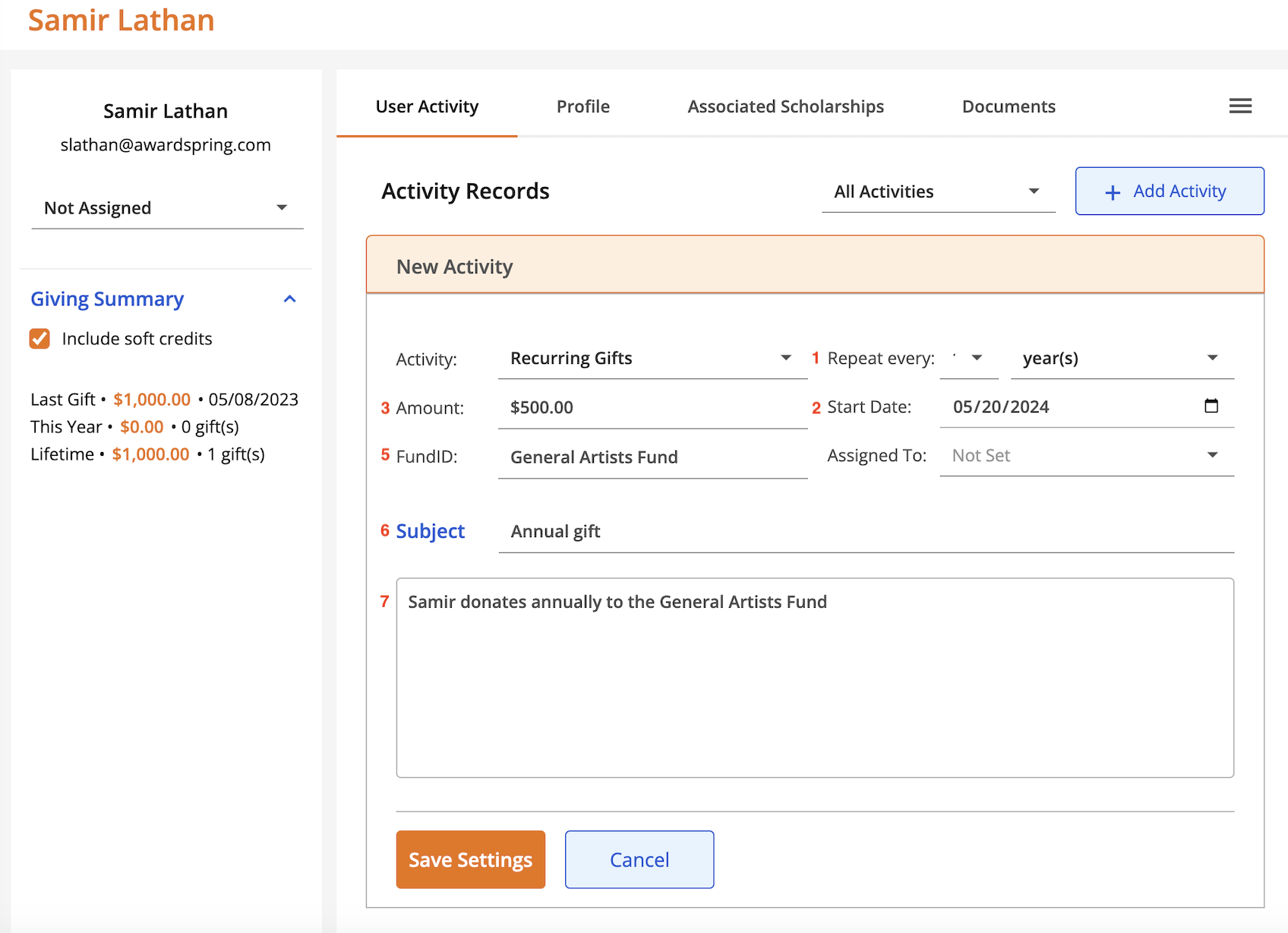
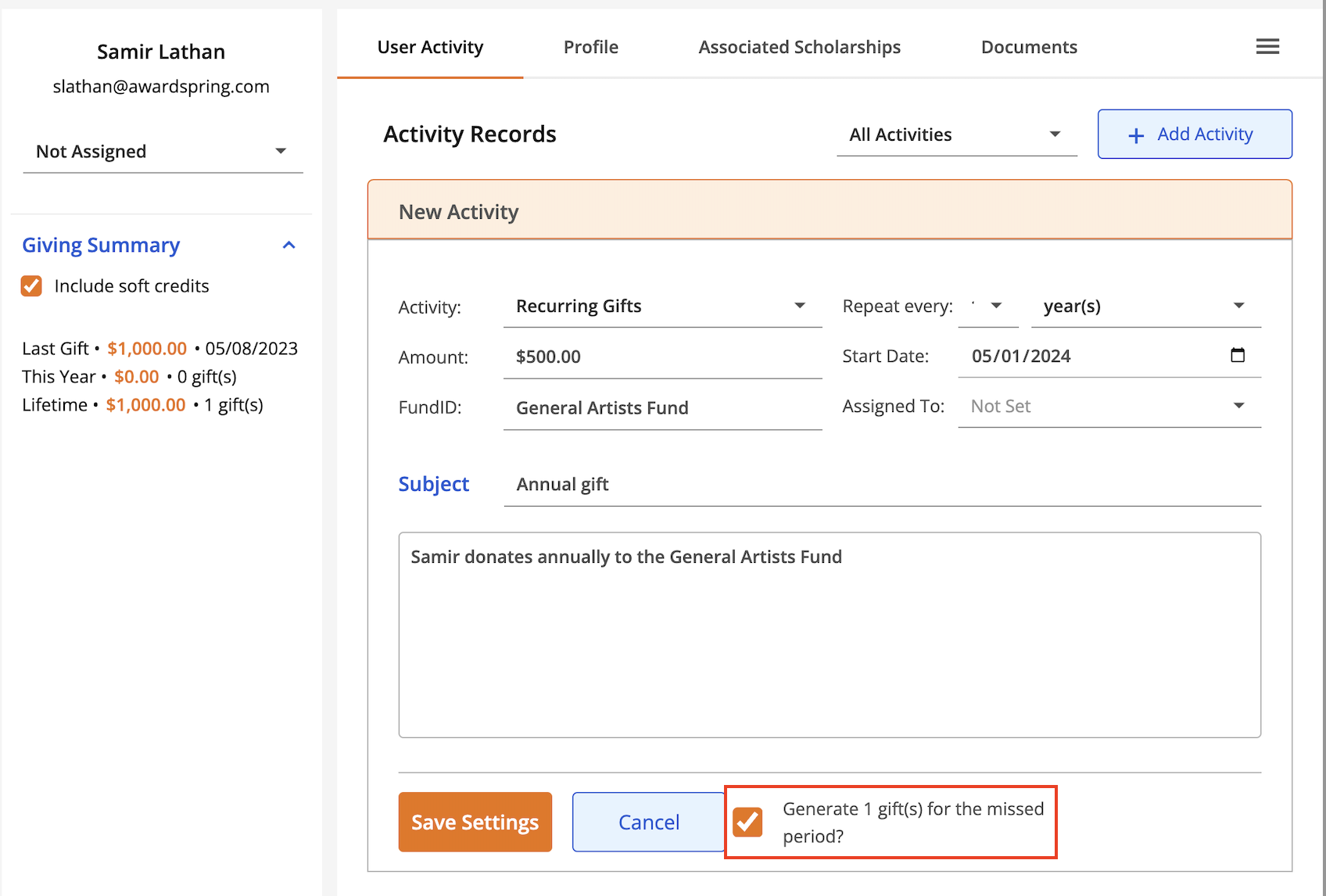
Note: when logging a recurring gift with a start date in the past, you'll be asked if you want to generate gifts for the missed period (i.e. in the past).
For example, if today is 5/14/2024 and you log a recurring gift with a start date of 5/1/2024, you'll be asked whether you want to generate a gift for 5/1/2024; leave the box checked to do so. In this example, the next gift will generate on 5/1/2025.
Pledges
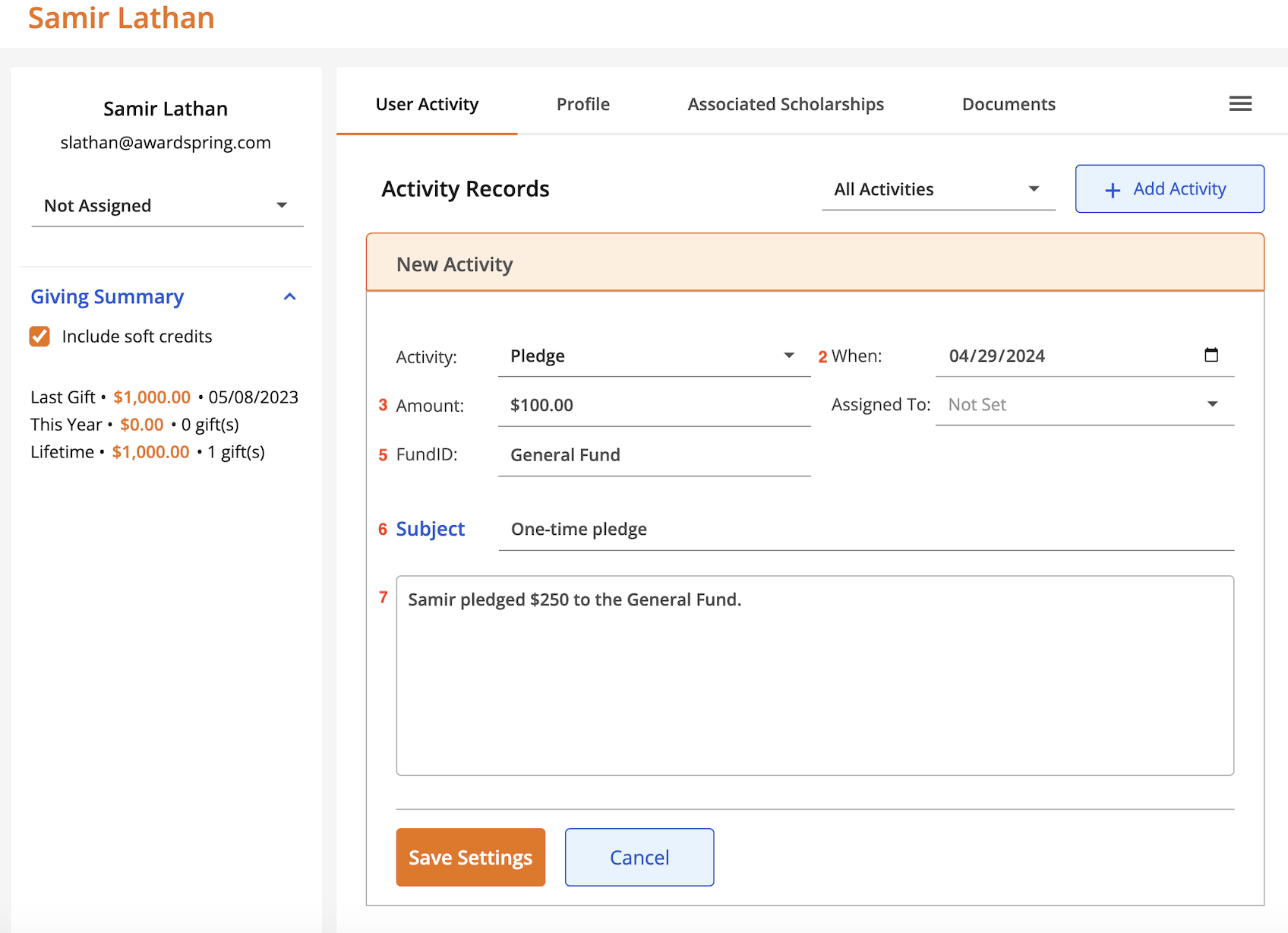
Once you've selected the activity type and filled in any applicable fields, click Save Settings.
To update or make changes to an activity, simply click the arrow to expand it and make the appropriate changes. Your changes will be saved automatically.
To delete an activity, click the arrow to expand it and click the Delete button.