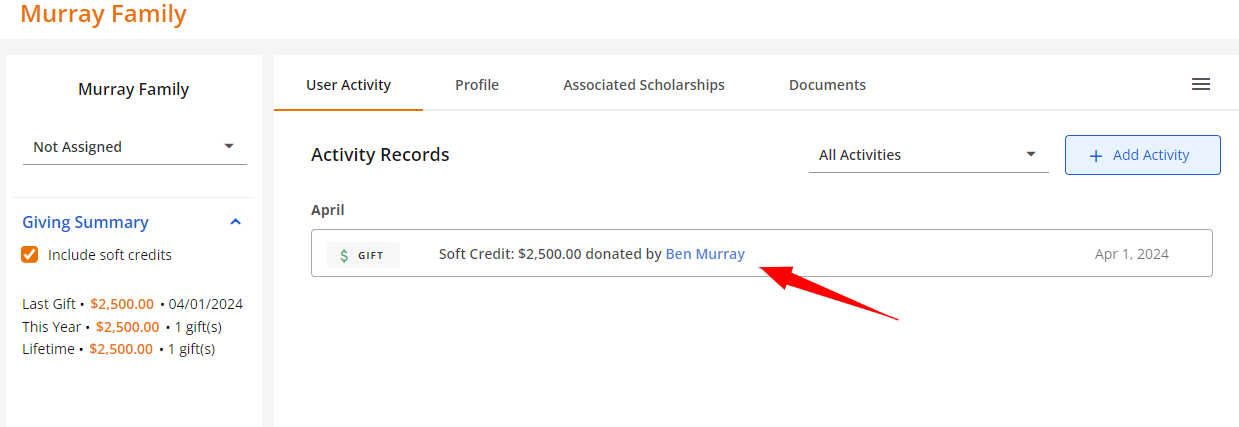
Soft credits allow you to track donations made by organizations, institutions, groups or households that were influenced by the primary donor that provided funds. Below we share two common examples and instructions to track this chain of donations.
Example 1: An organization/employer (i.e. Duracell) matches a donation made by its employee (i.e. Sarah Authenrieth), who is the primary donor.
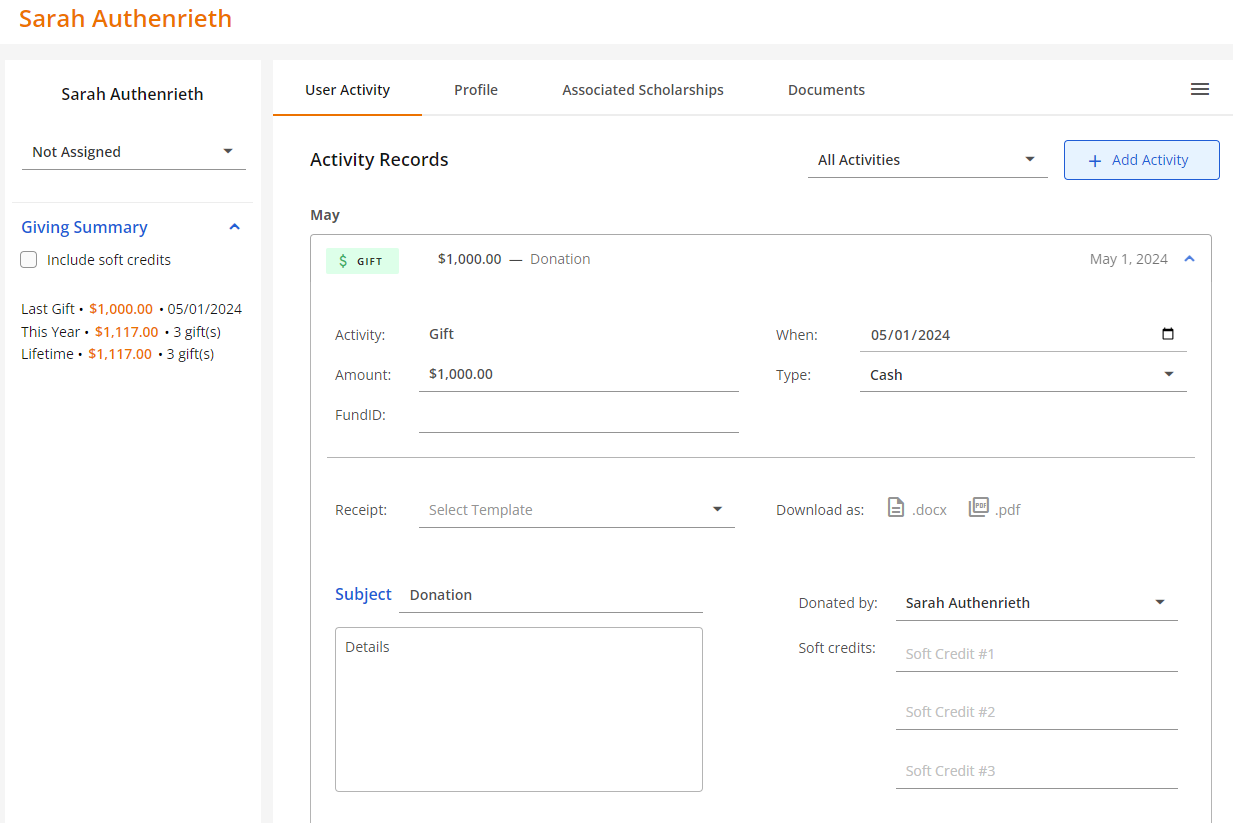
To track this type of gift donation, you'd first update the Donor account of the employee (Sarah Authenrieth) that made the donation under the User Activity tab by adding a gift activity.
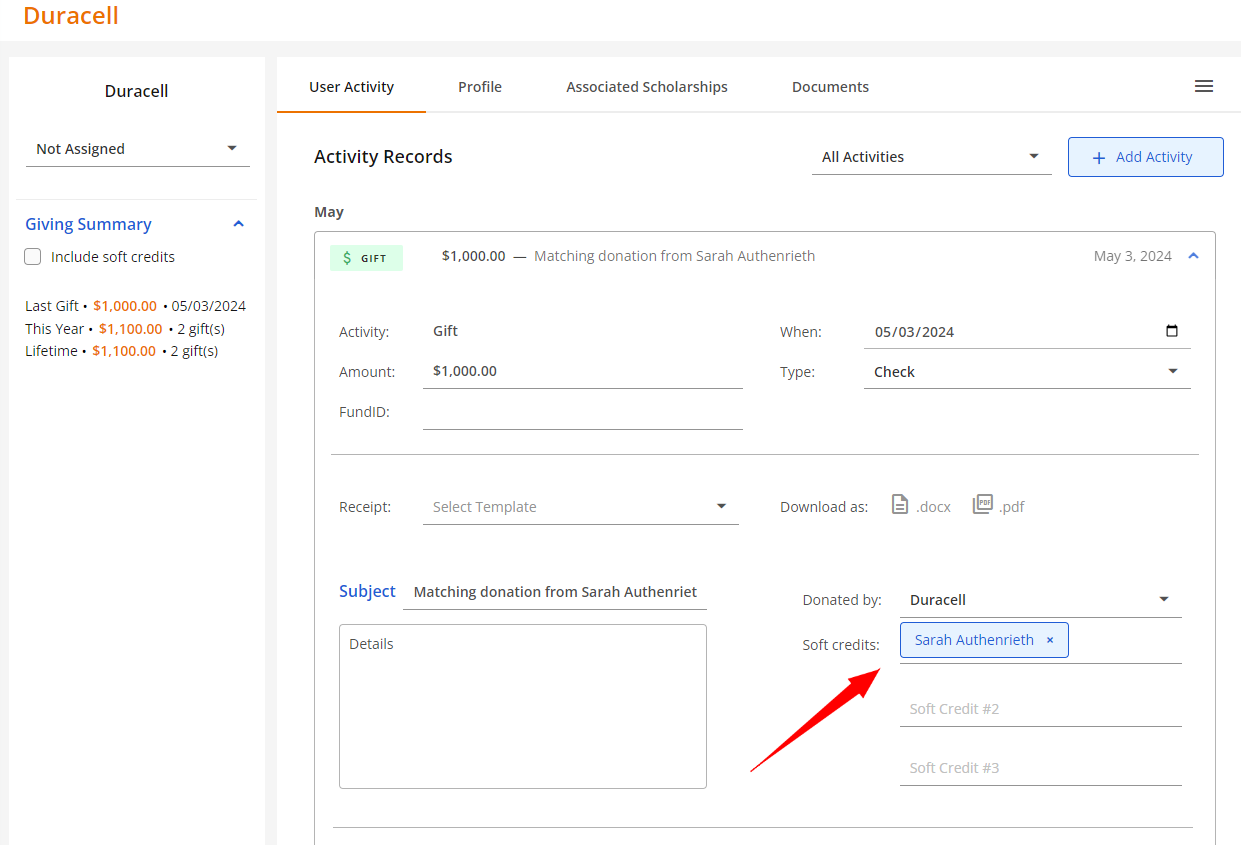
Next, you'd proceed to update the Donor account of the organization/employer (Duracell) that matched the donation by adding a gift activity. In the Soft Credits section, you'll select the primary donor's account.
Note: You can add up to 3 Soft Credits under every gift activity you create, and they do not need to have an account in order for you to assign them the soft credit.
Referencing the employee's account again, you'd notice that the matching gift donation from the employer is now displayed under the employee's donor account.
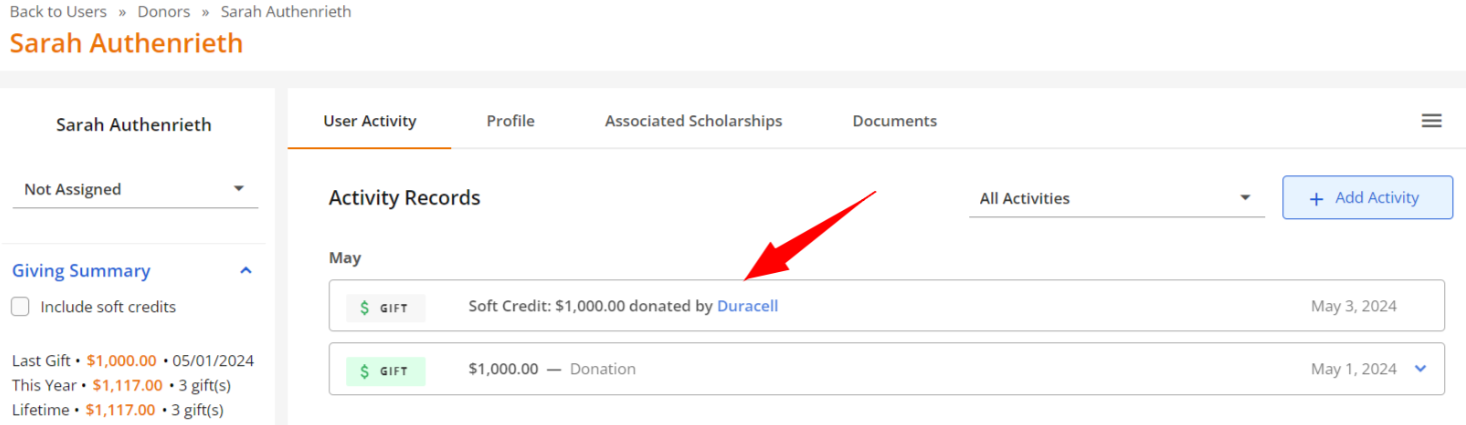
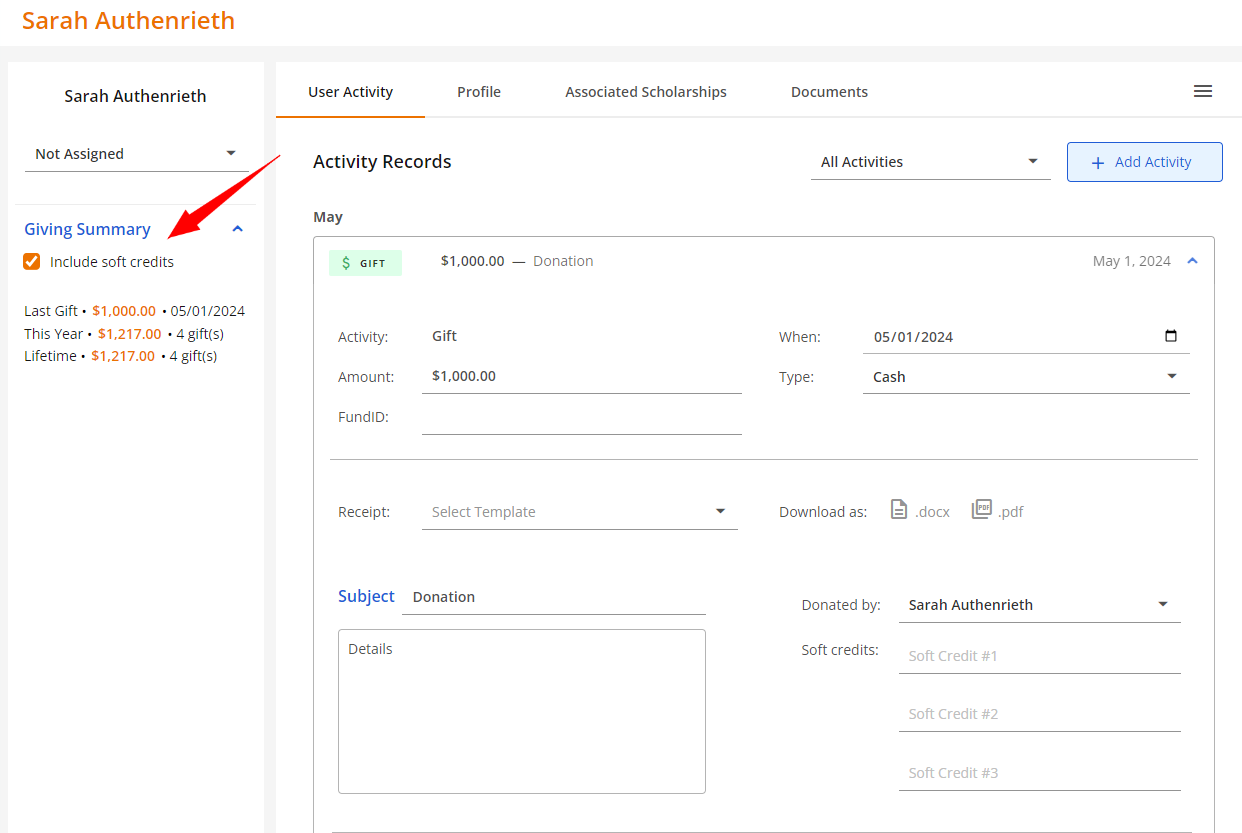
You'll notice that under the Giving Summary section for each Donor account, you're able to check or uncheck the Soft Credits amounts, which will include or exclude the fund amounts.
Example 2: A donation made by one individual (i.e. Ben Murray) on behalf of a family/household (i.e. Murray Family).
To track this type of gift donation, you'd first update the Donor account (Ben Murray) of the individual that donated the funds by adding a gift activity.
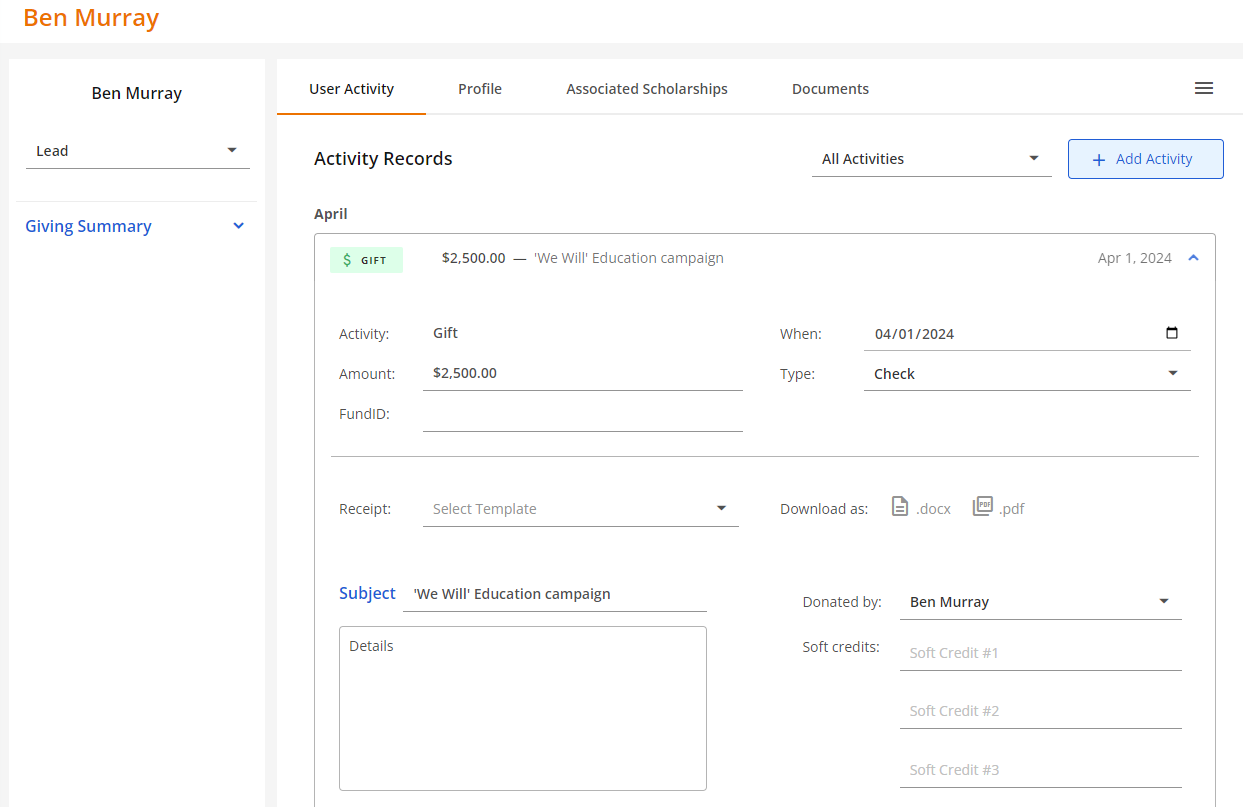
Next, you'd create a Donor account for the family/household (Murray Family). Navigating back to the individual's account, under Soft Credits is where you'd be assign the family/household's donor account.
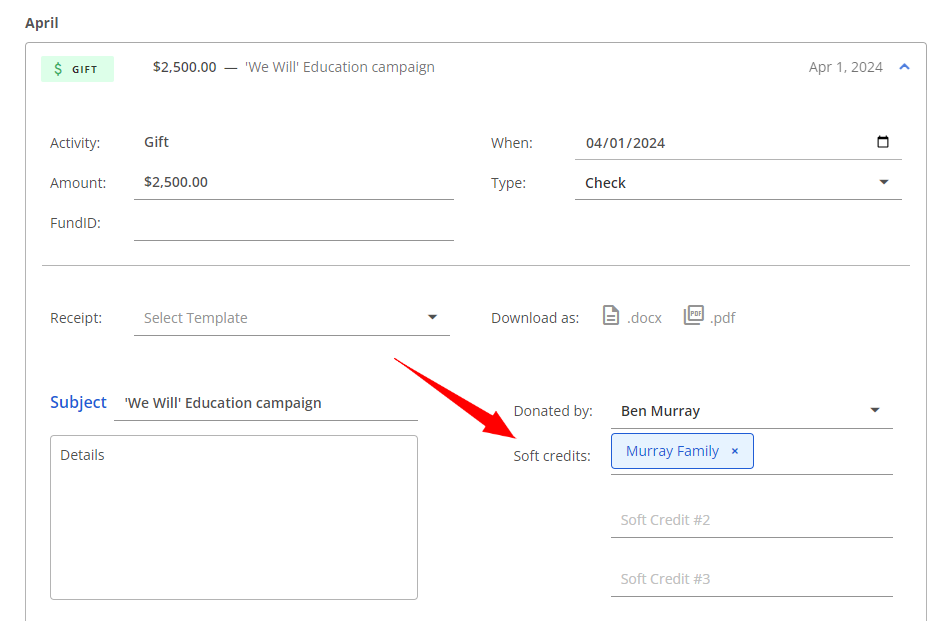
Navigating back to the family account, we will find the gift donation in Activity Records as well.