
Additional requirements are supplementary information (e.g. documents, essays, etc) that you may want or need to collect for a specific scholarship. For example, a donor might want a tailored essay for their scholarship. In that case, only applicants for that scholarship need to complete the essay (versus all applicants).
Additional requirement questions are not used in the filtering/matching process, but applicants will not be able to submit their application for the scholarship until they have provided you with the required information. You can create these requirements on the “Additional Requirements” tab of the scholarship.
The first thing you'll notice is that there are three stages of the award cycle where you can add additional requirements for applicants:
There are seven types of questions that you can add to a scholarship as additional requirements. In addition, you can add Instructional text to provide clarification for the applicant about a question you've added or about the additional scholarship requirements in general.
Create a new question with a single answer : Question with a list of answer options from which applicants select one answer.
Applicant view:
Create a new question requesting any one of multiple answers : Question with a list of answer options from which applicants can select multiple answers.
Applicant view:
Create a new question with an open-ended answer : Question to which applicants provide a short answer. You set the maximum number of words allowed.
Applicant view:
Create a new question with a date answer : Question to which applicants provide a specific date answer.
Applicant view:
Create a new question requesting a file upload : Question to which applicants upload a document that you specify.
Applicant view:
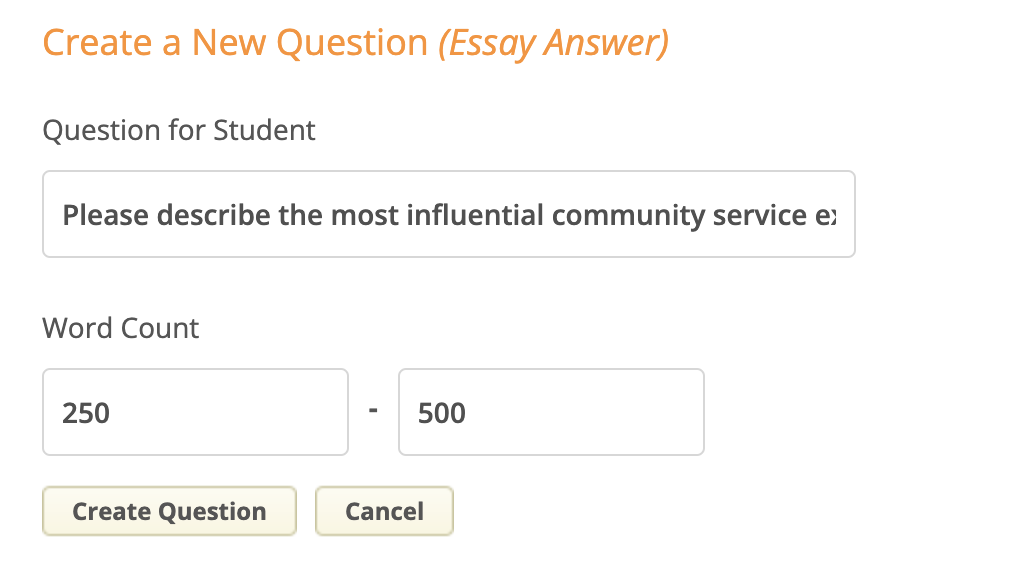
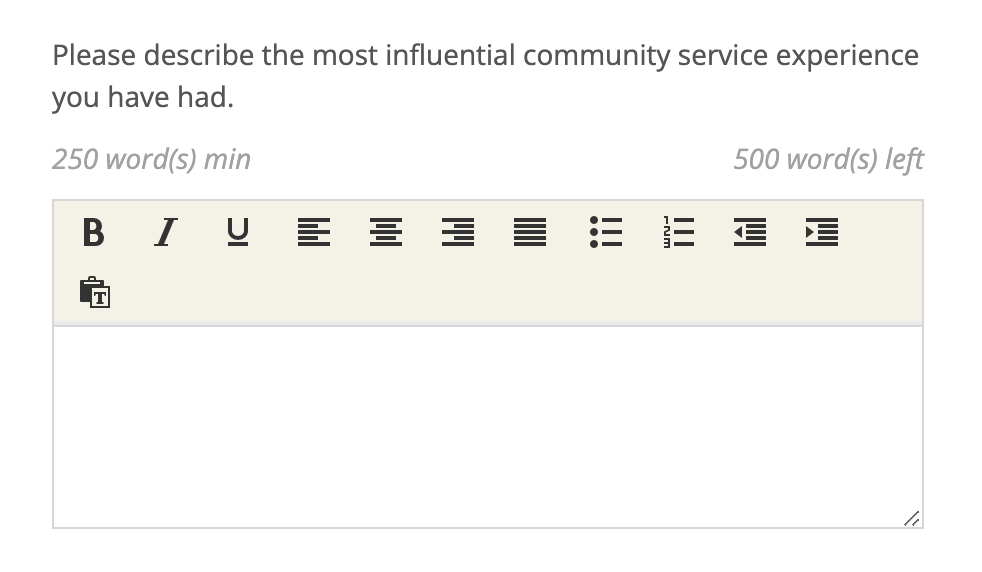
Create a new question with an essay answer: Additional requirement question with essay prompt to which applicants write a response. You will provide a minimum and maximum number of words that the applicant can submit.
Applicant view:
Insert an External Request template : Gather information about applicants from an external source (e.g. guidance counselors, coaches, teachers, etc). You configure external requests in Settings > External Requests. See this article for a detailed explanation of how to configure and insert external requests.
Search to reuse an existing question : Additional Requirements questions can be re-used across scholarships. Instead of creating the same question repeatedly in cases where multiple scholarships have the same additional requirement, simply search for the existing question to add it to a scholarship.
Note: This causes the question to be shared amongst scholarships where it's been added, which means that the student's answer is shared as well.
In the case of the Before Applying additional requirements, an applicant will be prompted on their dashboard to answer any additional requirement questions on scholarships for which they qualify.
After clicking 'Complete Follow-up', the applicant needs to complete the additional requirement questions.
Once the response is selected, the Submit Application button will light up yellow, allowing the applicant to submit their application for the scholarship.
To learn more about the three stages of additional requirement questions, click here.