To schedule an email, get started by clicking Emails > Compose.
Compose an email. Once you have the email compiled, you’ll have the option to schedule the email or send it now.
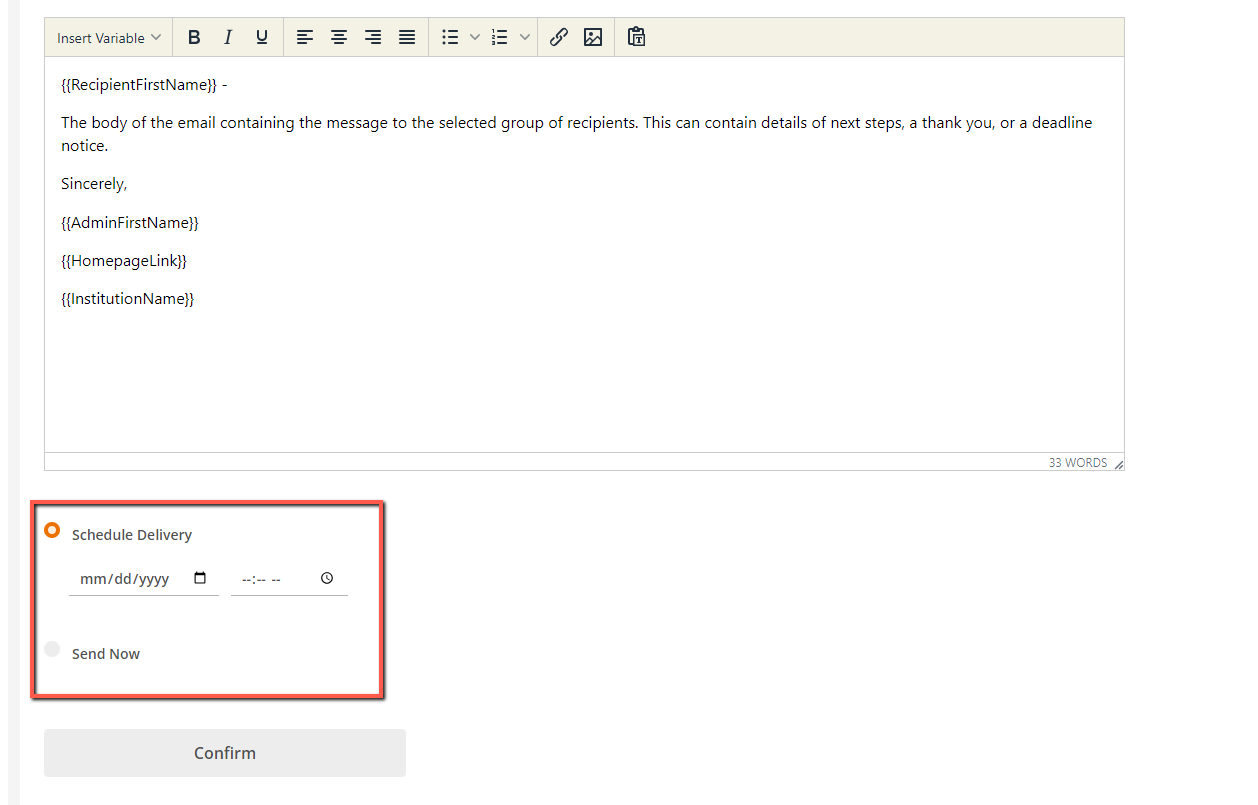
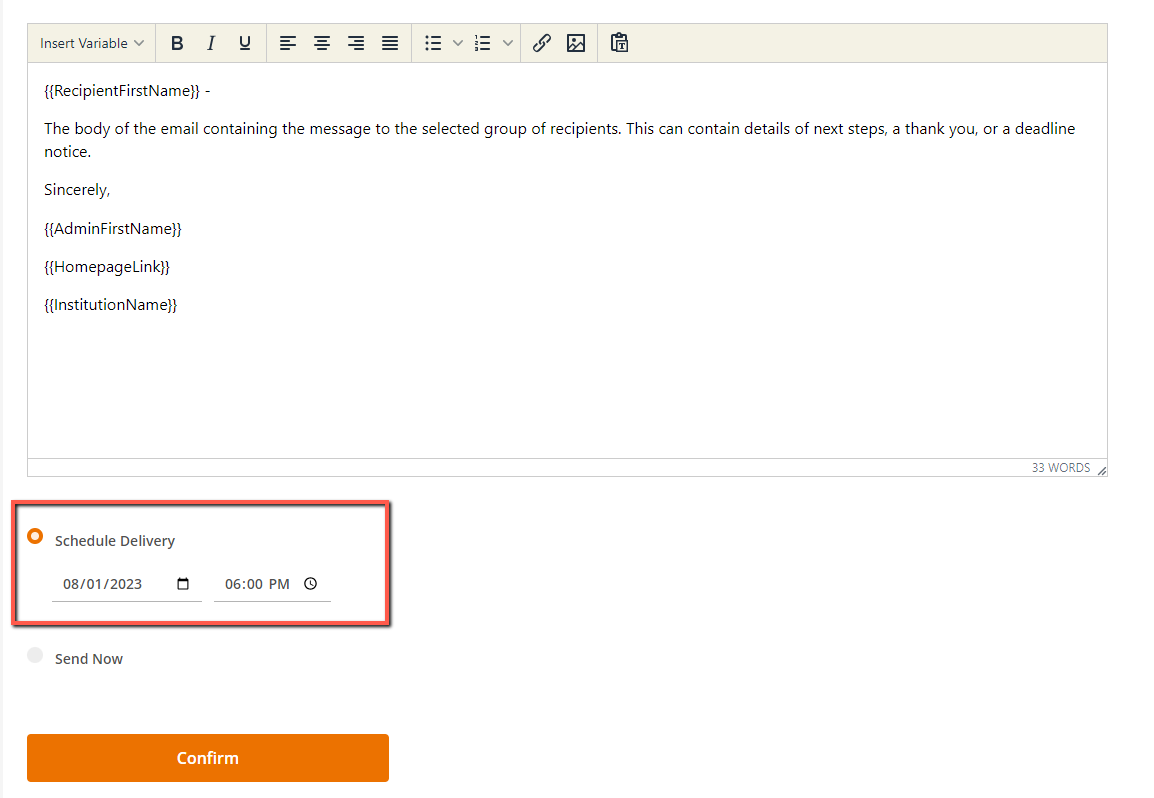
If you select ‘Schedule Delivery’, you will be required to select a date and time in the future. Once you select your scheduled date for delivery, the confirm button will become enabled and you can schedule the email.
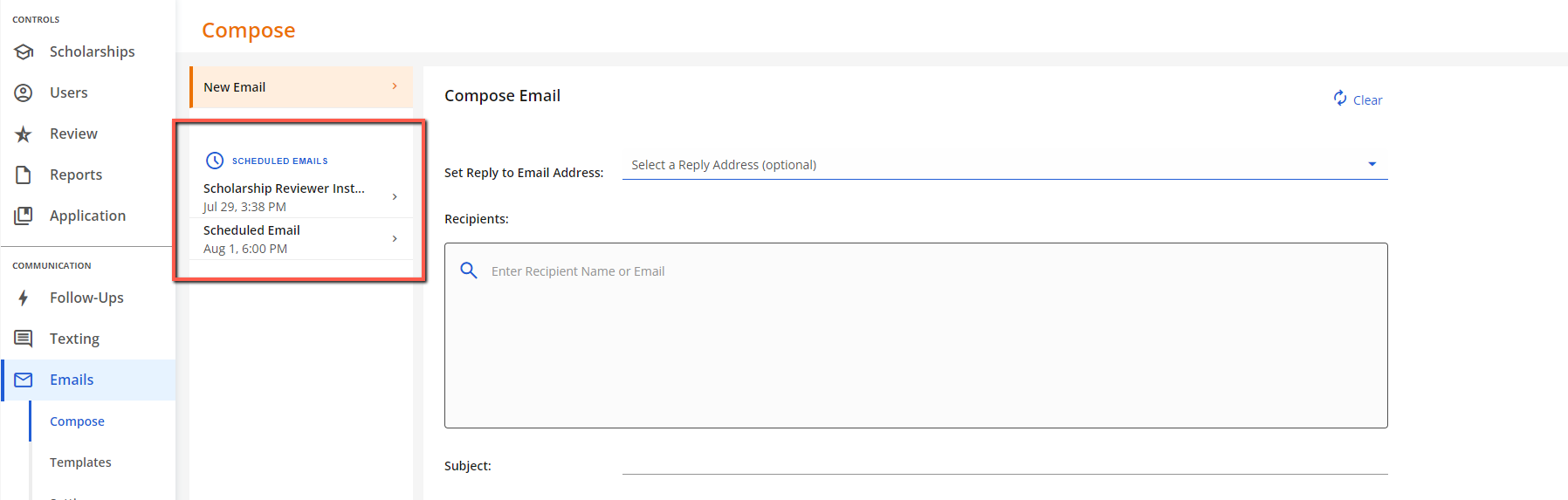
Scheduled emails will appear on the Emails > Compose page in the email pane.
Click on a scheduled email to edit and save or send the email. Edits will need to be confirmed or discarded.
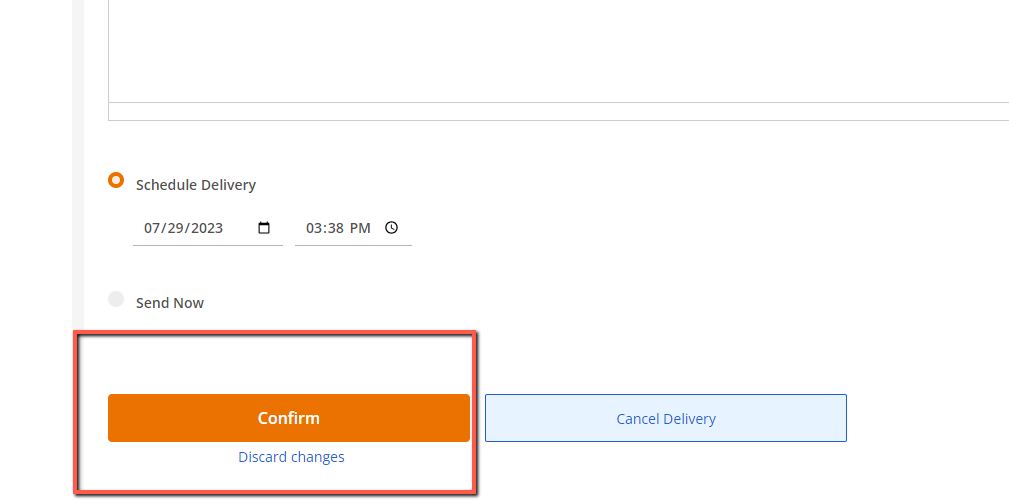
Selecting 'Discard changes' will revert any changes and you will remain on the editing page. Confirming changes will update the scheduled email and return you to a blank compose screen.
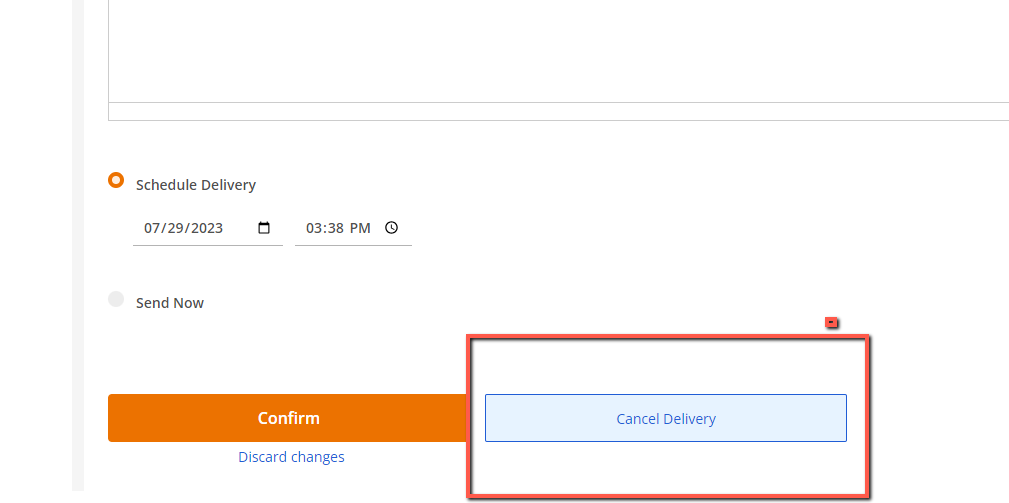
You can also cancel the delivery of the scheduled email in the edit screen by clicking Cancel Delivery. Cancelling the delivery will remove the scheduled email and its content.
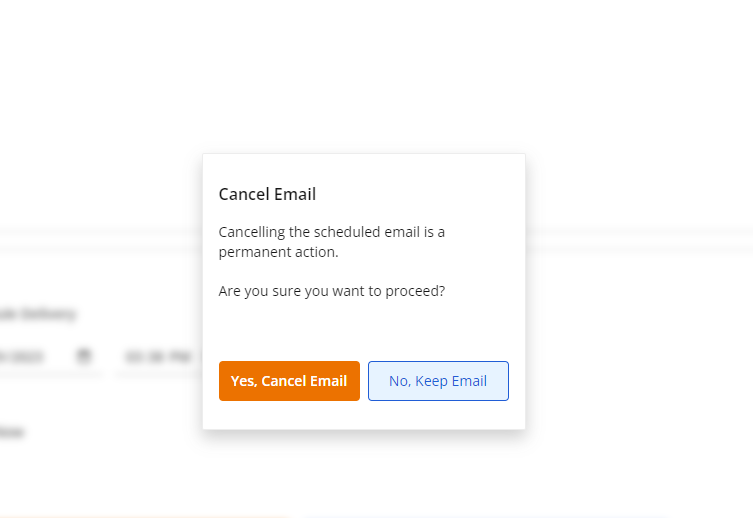
You will be asked to confirm the cancellation of a scheduled email.