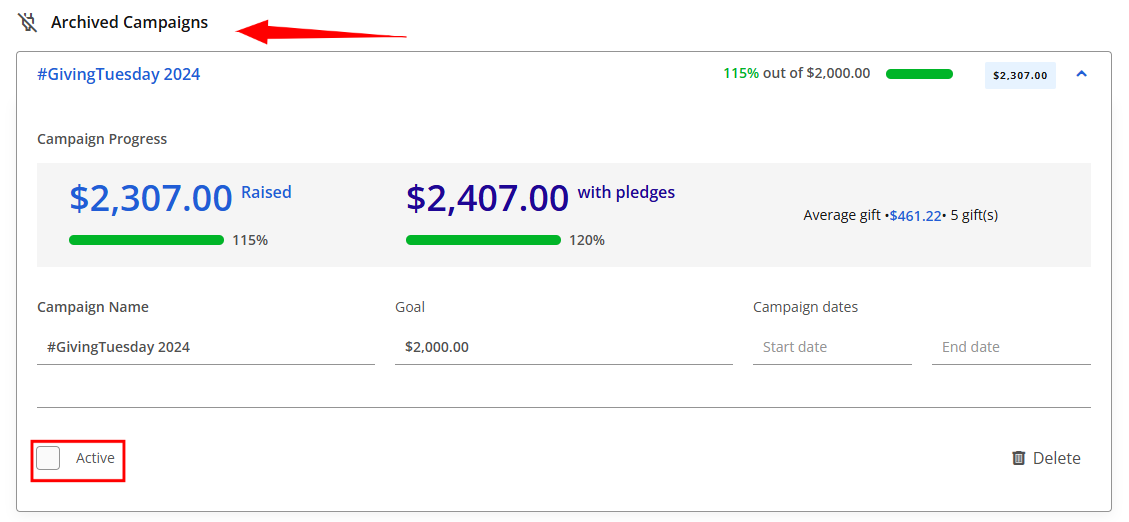
The Campaigns page enables you to efficiently manage and oversee all fundraising initiatives in one place. The Campaigns page acts as both a list and a mini-dashboard, offering an overview of each campaign’s performance— total gifts raised, expected pledges, and how close you are to reaching your goals.
Creating a campaign
Head to the Fundraising tab in the main navigation menu and select the Campaigns subtab.
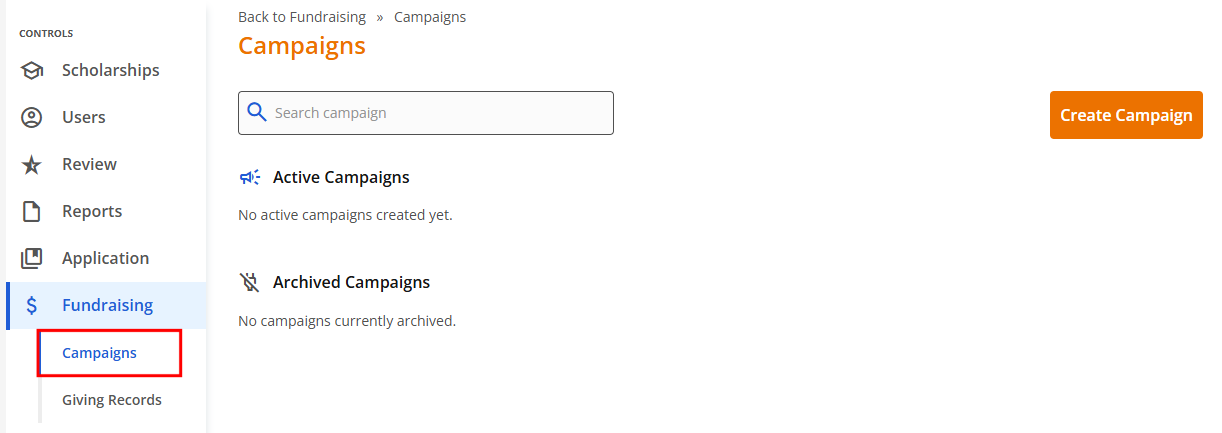
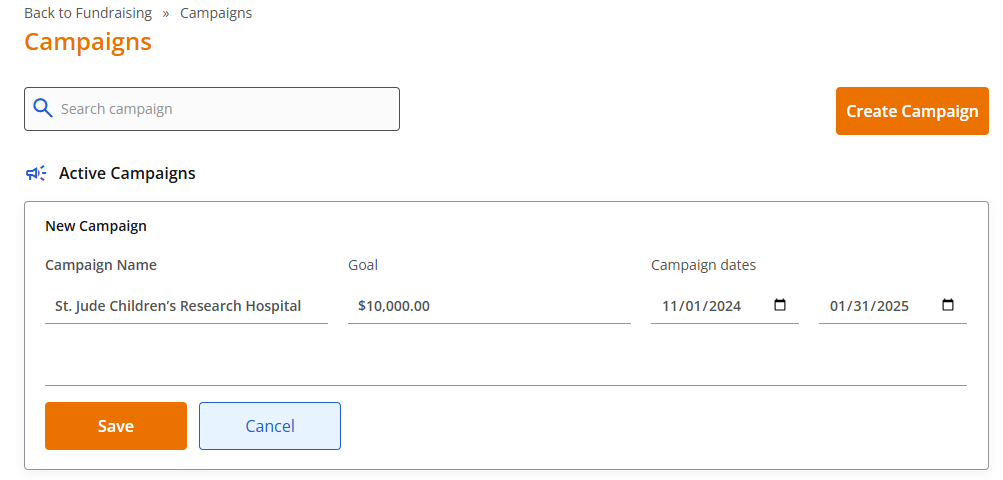
Click the 'Create Campaign' button and fill out the following fields:
- Campaign Name (required)
- Goal (optional)
- Campaign dates (optional)
Click the 'Save' button. You can return to edit these fields at any time.
Adding a donation to a campaign
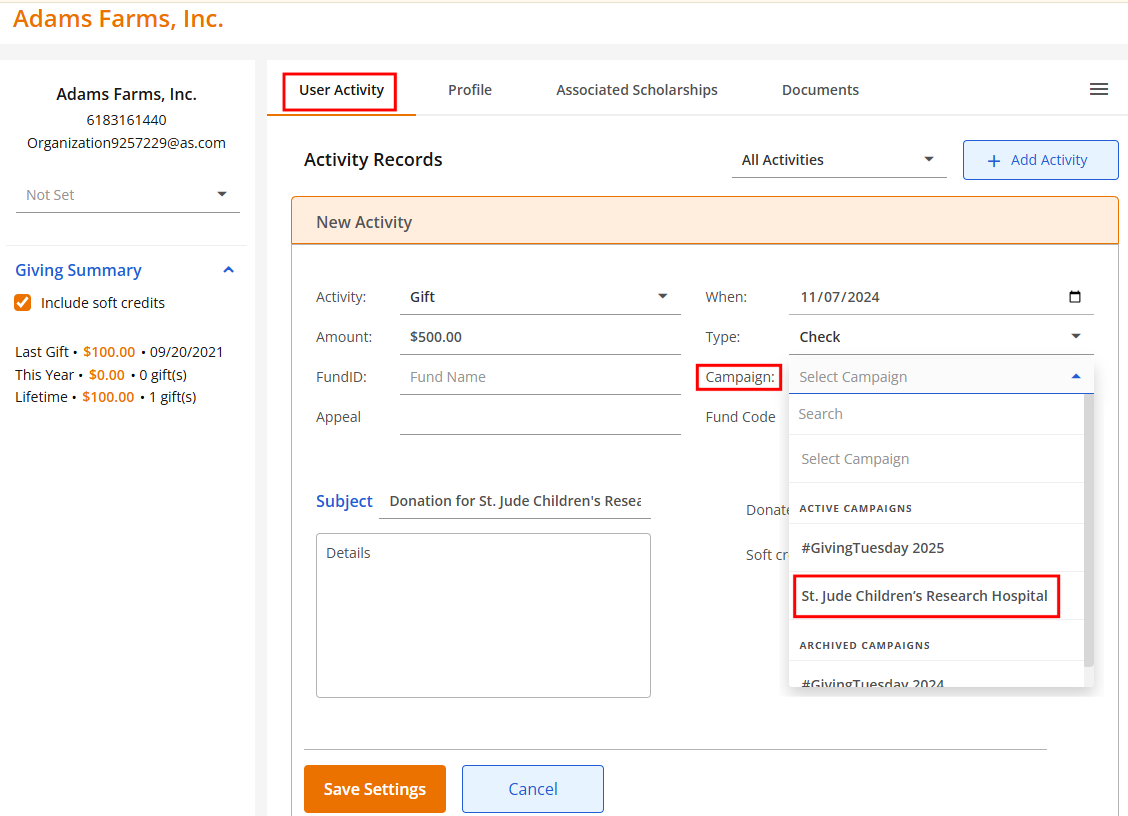
Any gifts or pledges made by donors can be associated with a campaign. To do this, locate the Donor account that made the gift or pledge and record the activity under the User Activity tab. Under the Campaign field, select the campaign from the dropdown list, or search by name, and click 'Save'.
The Campaign Progress on the campaign dashboard will update with the new pledge or gift amount.
Note: Tracking the progress of campaigns is always accessible, even if a campaign has been archived.

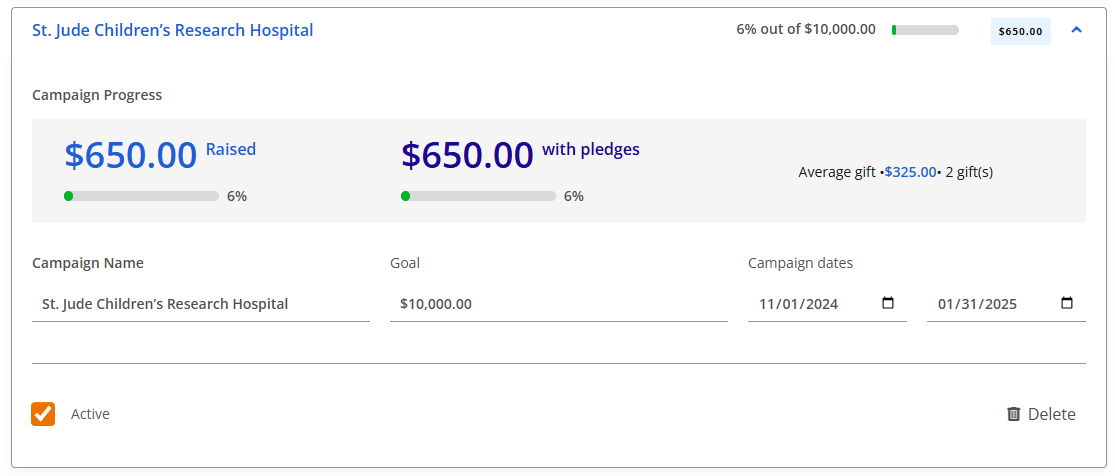
Once you expand a campaign, you can view the total amount raised, and the expected amount (which is a combined number of raised funds + unfulfilled pledges). Another metric is available that calculates the average gift amount made for the campaign.
Archiving a campaign
To archive a campaign, simply expand it and uncheck the Active checkbox. The campaign will be sorted under the Archived Campaigns section in the Campaign tab.