Building custom award templates allows you to notify your applicants with scholarship specific details regarding their award. This includes next steps (i.e. scholarship acceptance instructions, post-award tasks and deadlines, ceremony invitations, etc).
To create a new award template, head to the Emails tab in the main navigation menu and select the Templates sub-tab.
Click on the 'New Award Template' button and fill in the following fields: Template Name, Subject, and Message.
Note: The subject line supports the same variables as the message field. As a best practice, we recommend including the Scholarship Name variable in the subject line (instead of creating a distinct template for each scholarship). Take a peak at the other available features in the toolbar as well.
To save the new template, click on the 'Save' button.
Note: Your new template will appear in the "Saved Templates" section, ready for use at any time.
Attaching a New Custom Award Template to Scholarships
The custom award template can be attached to scholarships individually or in bulk.
- Individually: Navigate to the Scholarships tab from the main menu and select a scholarship you want to update. Select the Notify tab, and from the dropdown menu, select the new award template you created.
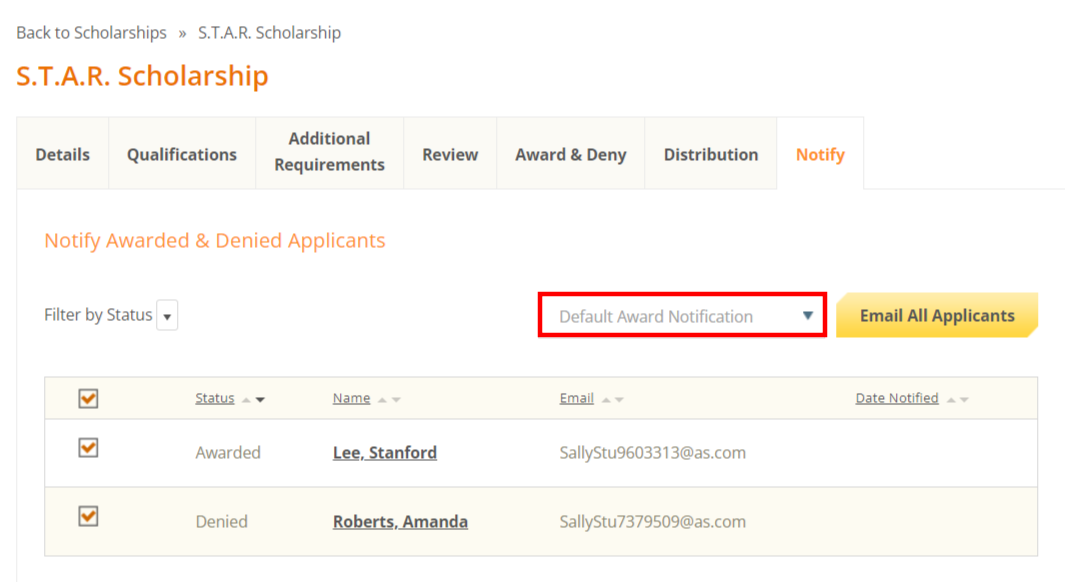
Note: By selecting the template, your change is automatically saved.
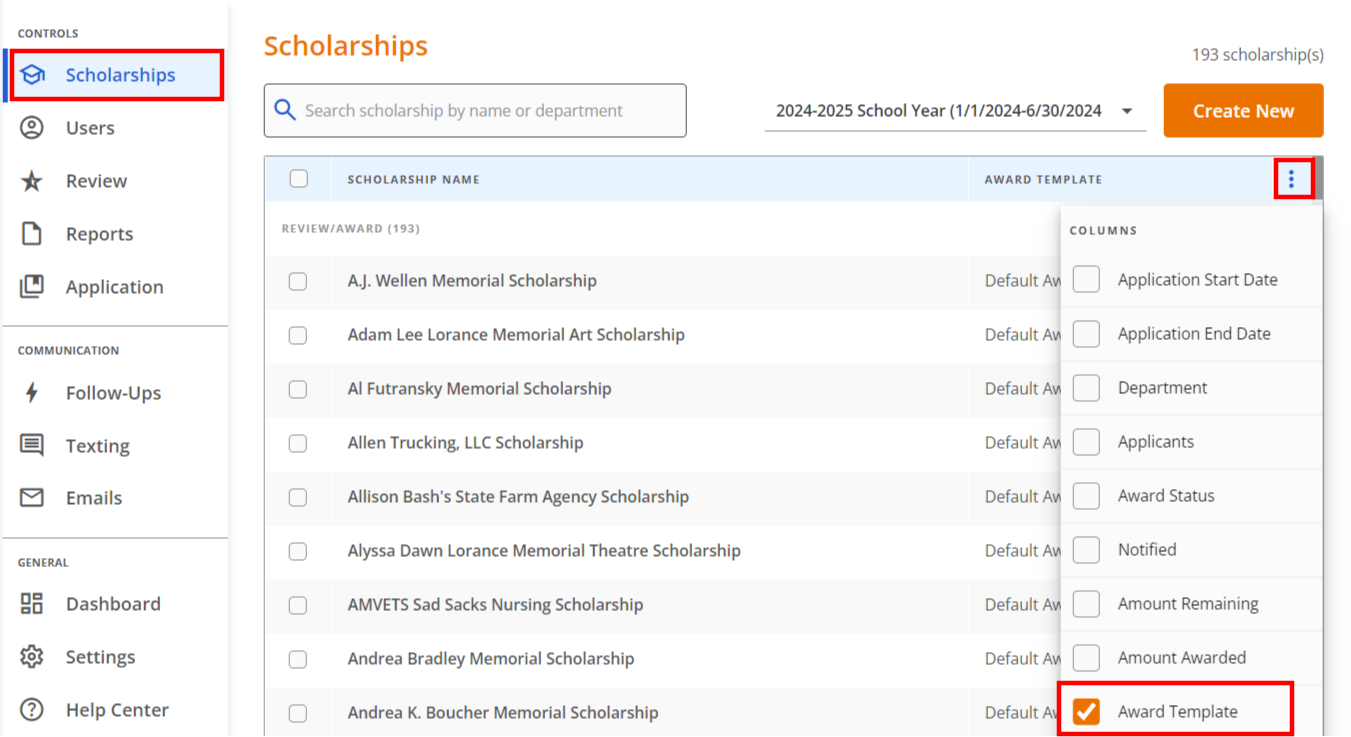
- Bulk: Navigate to the Scholarships tab, select the 3 dot menu and check the checkbox for the Award Template in order to add it as a column.
Next, use the checkboxes next to scholarship names that need their template updated and click on the 'Update Award Notification Template' button.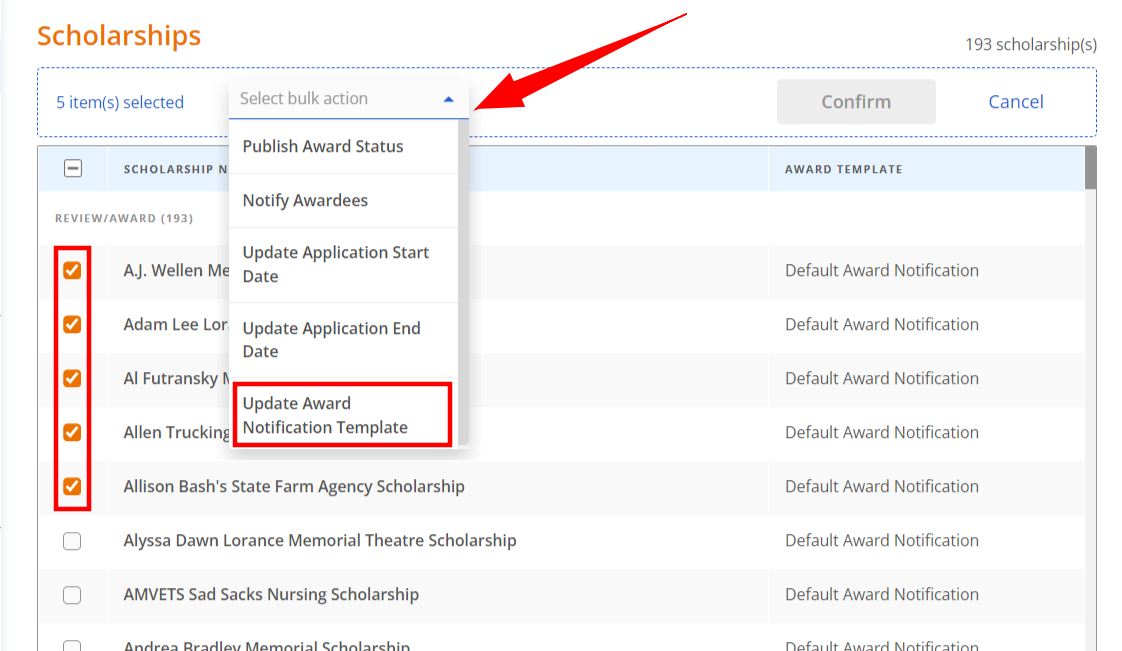
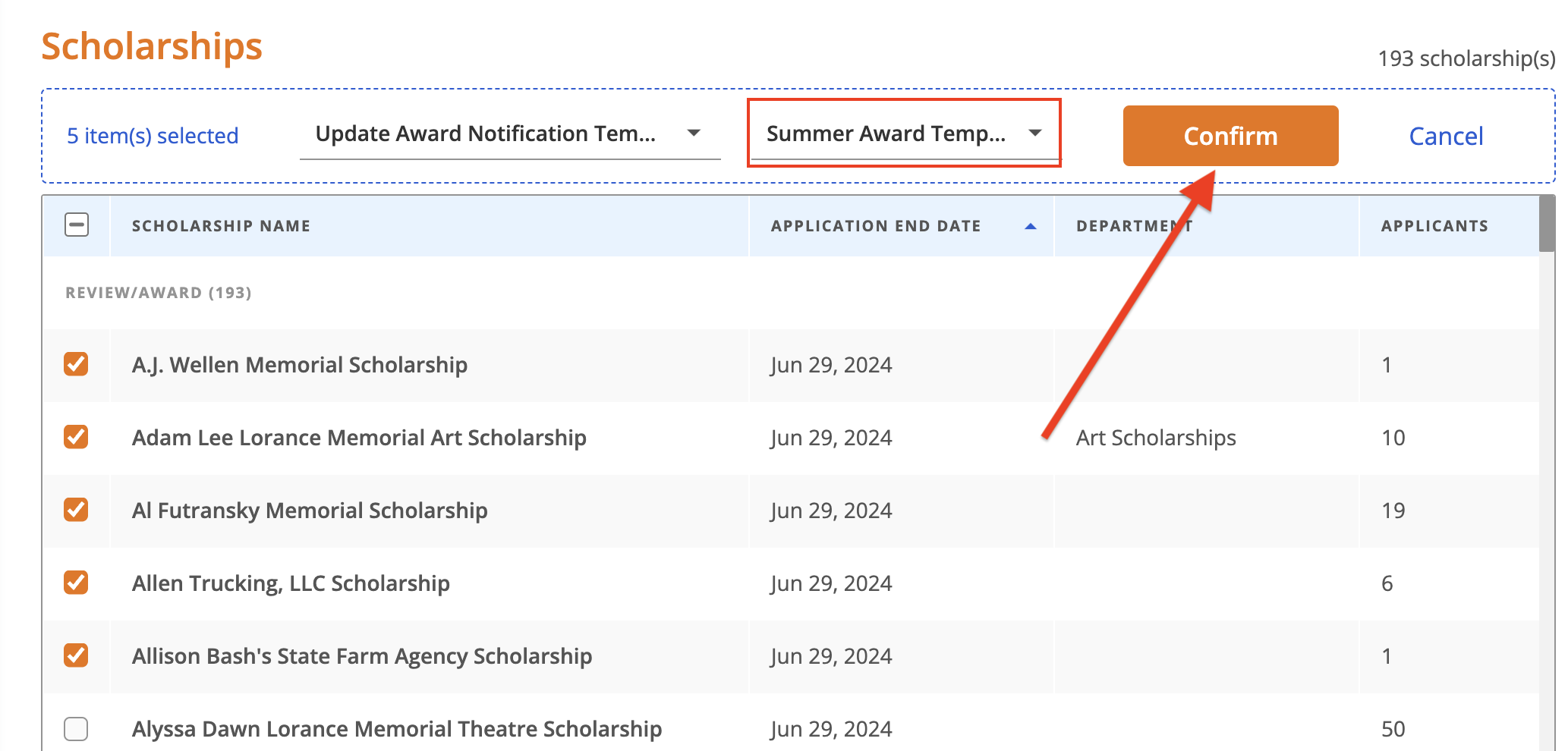
Finally, select a template from the template menu and click the 'Confirm' button.