
Creating New Reports
To get started, navigate to Reports > Smart Reports. Use the dropdown menu to select a report type.

'Report type' refers to the data sets that are available:
Donor Details
Includes all details from the donor profile (including custom fields) as well as giving history. You can select from the following categories:
- Personal Information (from the donor profile view)
- Professional Information (from the donor profile view)
- Address (from the donor profile view)
- Giving Summary
- Custom Fields (from the donor profile view)
Available filters: Stages, custom fields
Giving Records
Includes detailed donor activity and key donor details (including custom fields and giving summaries). You can select from the following categories:
- Record Details (from the activity tab)
- Donor Details (basic details and giving summaries)
- Custom Fields (from the donor profile view)
Available filters: Record Type (i.e. Gift, Pledge)
Customizing the Report
Filters
Use report filters to limit the output of the data. Select a default filter (e.g. Stage, Record Type) or leave the filter to 'Not Set'.
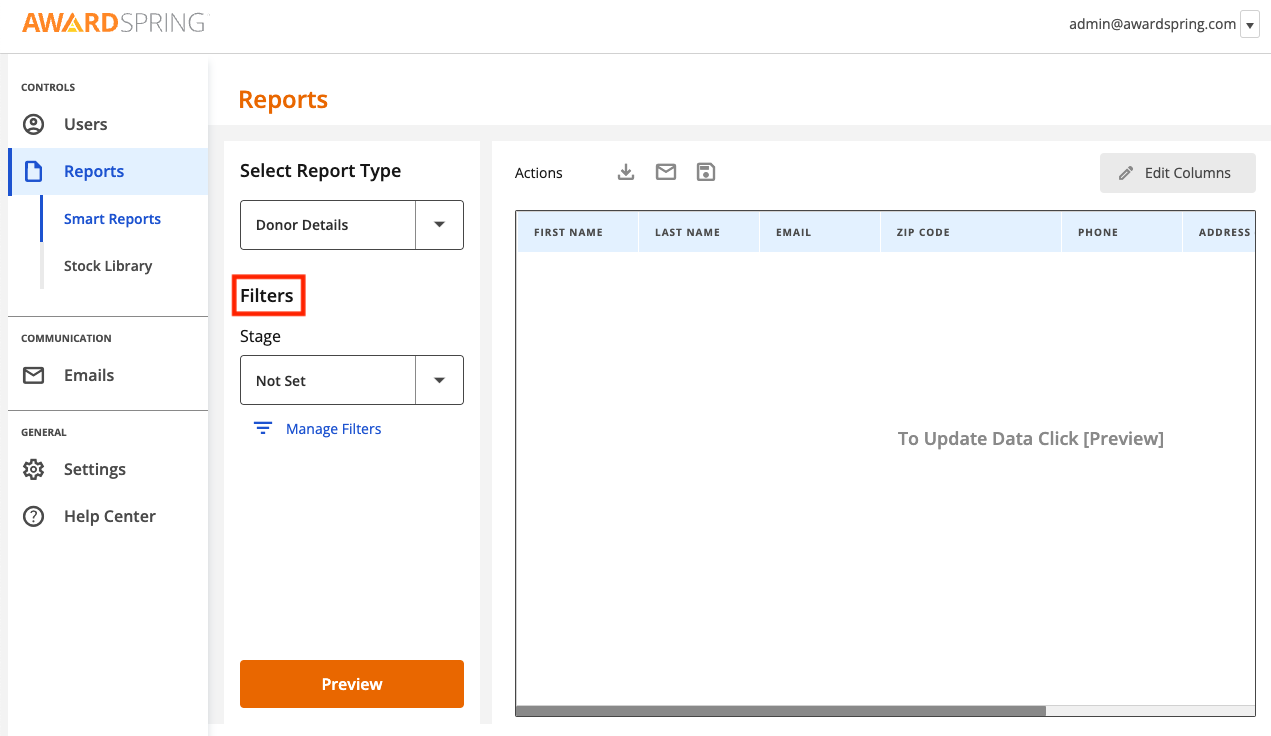
Some reports allow you to filter using custom fields. To do this, use the 'Manage Filters' option.
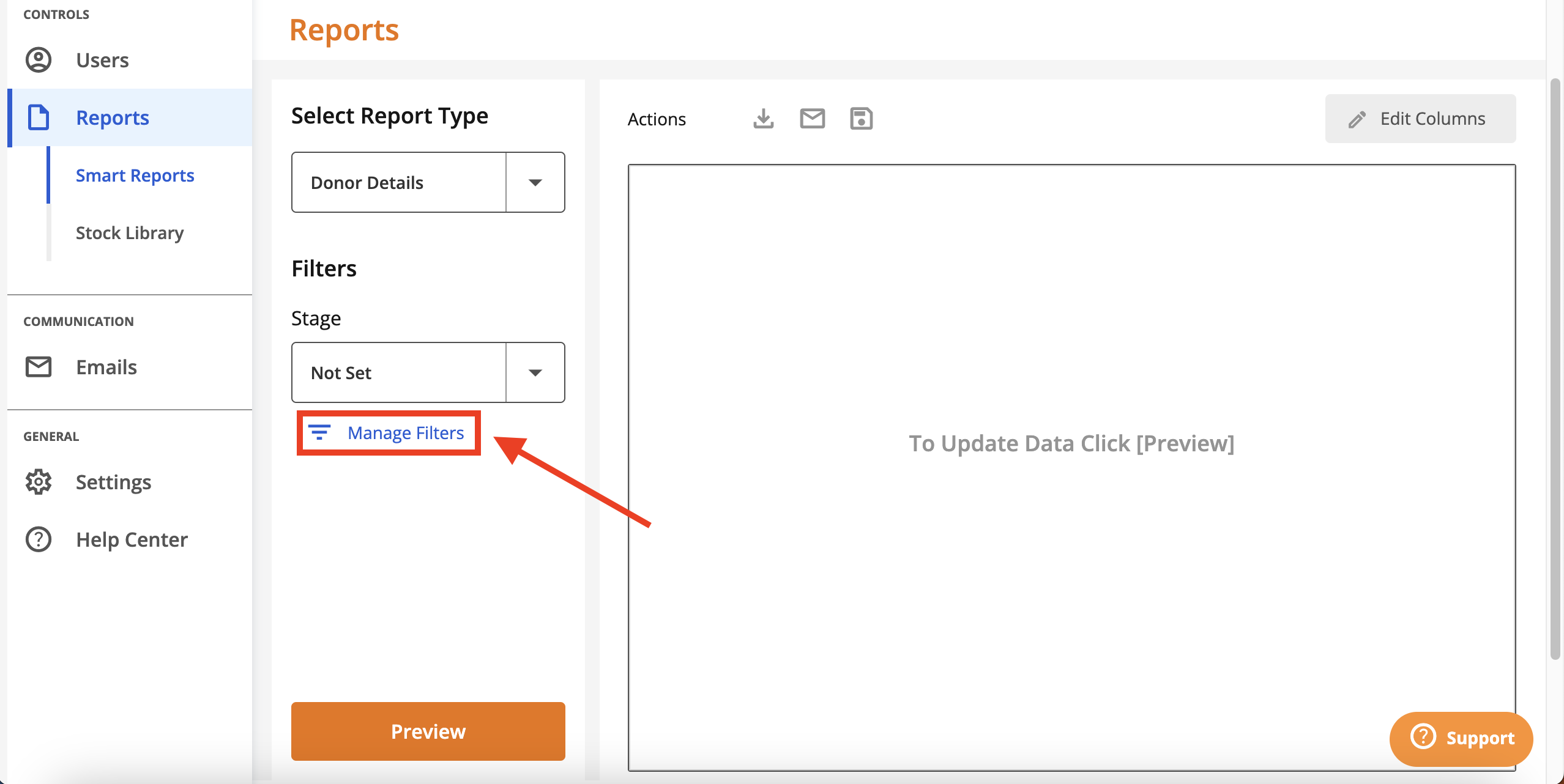
Available fields will appear in the 'Filter by:' dropdown.
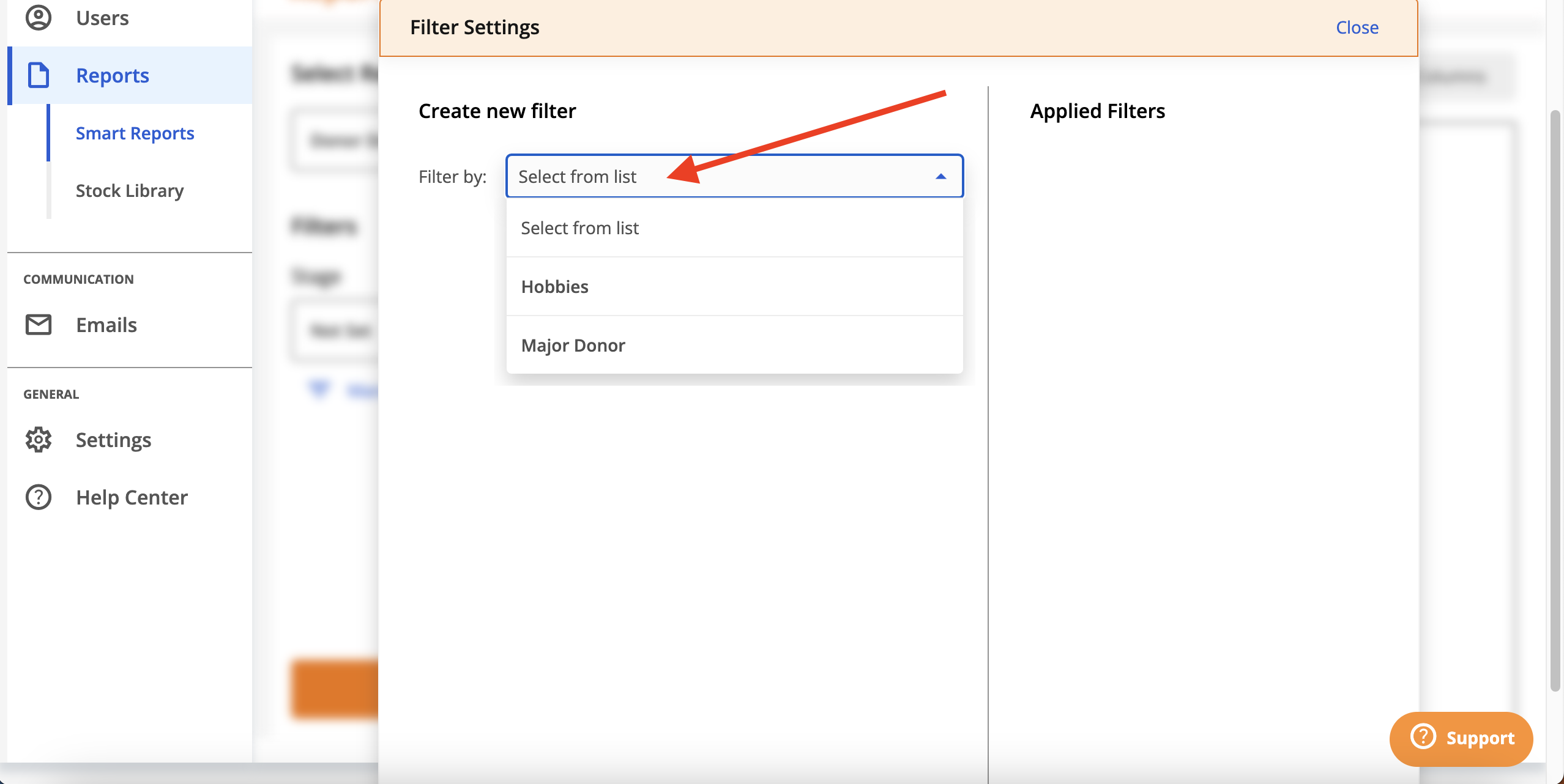
Select a field to use it as a filter and set the options. Click Apply.
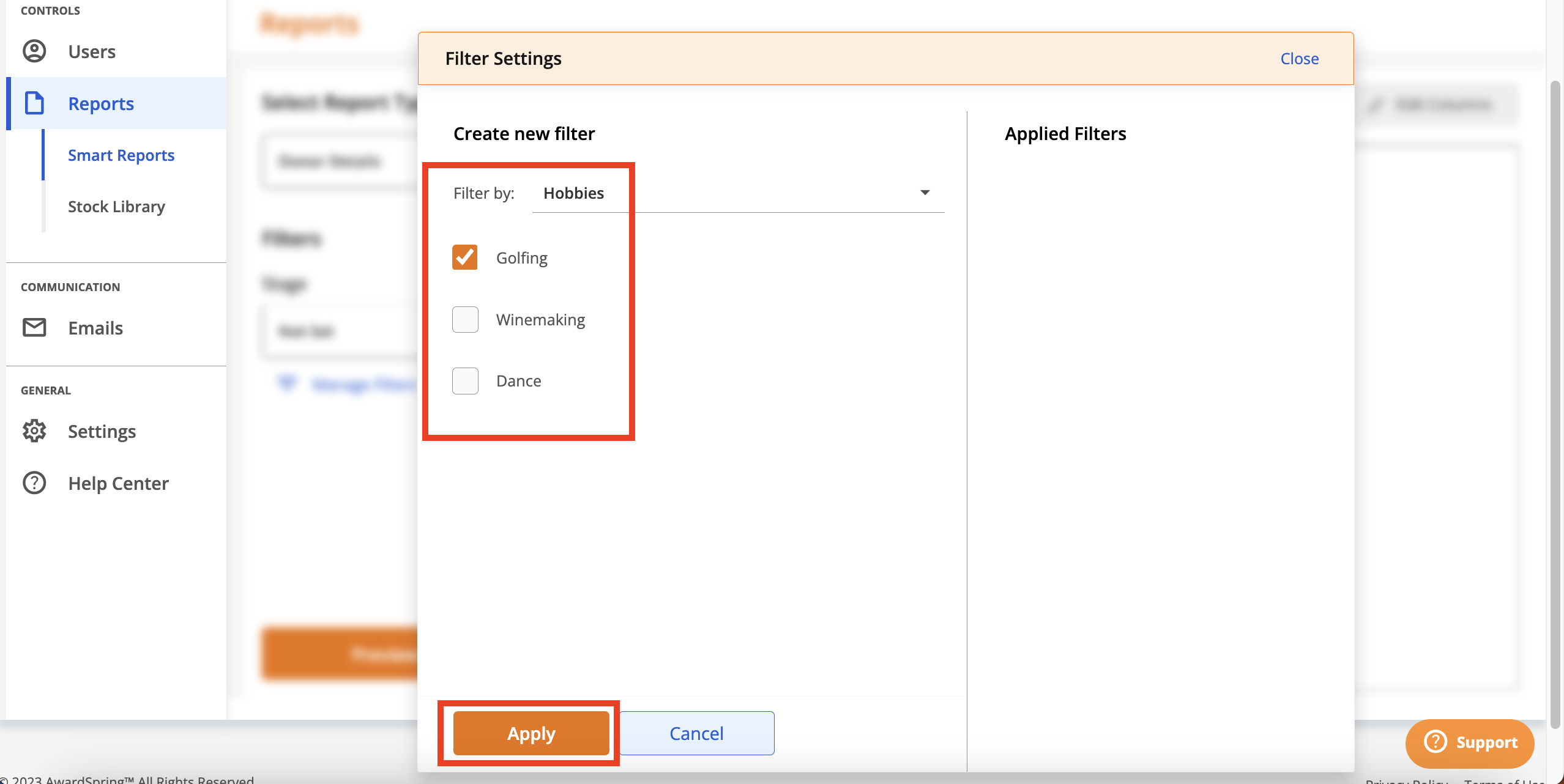
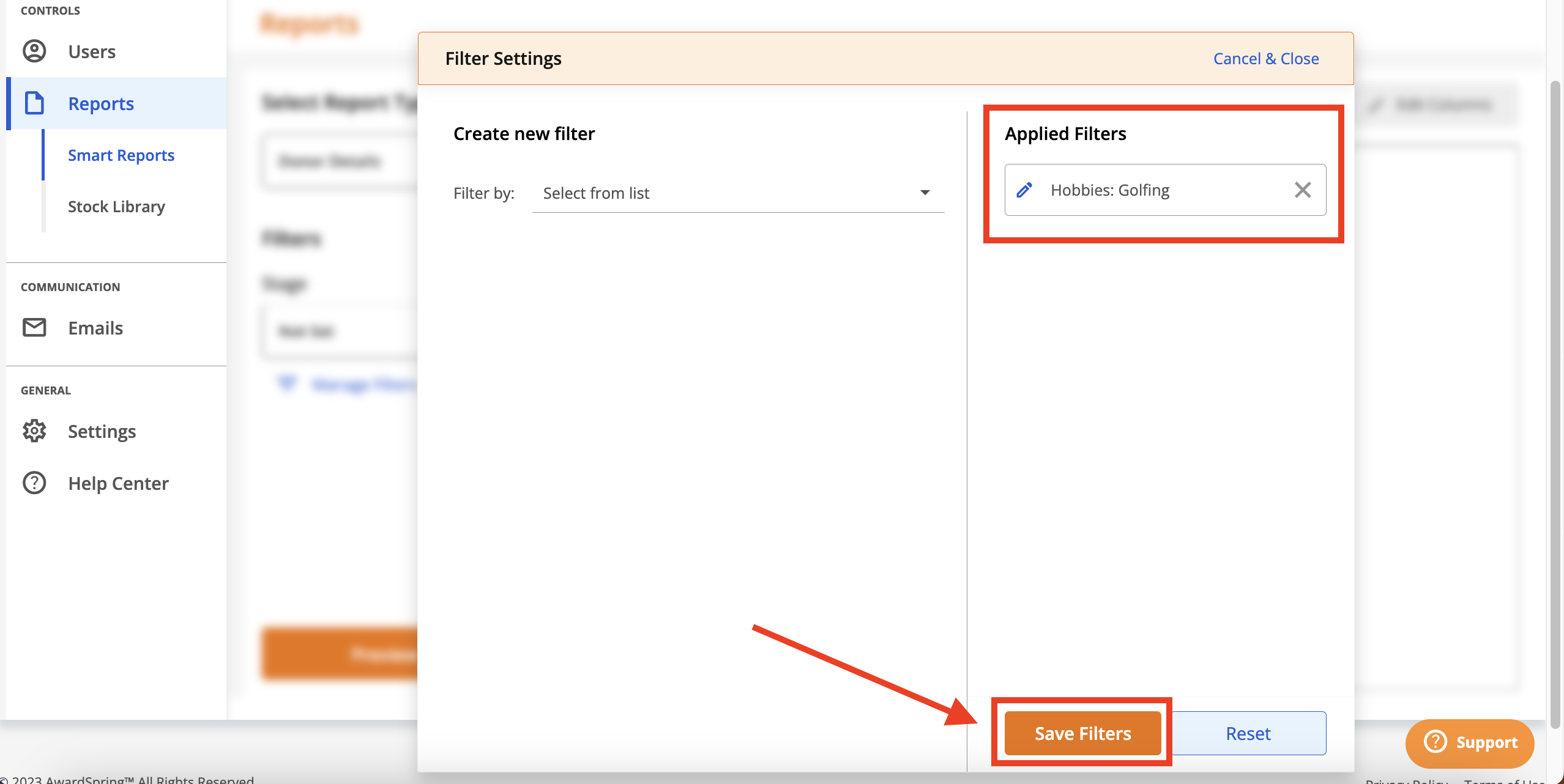
The filters will appear under the Applied Filters section to the right. Use the pencil to edit the filter, or use the X to remove the filter. Once your filters are set, click Save Filters.
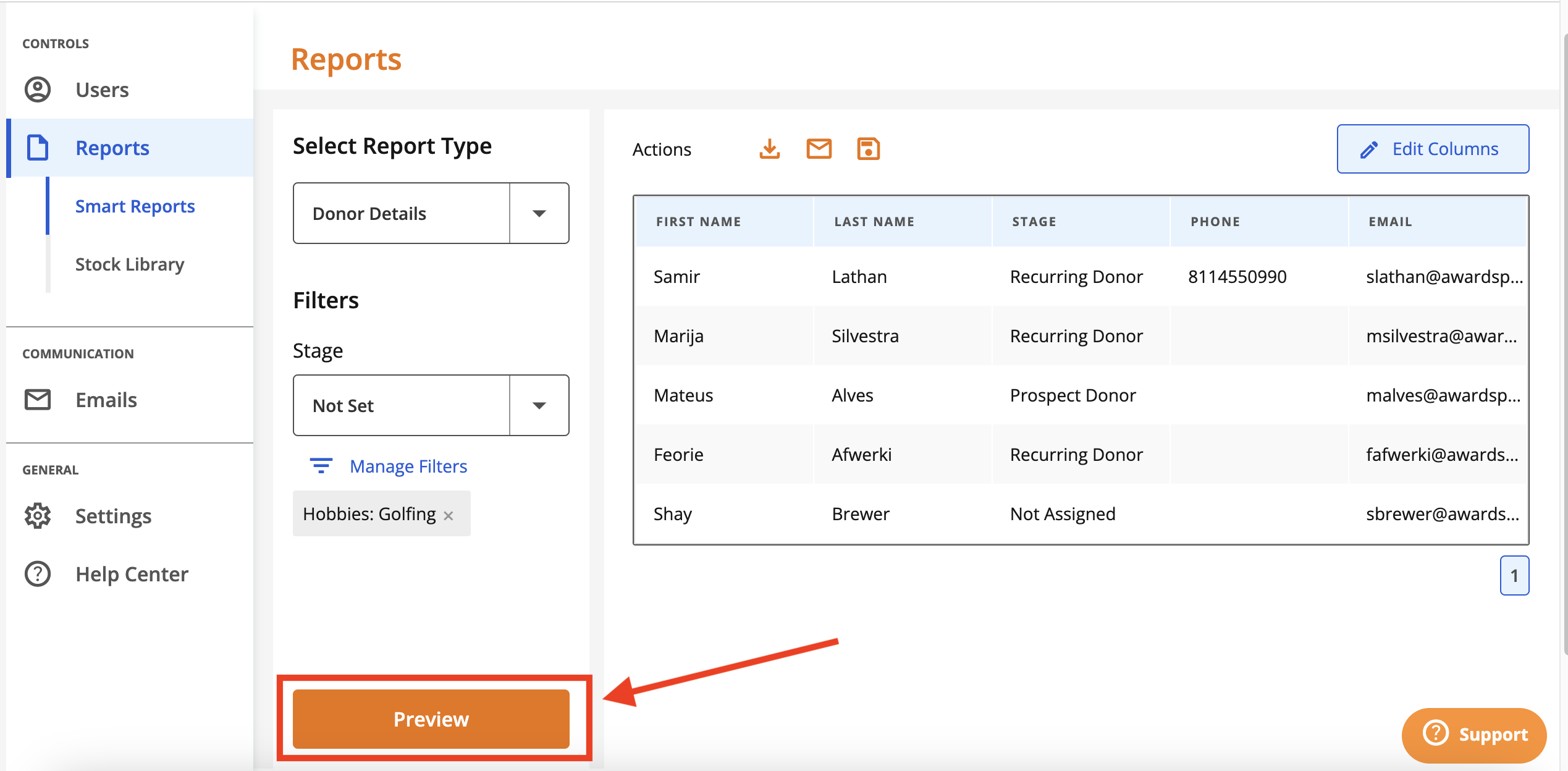
You will be then be taken back to the main report screen. Click 'Preview' to preview the data that will be included in the report output.
If more than 10 records are displayed, an arrow will appear next to the page numbers which allows you to preview the next page of data.
Adding/Editing Columns
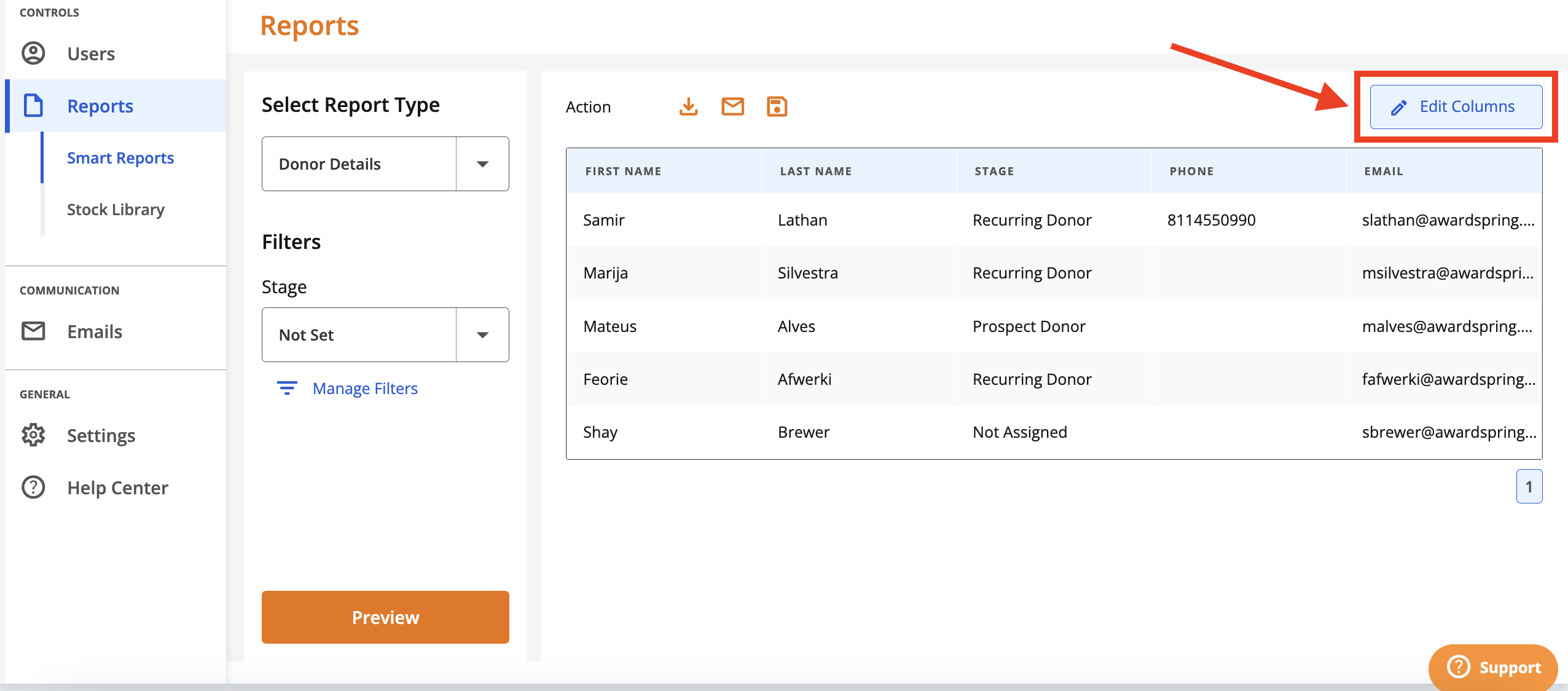
Click 'Edit Columns' to customize the data points to include in the report output.
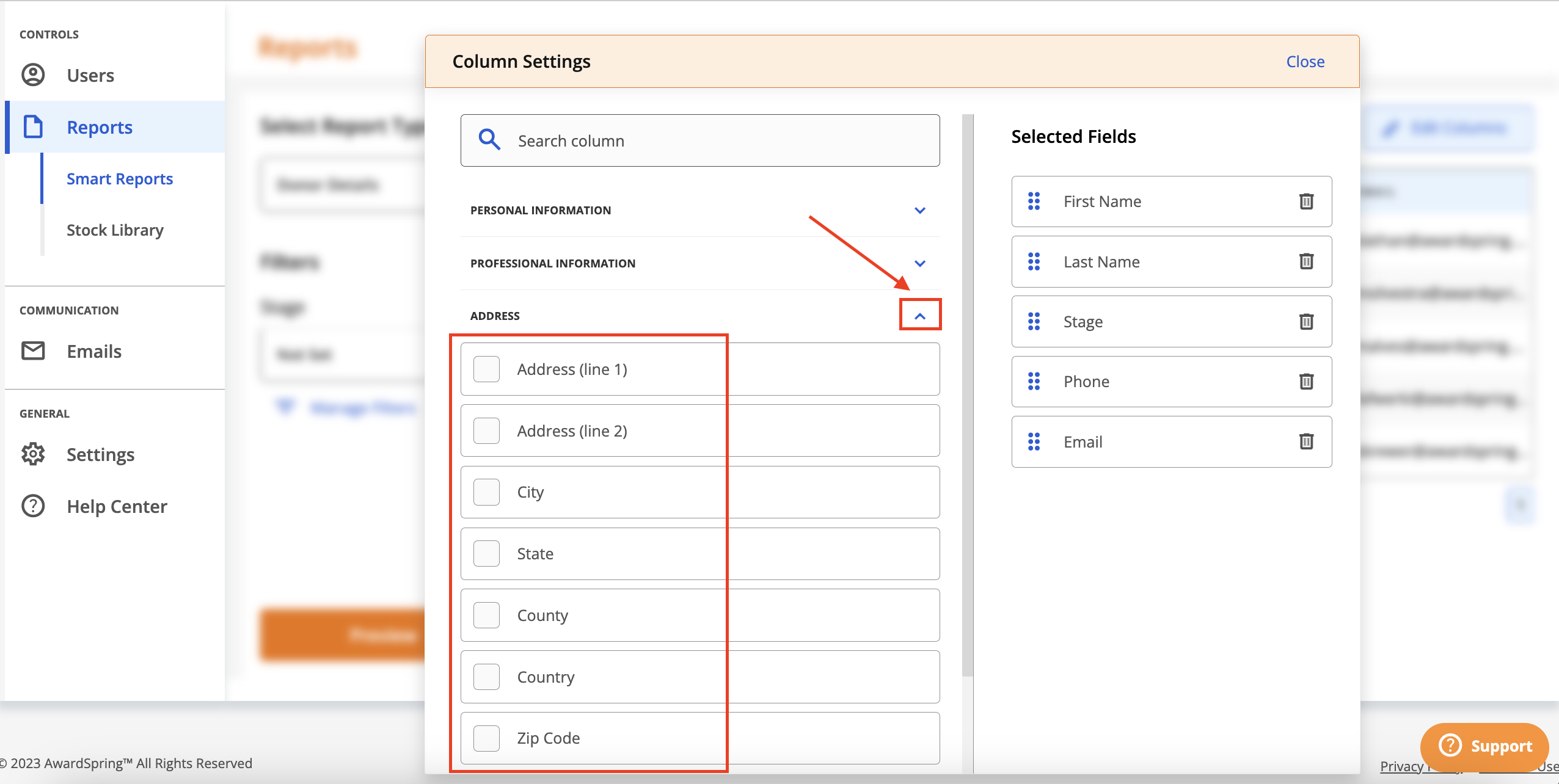
Click on a section to expand and view the available data points for that category.
Alternatively, search all data points across all categories using a keyword.
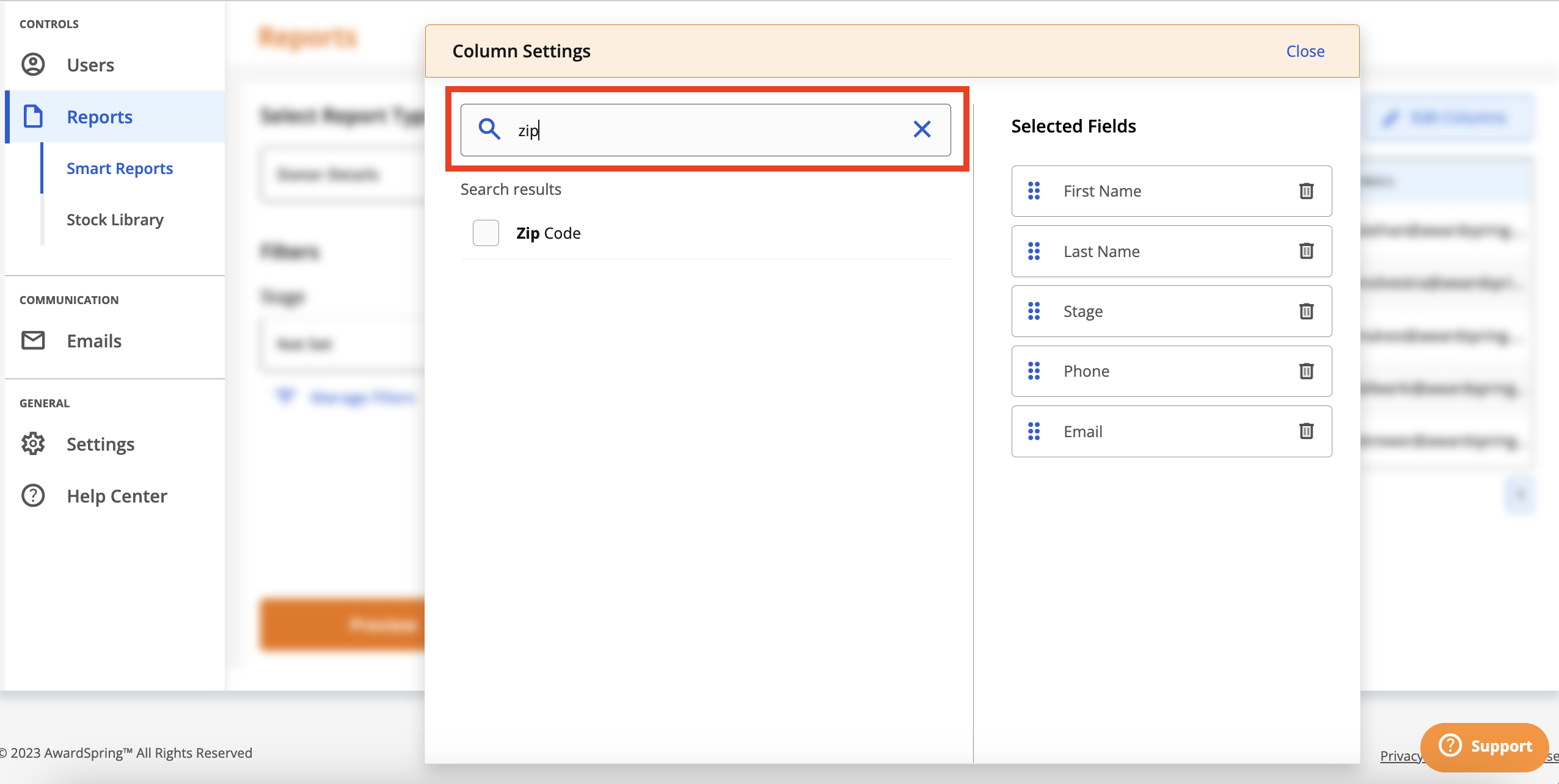
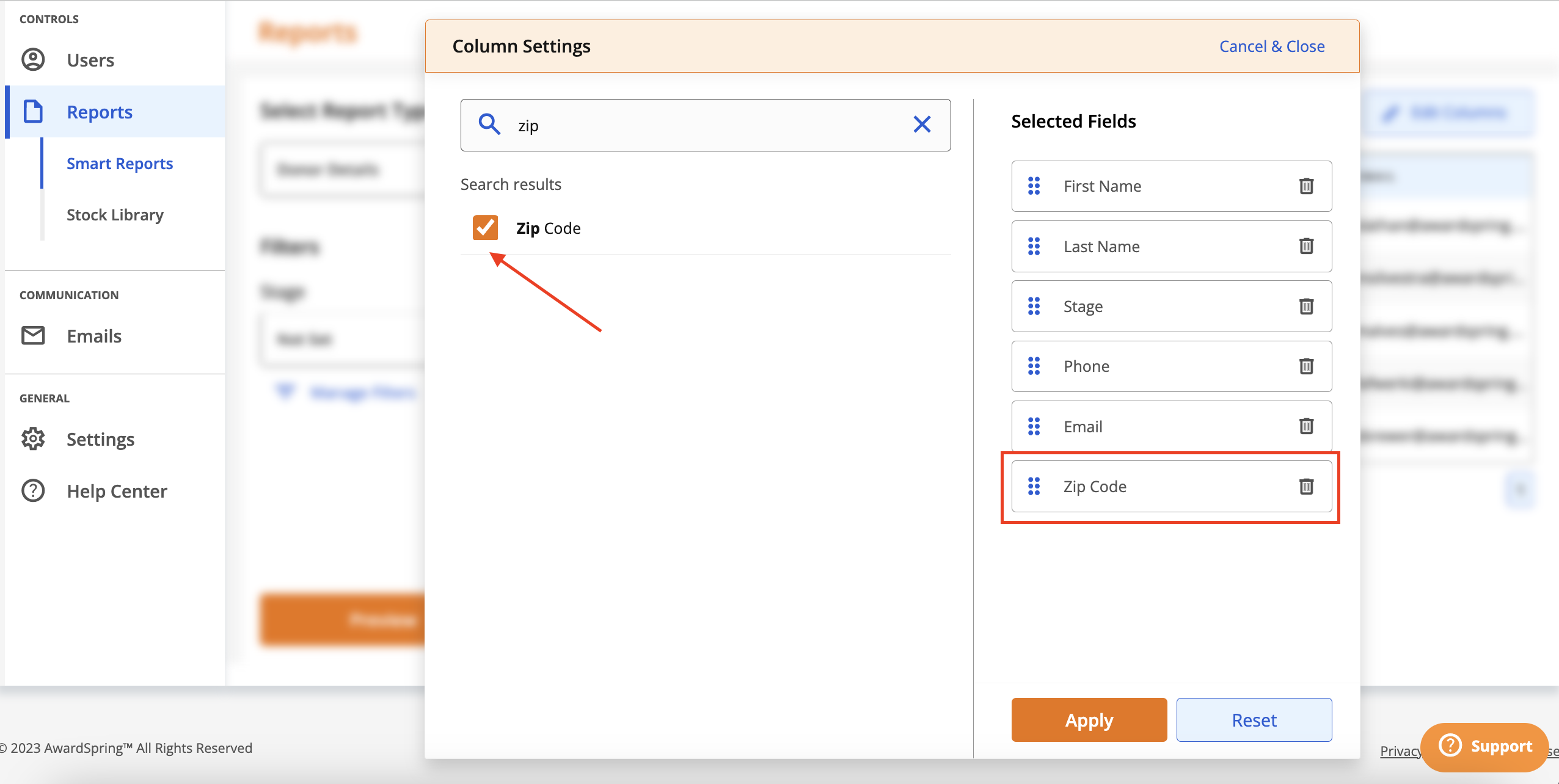
Click the checkbox next to a data point to add it to the report. The data point will appear in the Selected Fields section to the right.
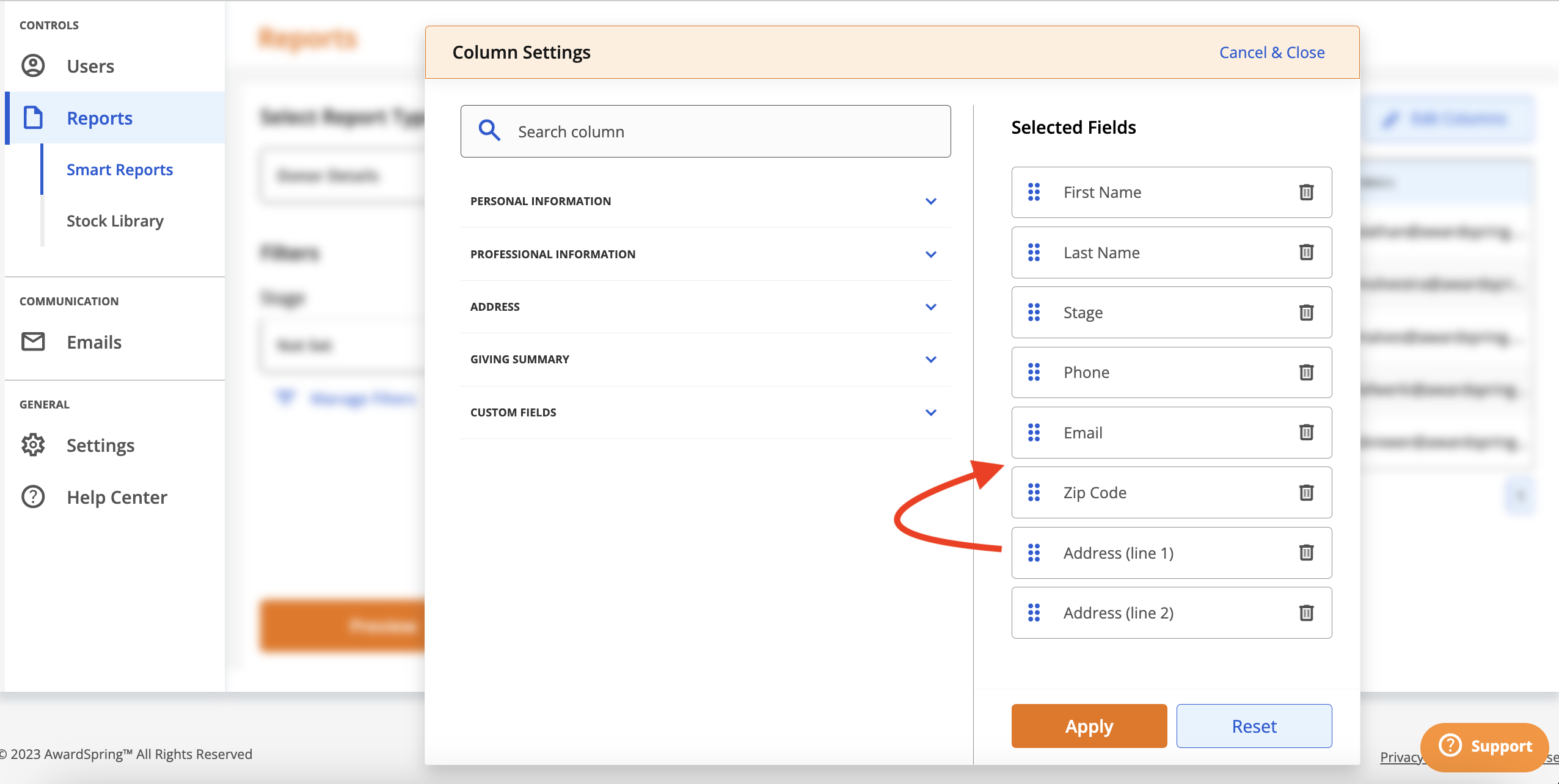
Drag and drop fields to organize them into the desired order.
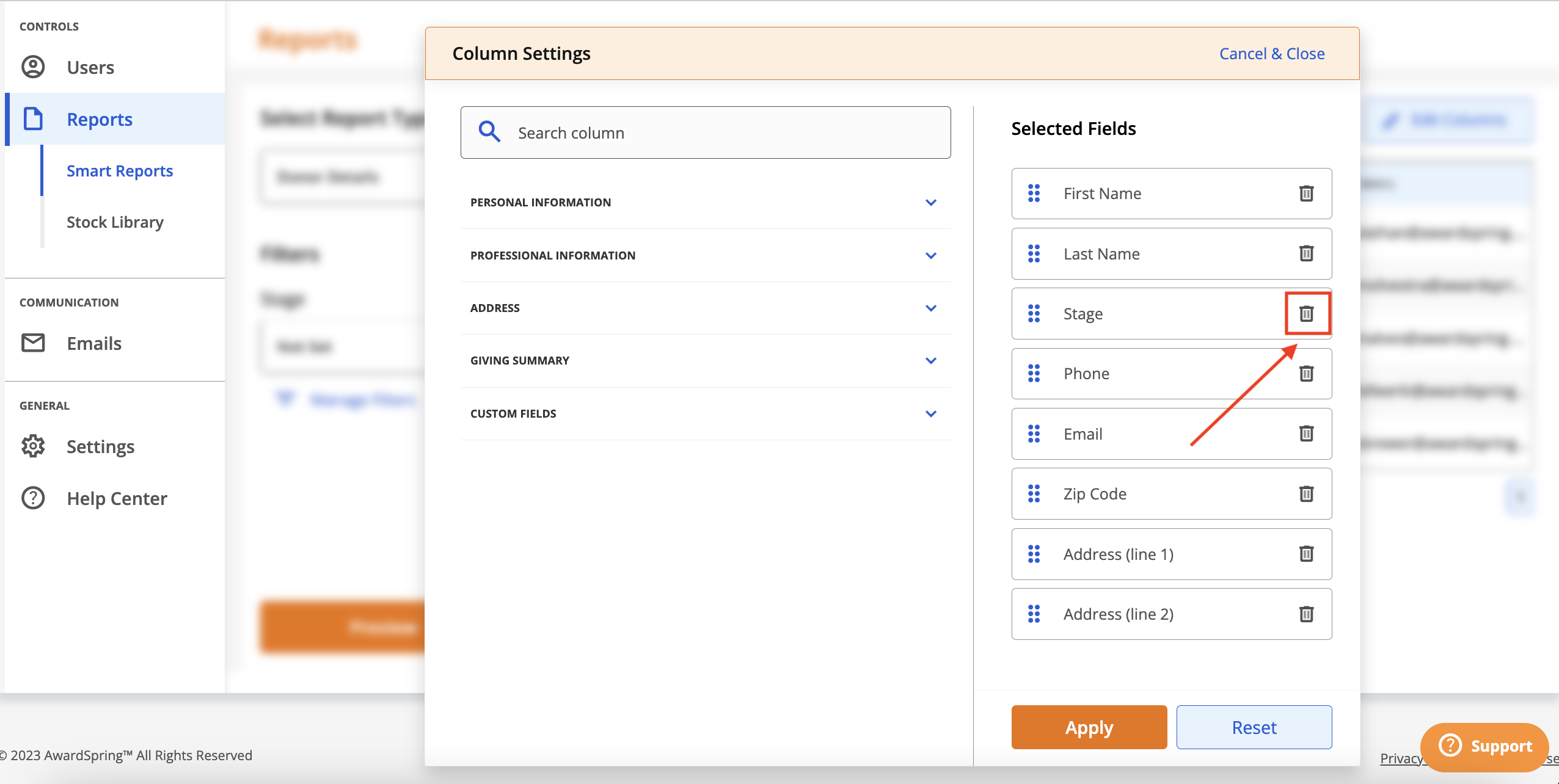
Use the trash can to remove a data point.
Click Apply to save your changes.
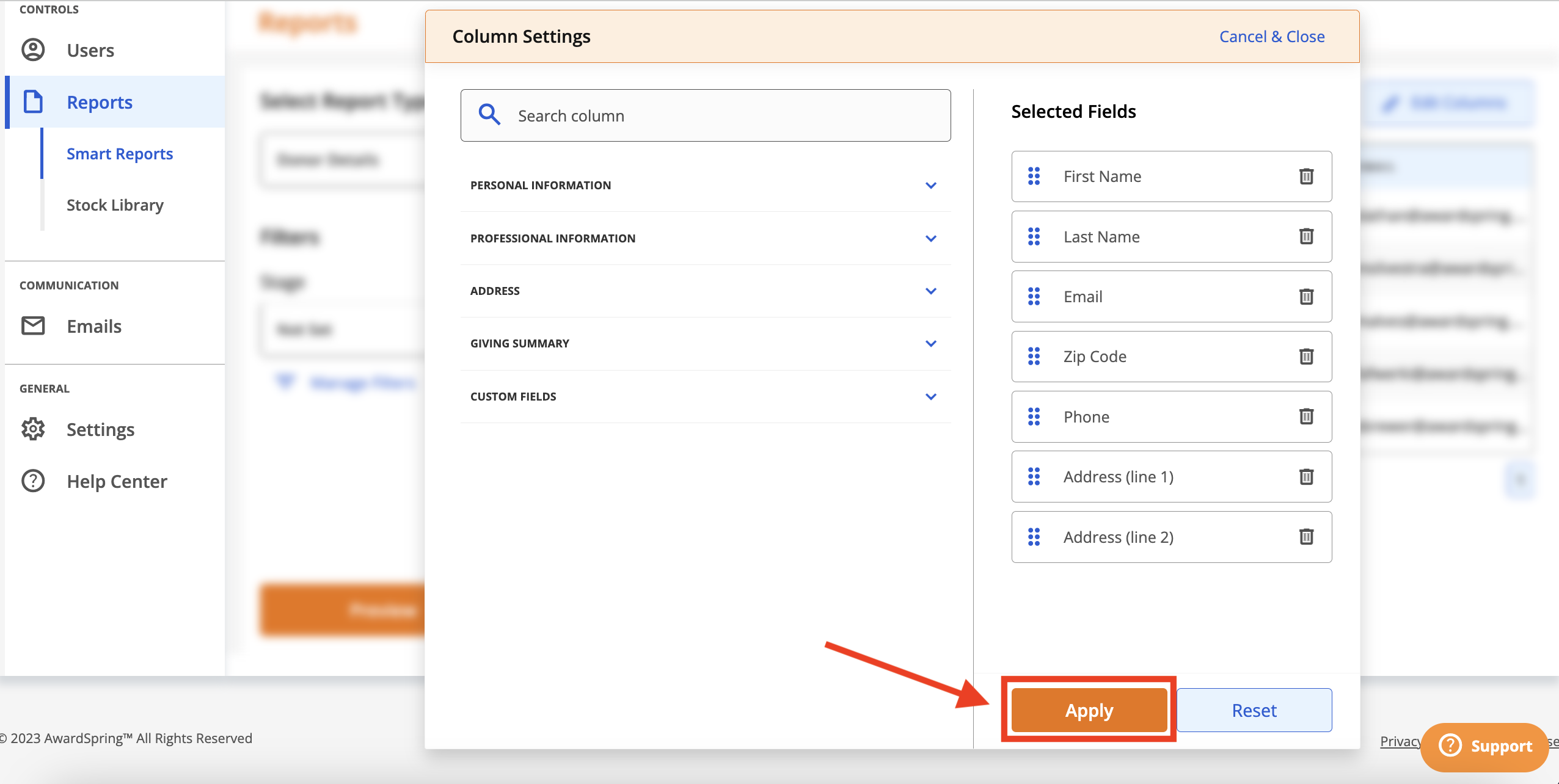
Close the window to be taken back to the report interface.
Report Actions
Report actions are located in the report interface.
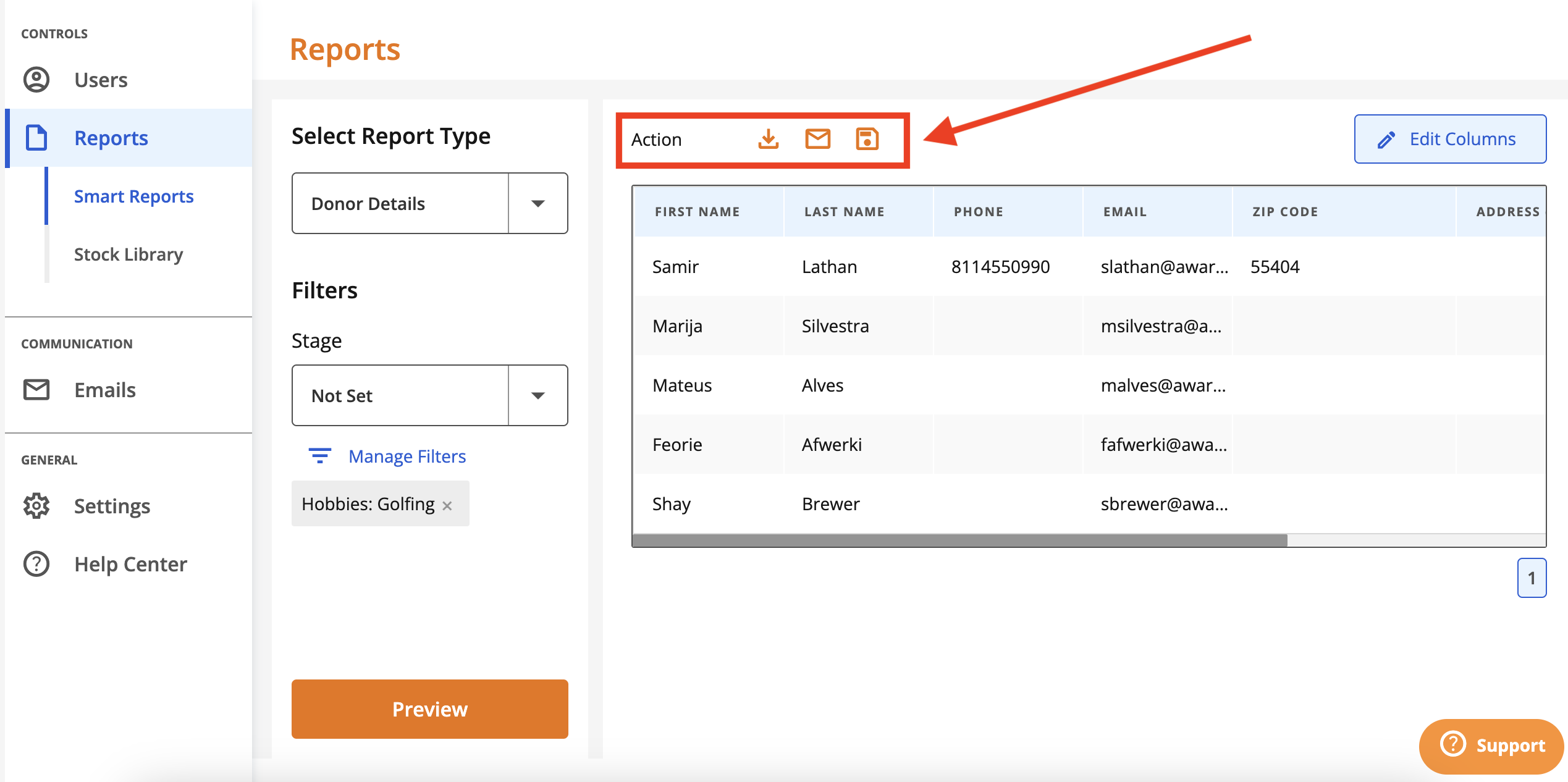
You can download, save or email from the reports interface.
Download
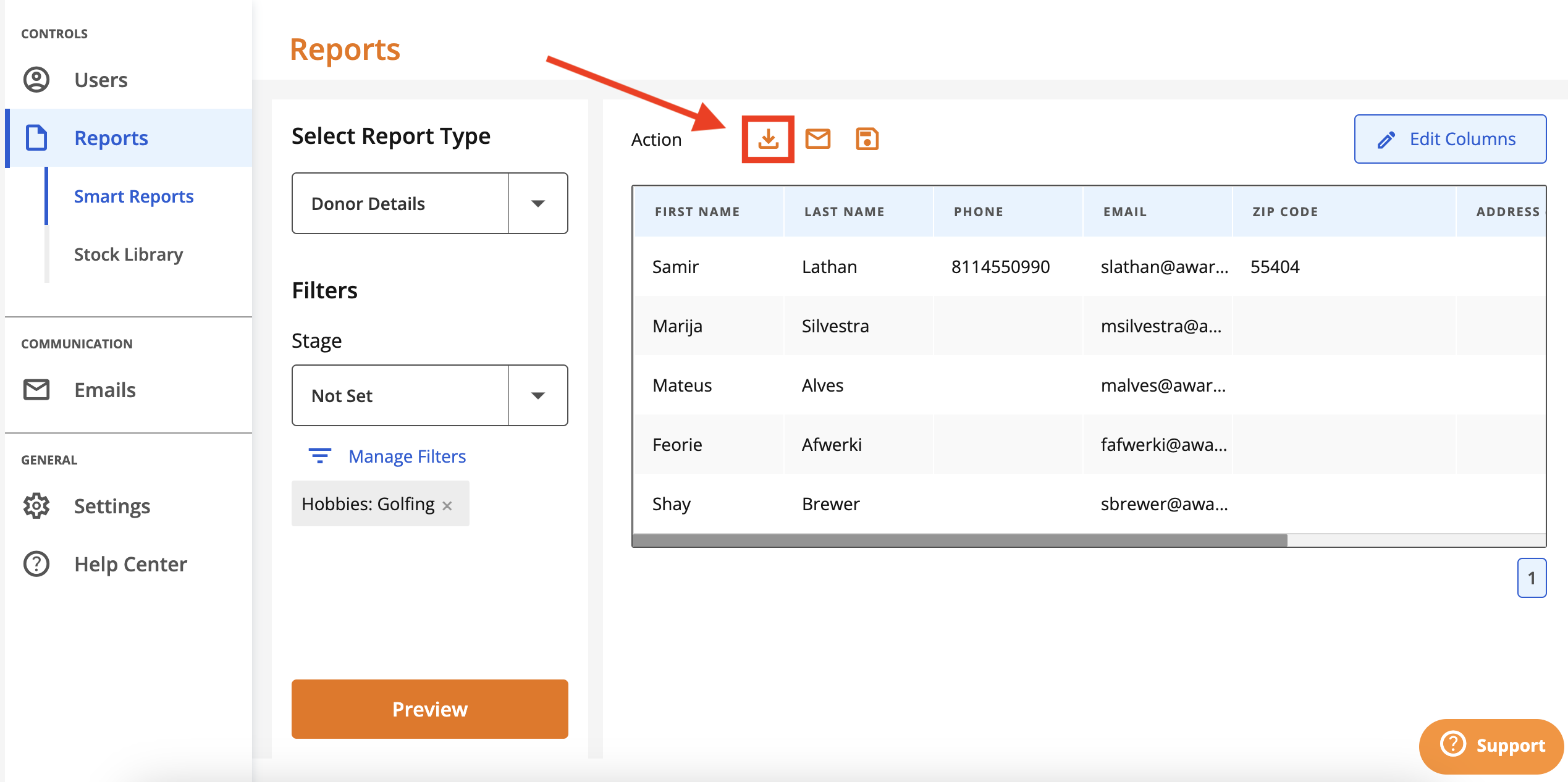
To download the report data as is, click the 'download' icon.
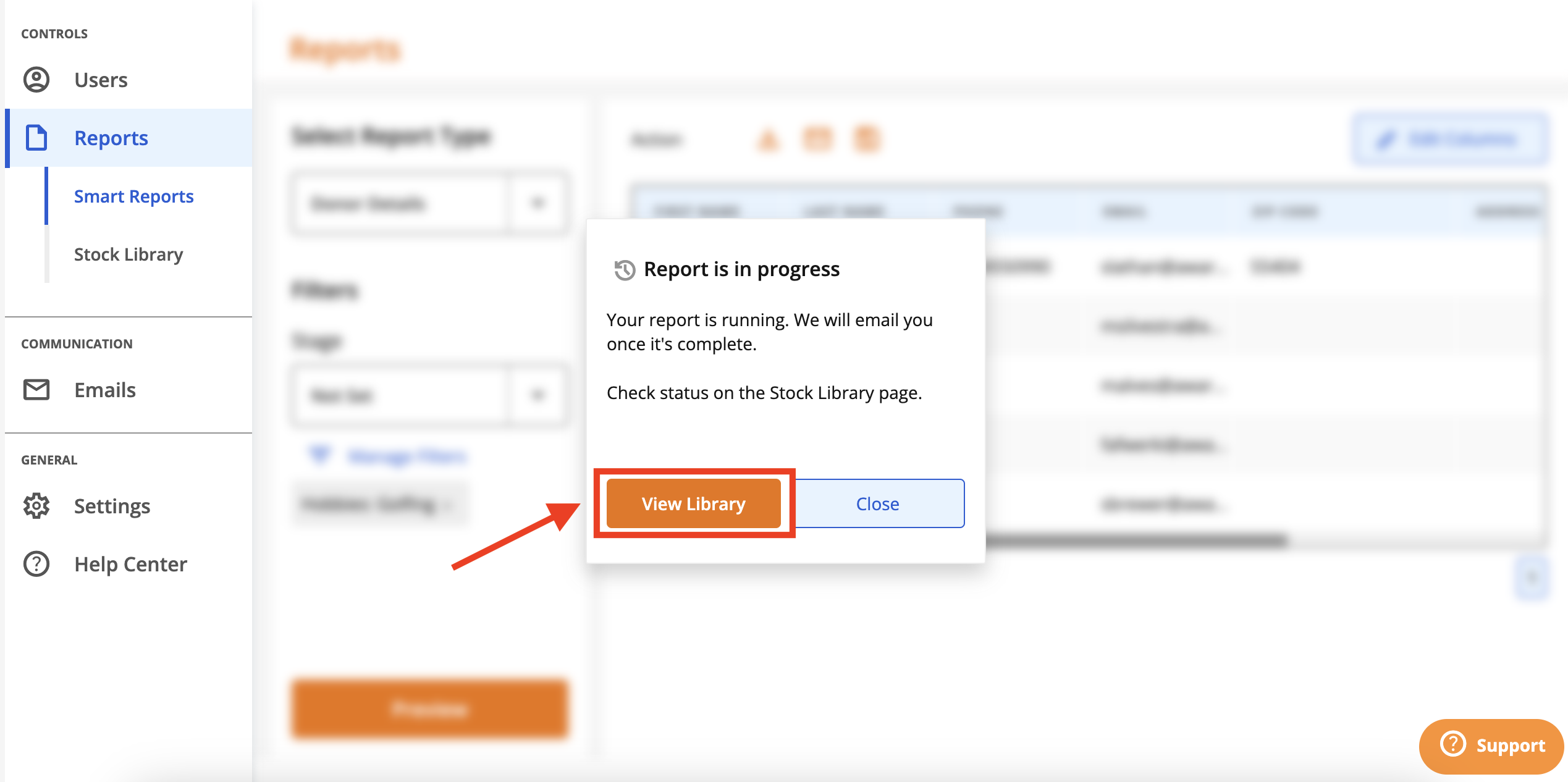
A message will appear informing you that the report download is in progress. You'll receive an email when your report is available. You can also click View Library to be taken to the report downloads page.
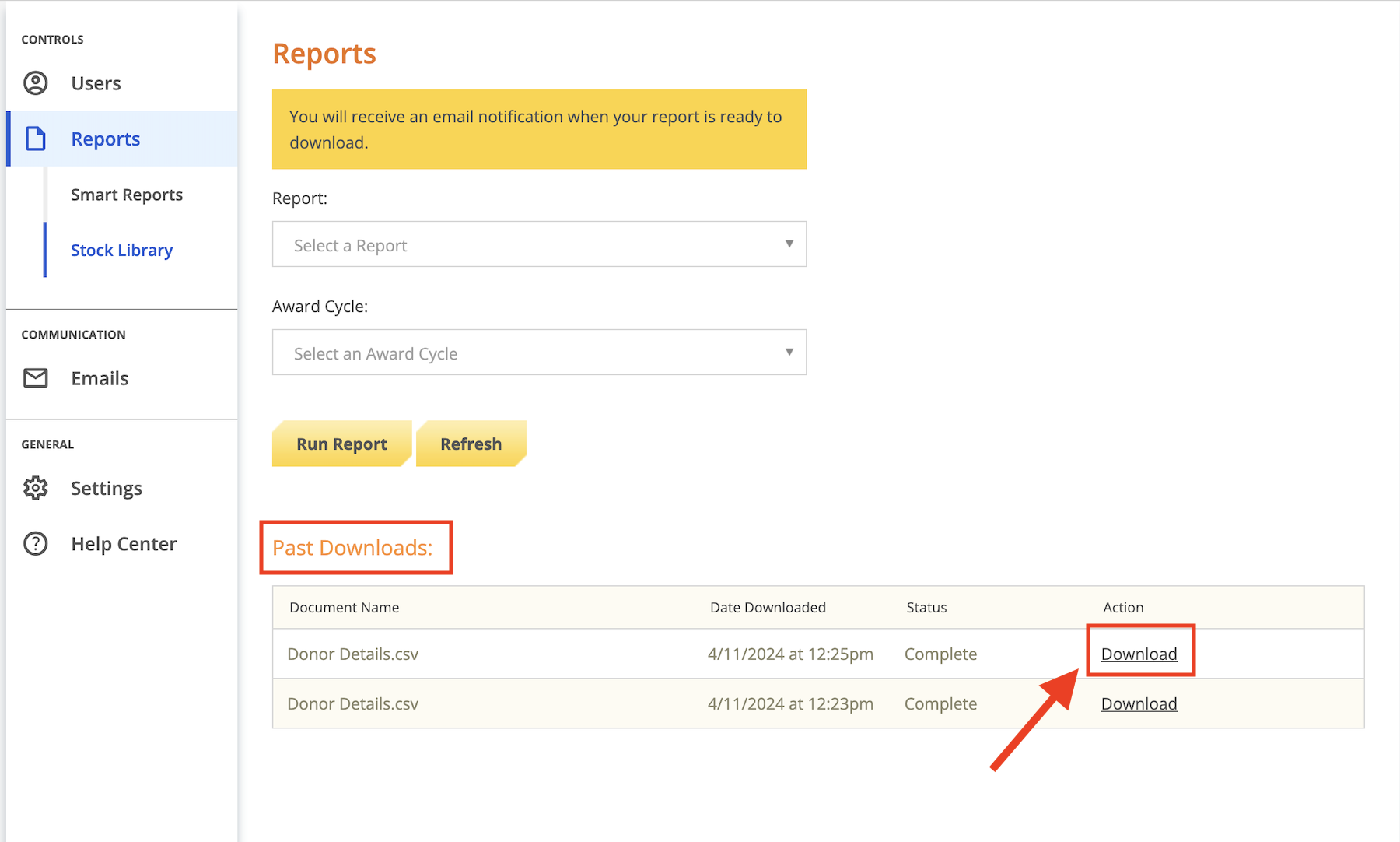
Your report will be available in the Past Downloads section. Click Download to download the report.
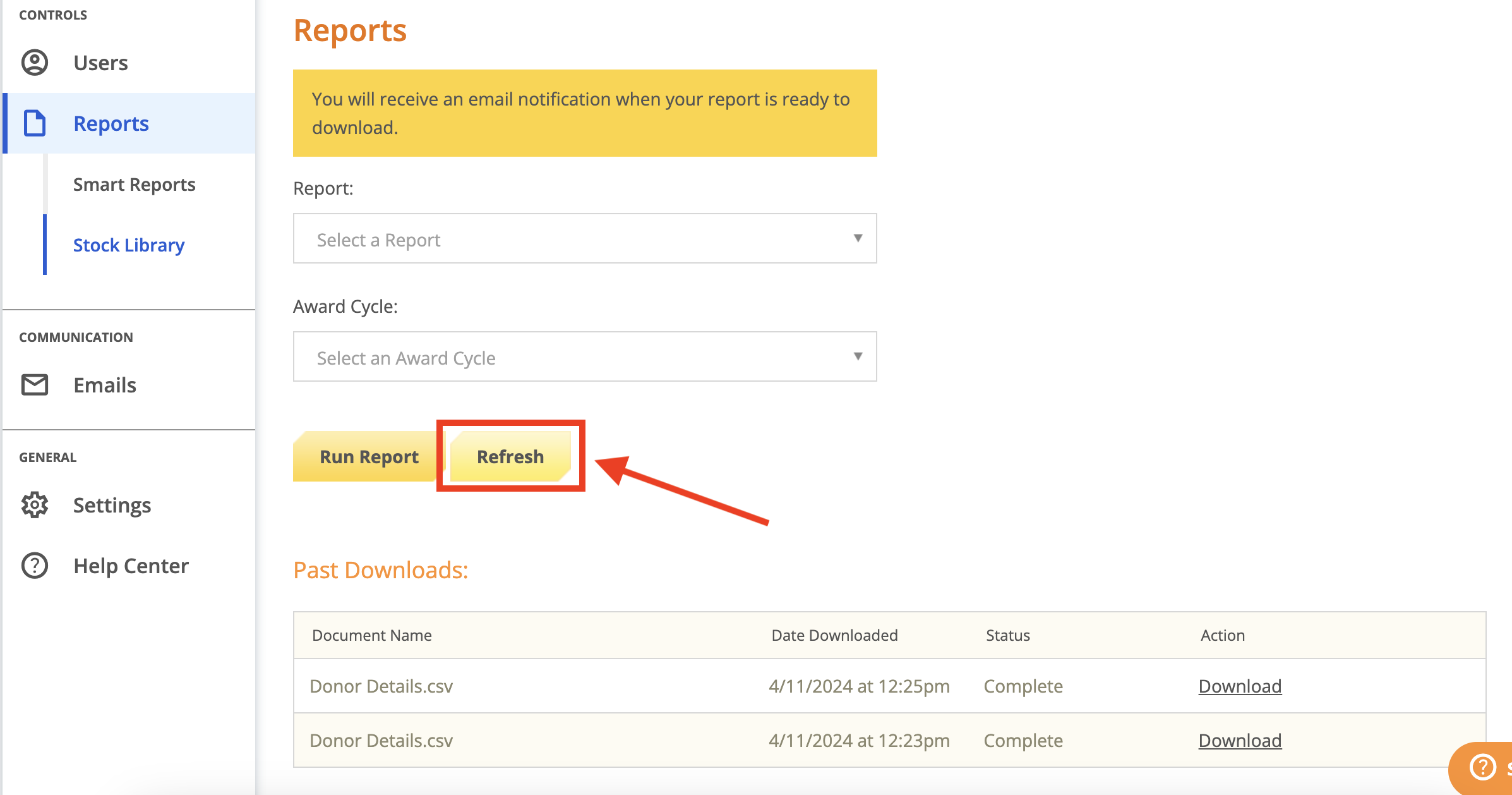
If you do not see the report in the Past Downloads section right away, click the 'Refresh' button.
Save
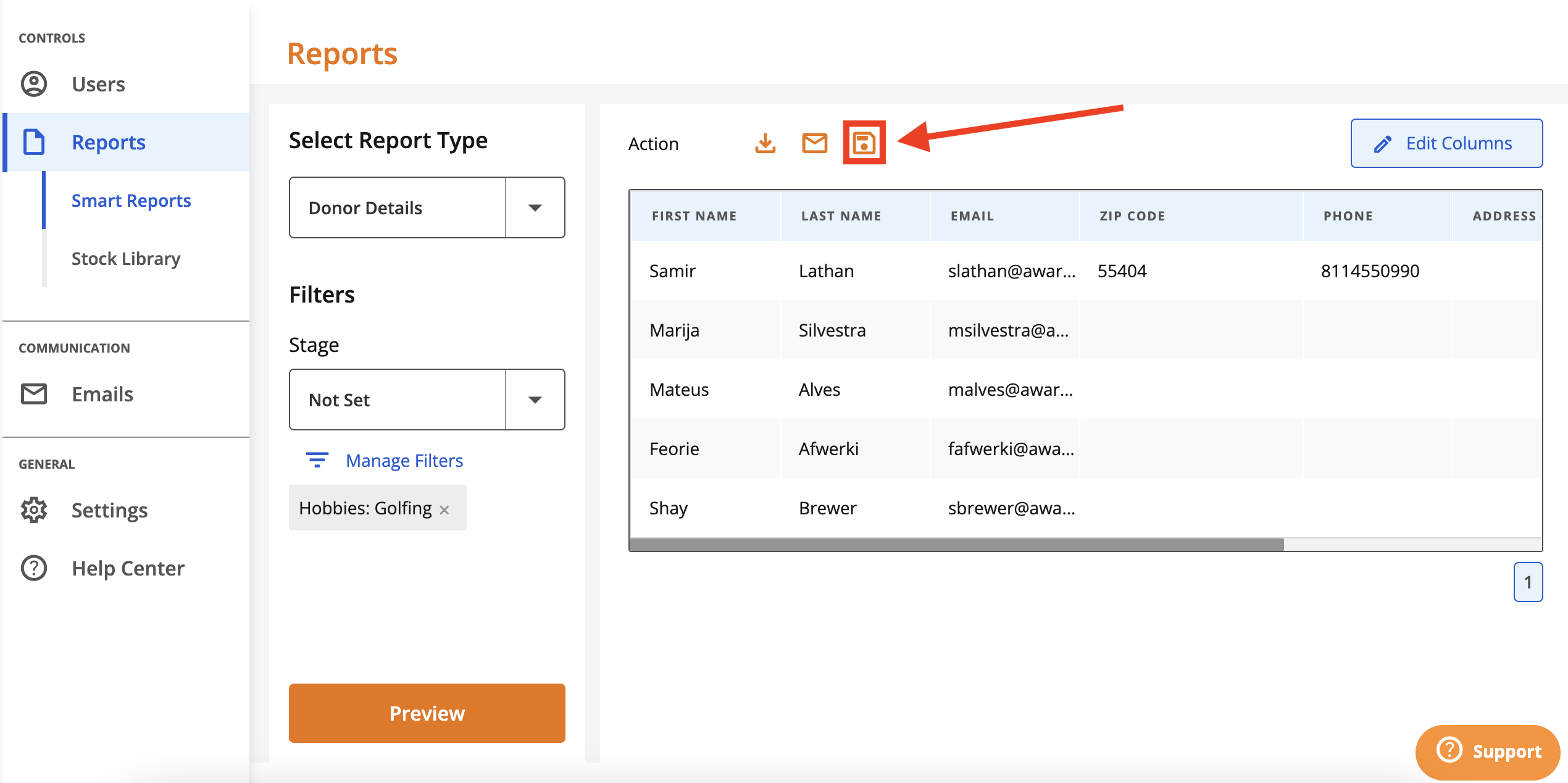
Saving a report retains the report definition so that you can access it at a later time. To save a report, click the 'save' icon.
You'll be prompted to either create a new report or update an existing report. To create a new report, click 'Create a new report' and give the report a name.
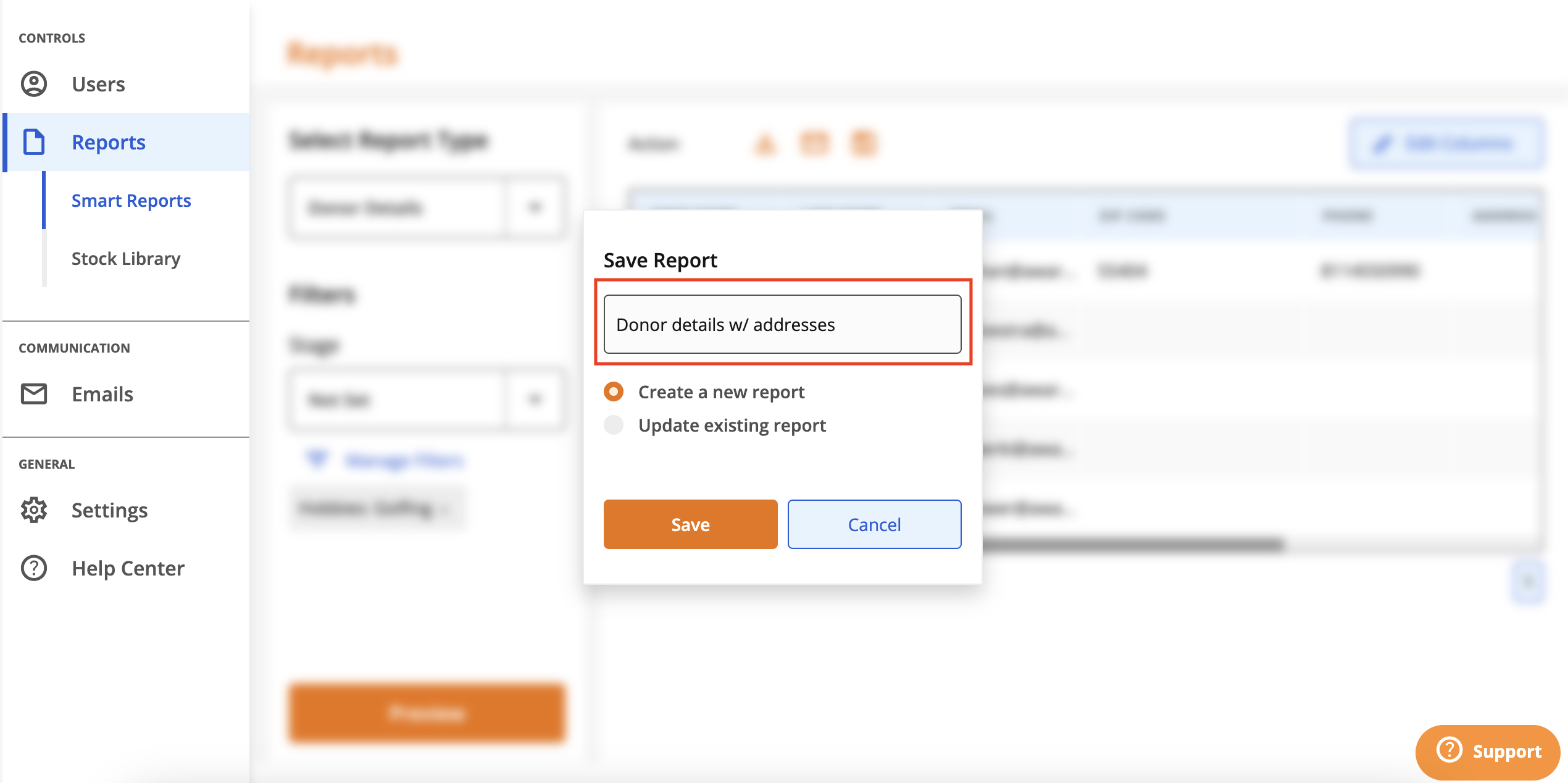
Click Save.
Your report will now be accessible in the reports dropdown menu, under the Saved Reports section.
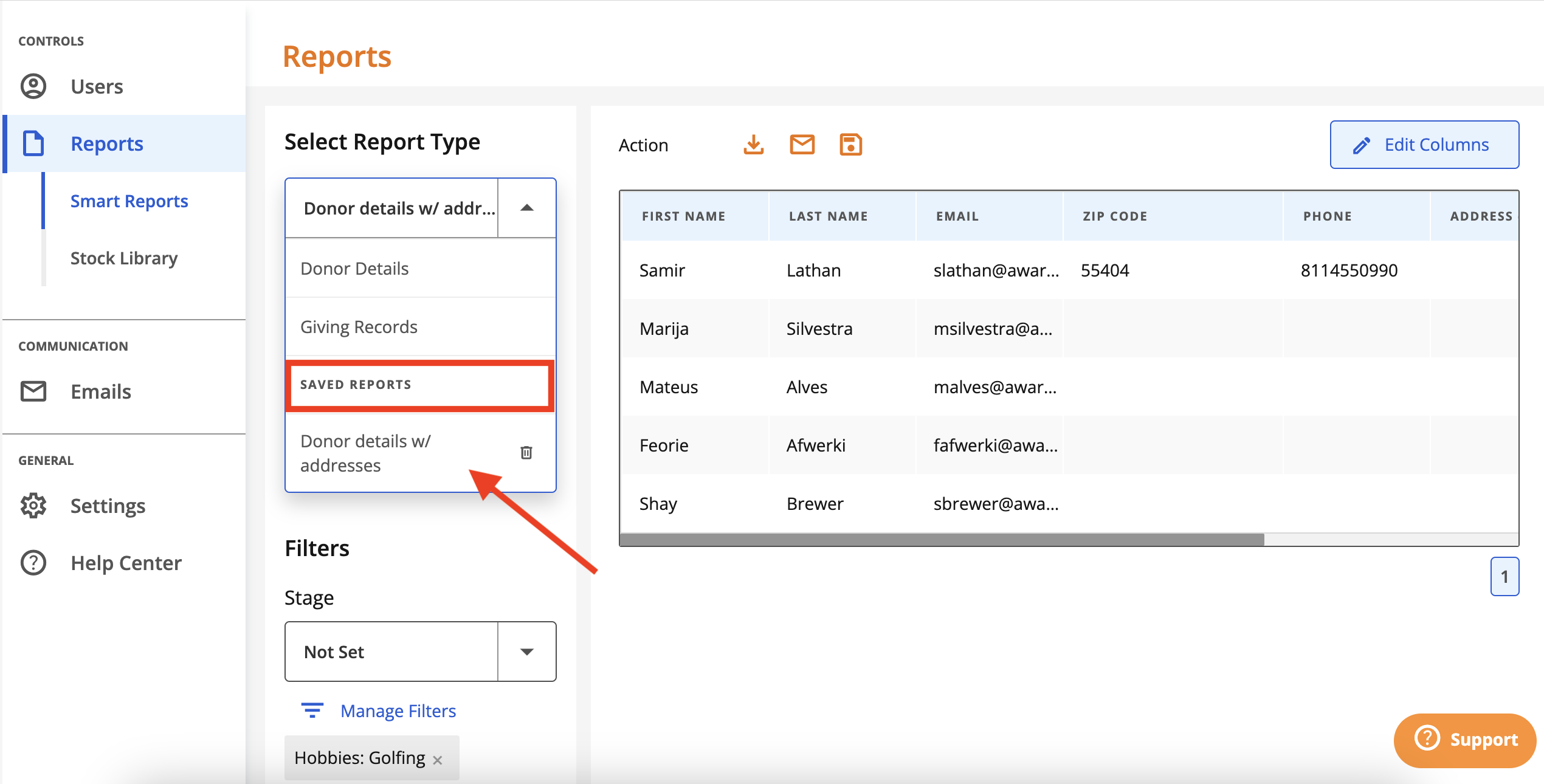
To update an existing report, select it from the reports dropdown menu. Make any adjustments you need to (i.e. add/edit filters; add/edit columns).
Click the 'save' icon.
When prompted, click Update existing report and then click Save.
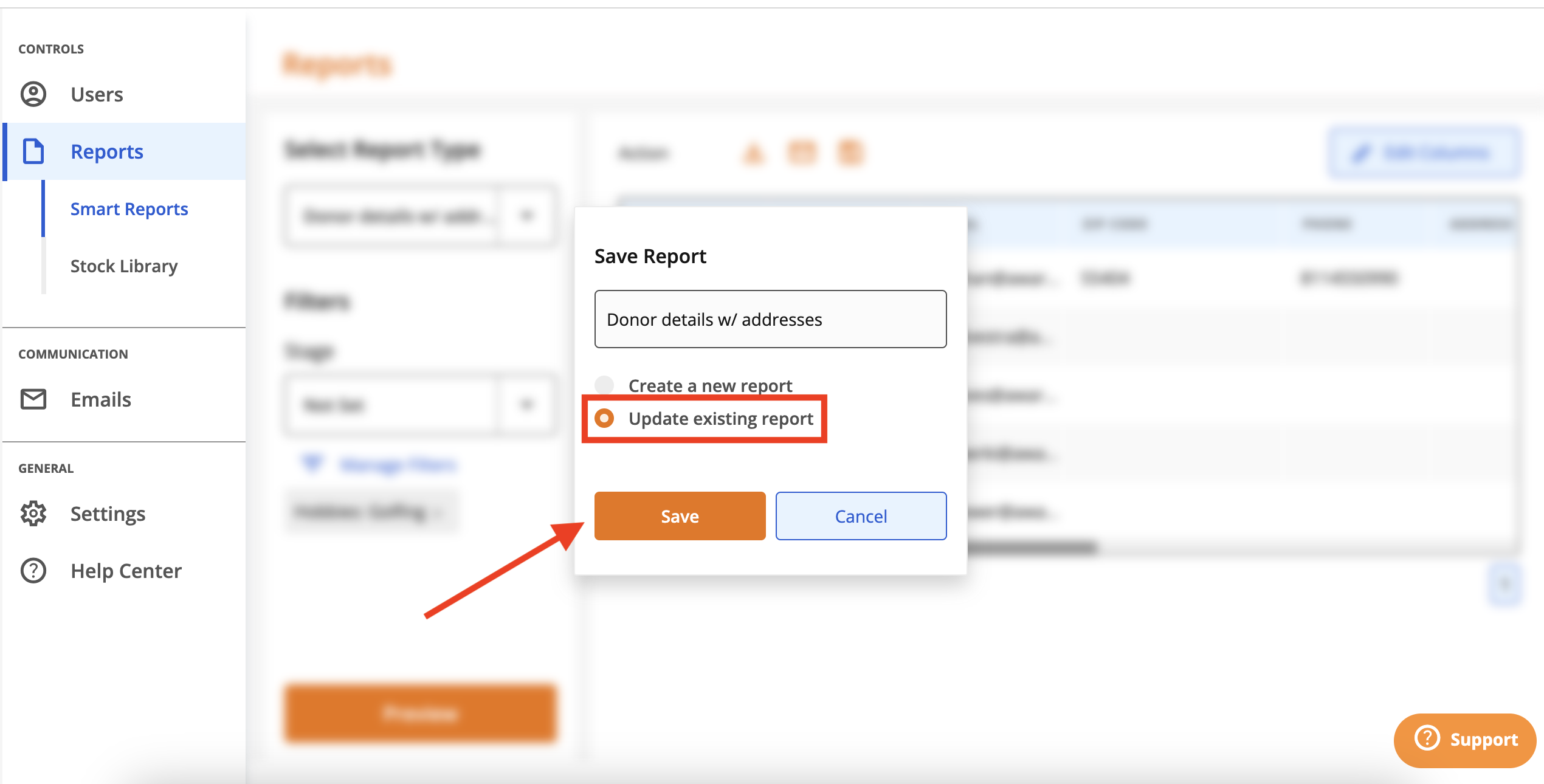
Your changes will be saved and you can access the saved report in the reports dropdown menu going forward.
Email donors in the report output by clicking the 'email' icon.
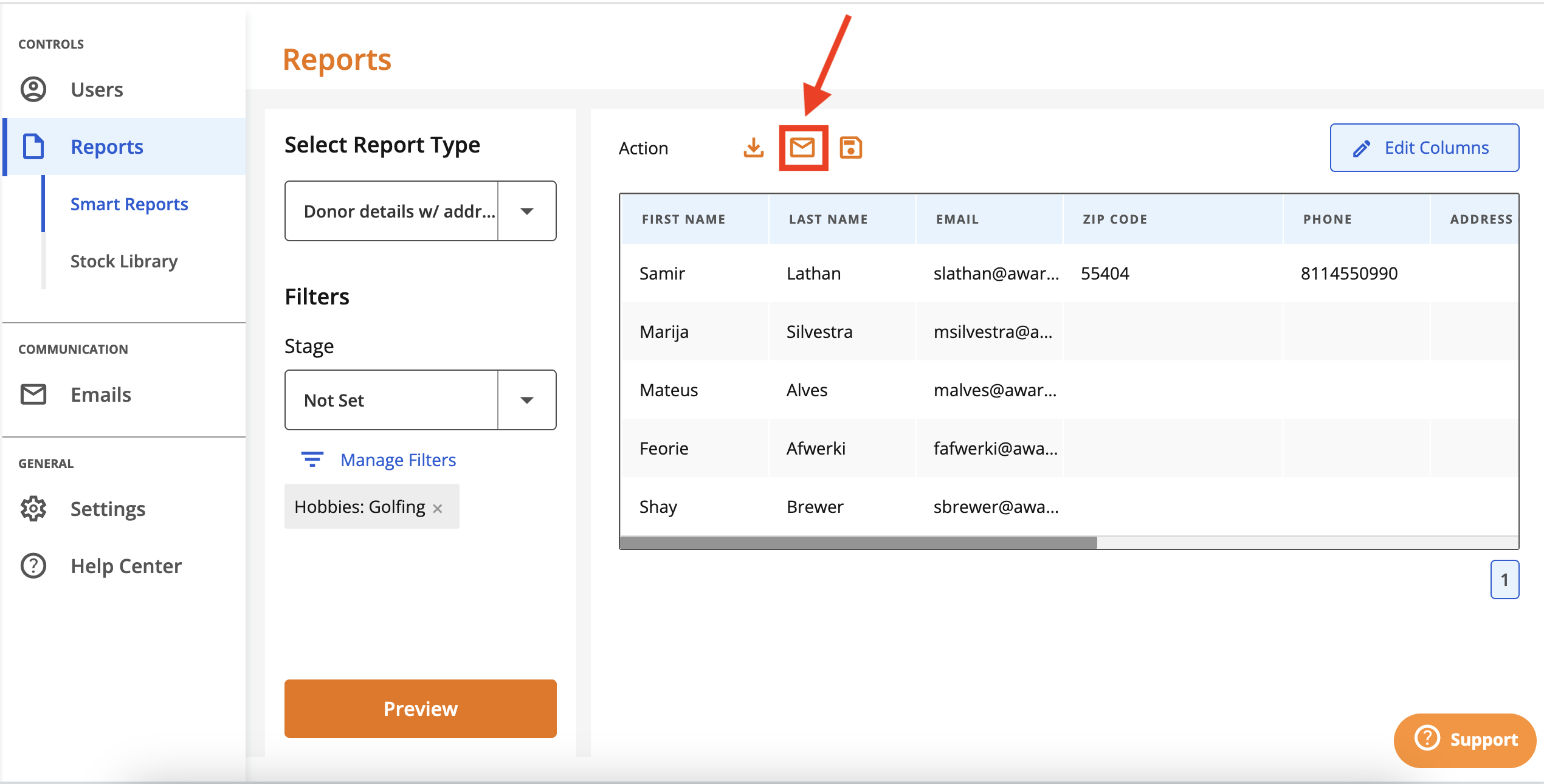
You'll be asked to confirm that you wish to leave the page to draft and send an email. Click 'Yes, Continue'.
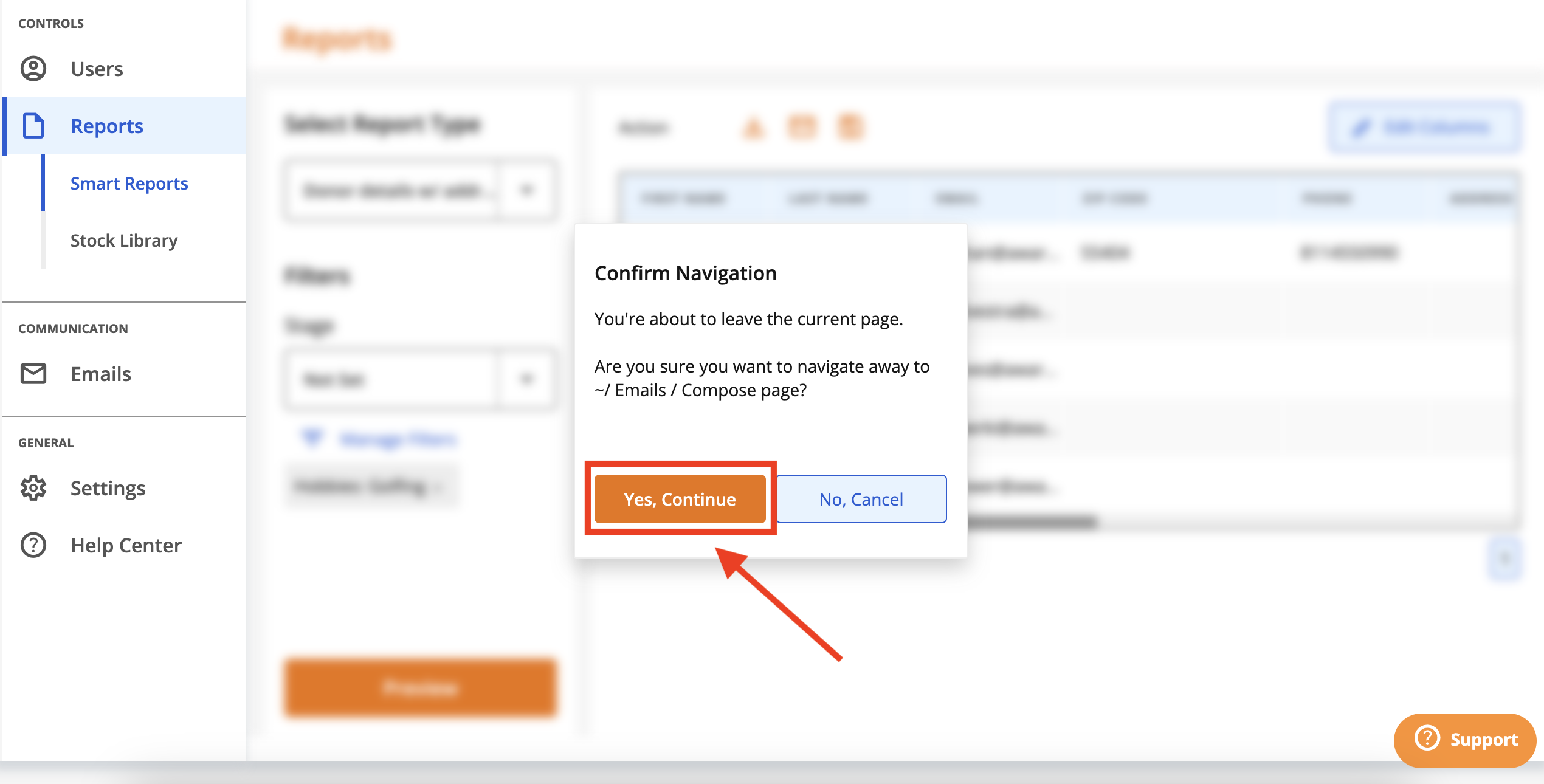
You'll be taken to the Emails > Compose screen. The donors' email addresses will be populated in the 'Recipients' section.
Proceed to compose and then send or schedule your email. For more on emails, click here.