Configuring Qualifications
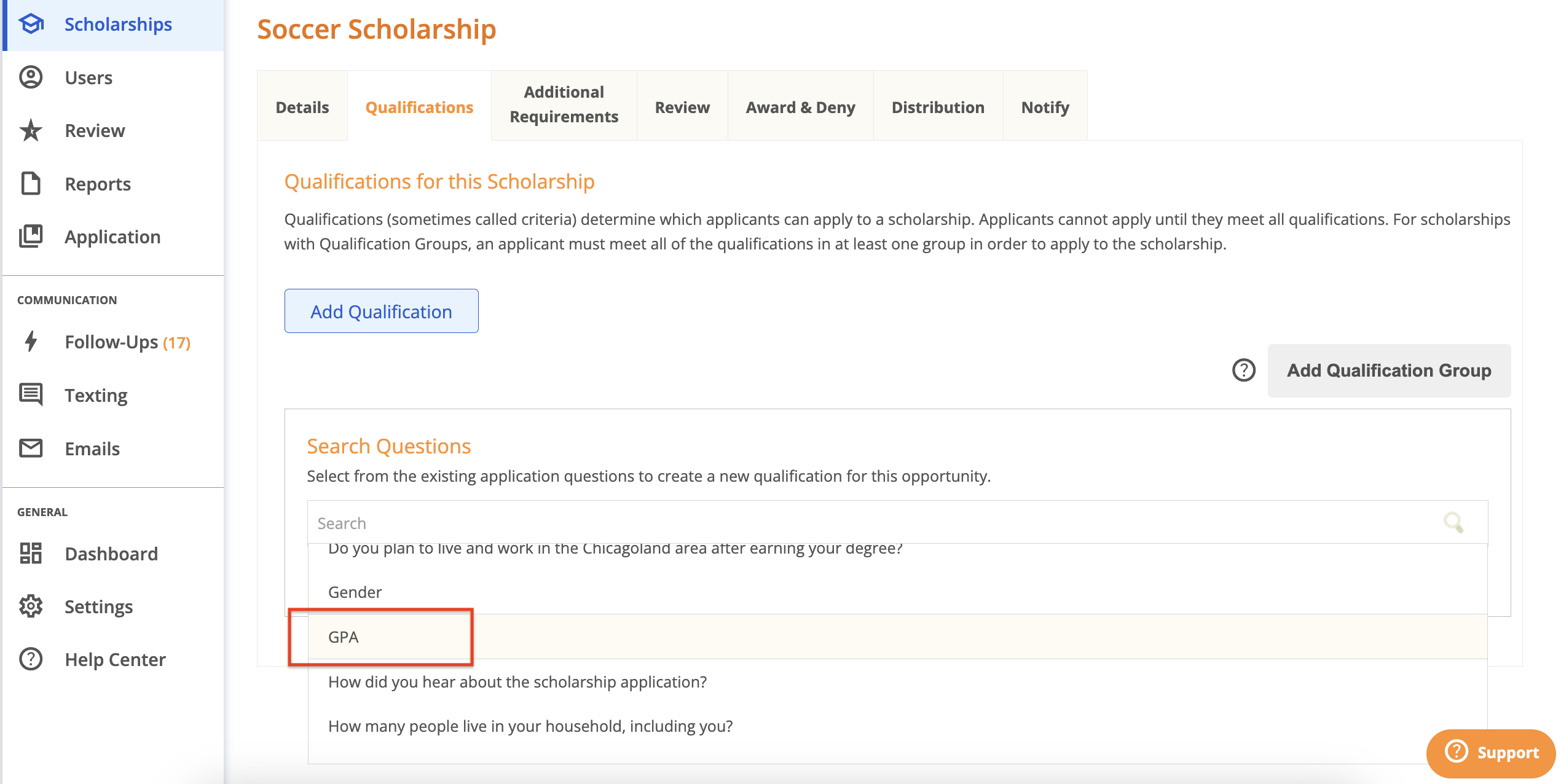
Let’s assume we’re working on the Soccer Scholarship, which requires that all applicants have at least a 3.0 GPA to be eligible. GPA is a numeric question included on the application, so you can easily configure it as a qualification by selecting the GPA question from the list. Simply click inside the Search box to find and select the question.
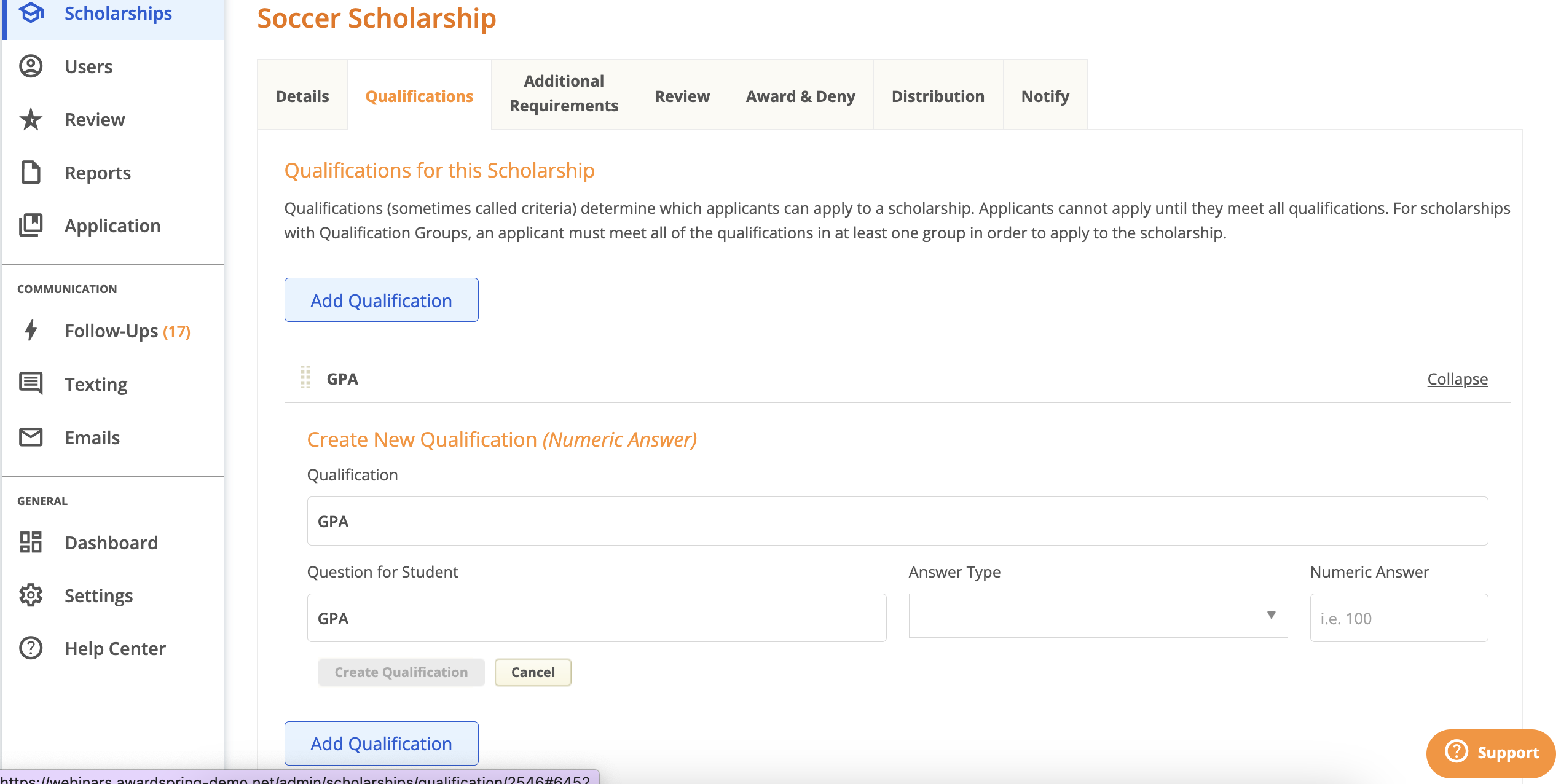
Once you select the GPA question, click on it to expand and configure the qualification.
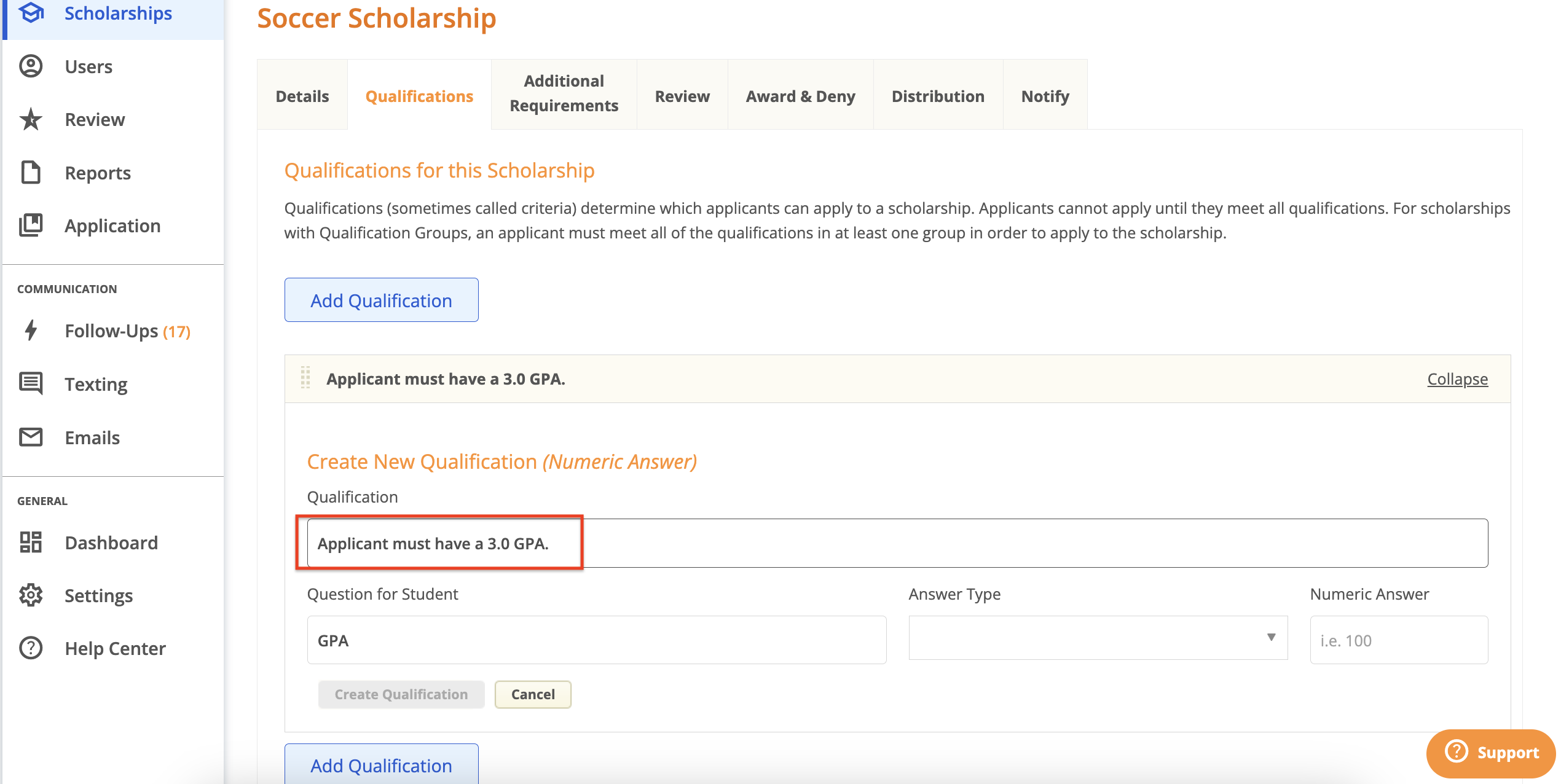
Qualification: enter a description of the eligibility requirement for the scholarship. What do you wish to convey about this requirement? In this case, we want to convey that the applicant must have a 3.0 or higher GPA.
Question for Student: the question text on the general application. The question text can be adjusted here if need be, however keep in mind that the question text will change globally and not just on the scholarship you’re working on.
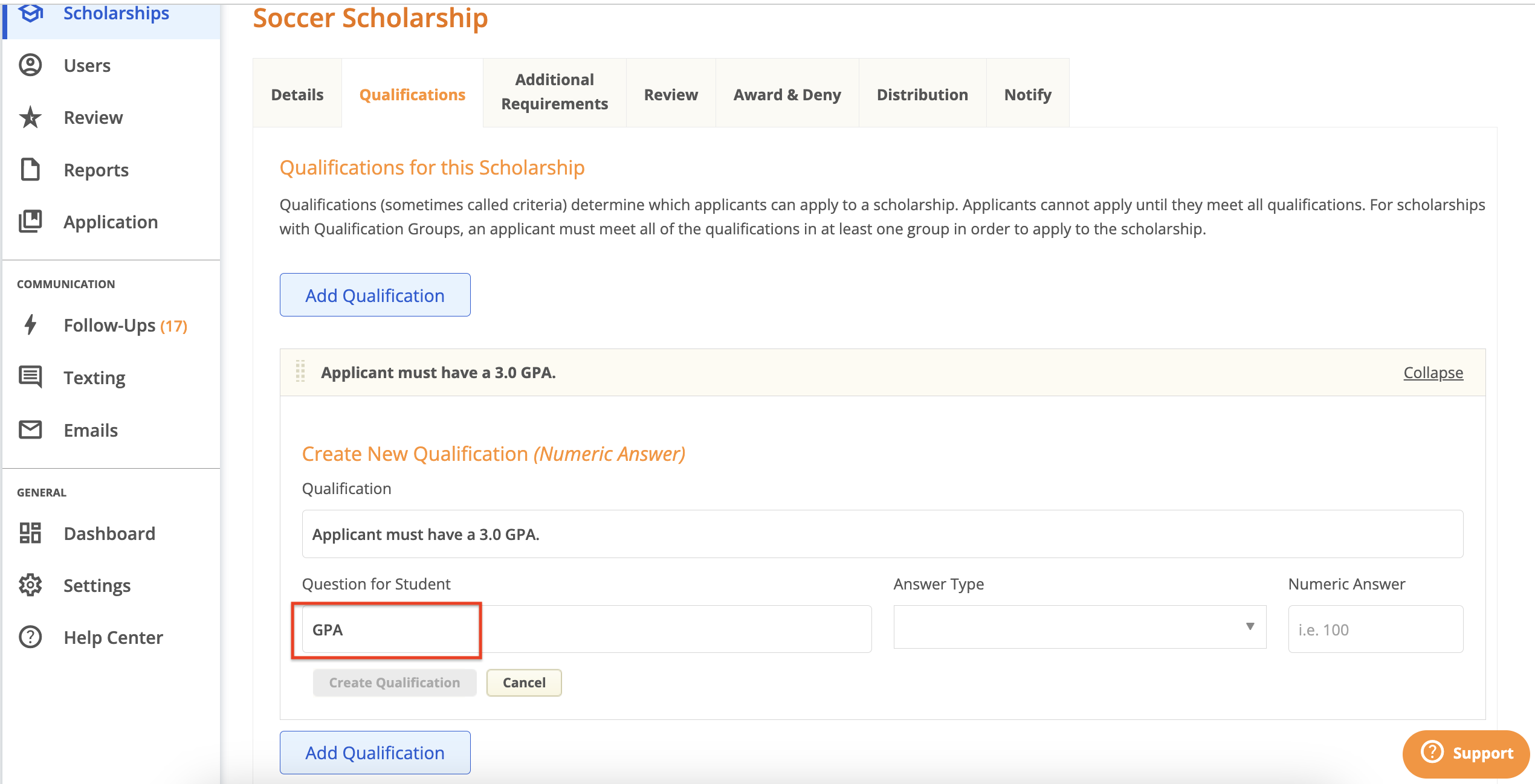
Answer Type (displayed on numeric qualifications): select whether the applicant’s response must be less than, equal to, or greater than the numeric answer you specify. In this example, we want applicants with a minimum 3.0 GPA, so we’ll select “Answer is great than or equal to” and type in “3” for the Numeric Answer.
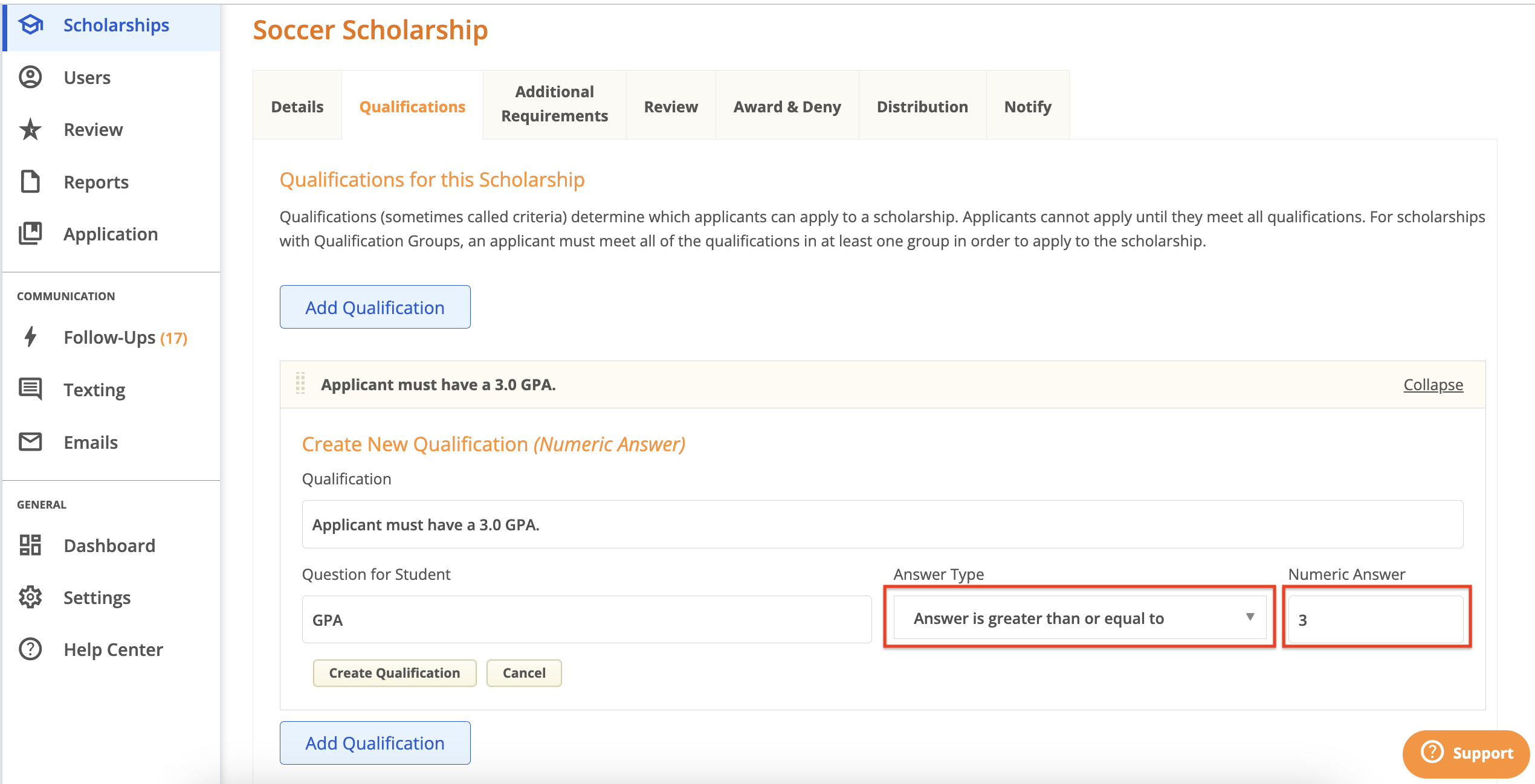
Once you click Create Qualification, you’ll receive confirmation that you’ve added a new qualification and it will appear under the Qualifications For This Scholarship section.
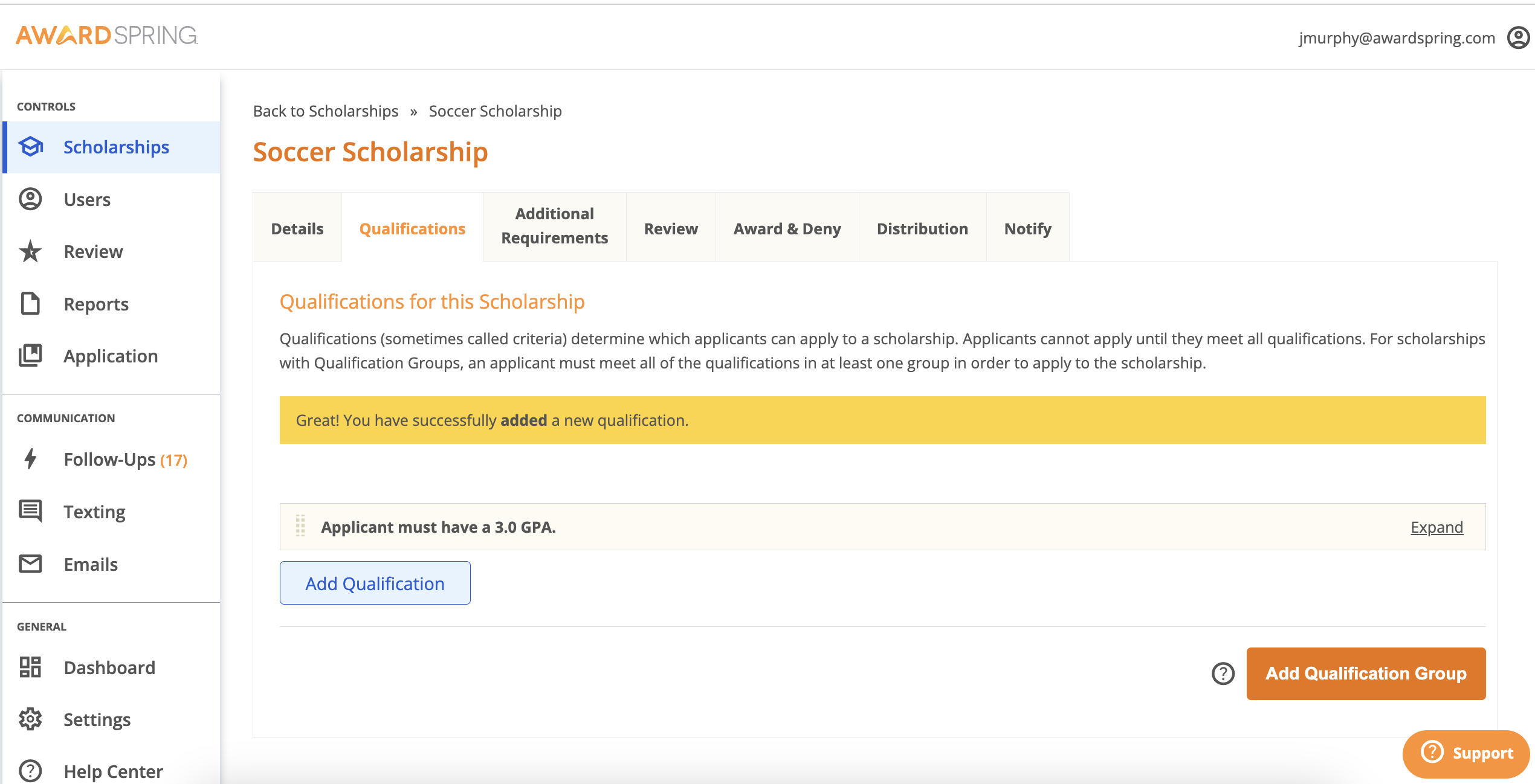
If you need to change the details of a Qualification, simply click “Expand”, make edits, and click Save. You will be notified that changing the required possible responses might result in applicants becoming unqualified for opportunities using this qualification.
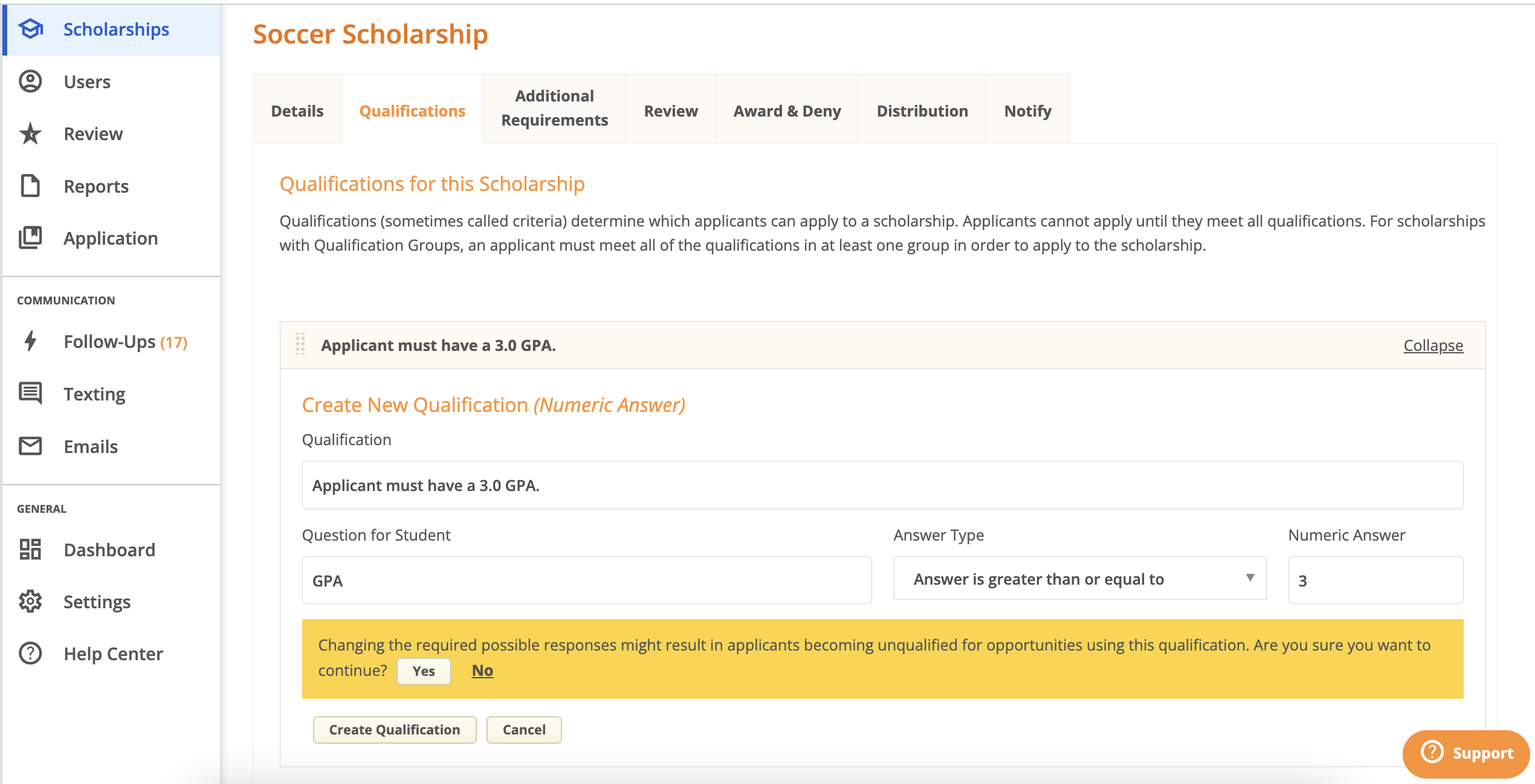
Click “Yes” to save your changes.
Let’s set up a second qualification for the Soccer Scholarship. We know that applicants must be a member of the soccer team at the university to be eligible and that there is no existing application question that relates to soccer. Therefore, we need to create a new application question. Assume we want to ask a question “Are you a member of the soccer team at SpringSquad University?”, which will allow us to set “Yes” as the qualifying answer on this scholarship. In this case, we’ll create a single answer question on the general application.
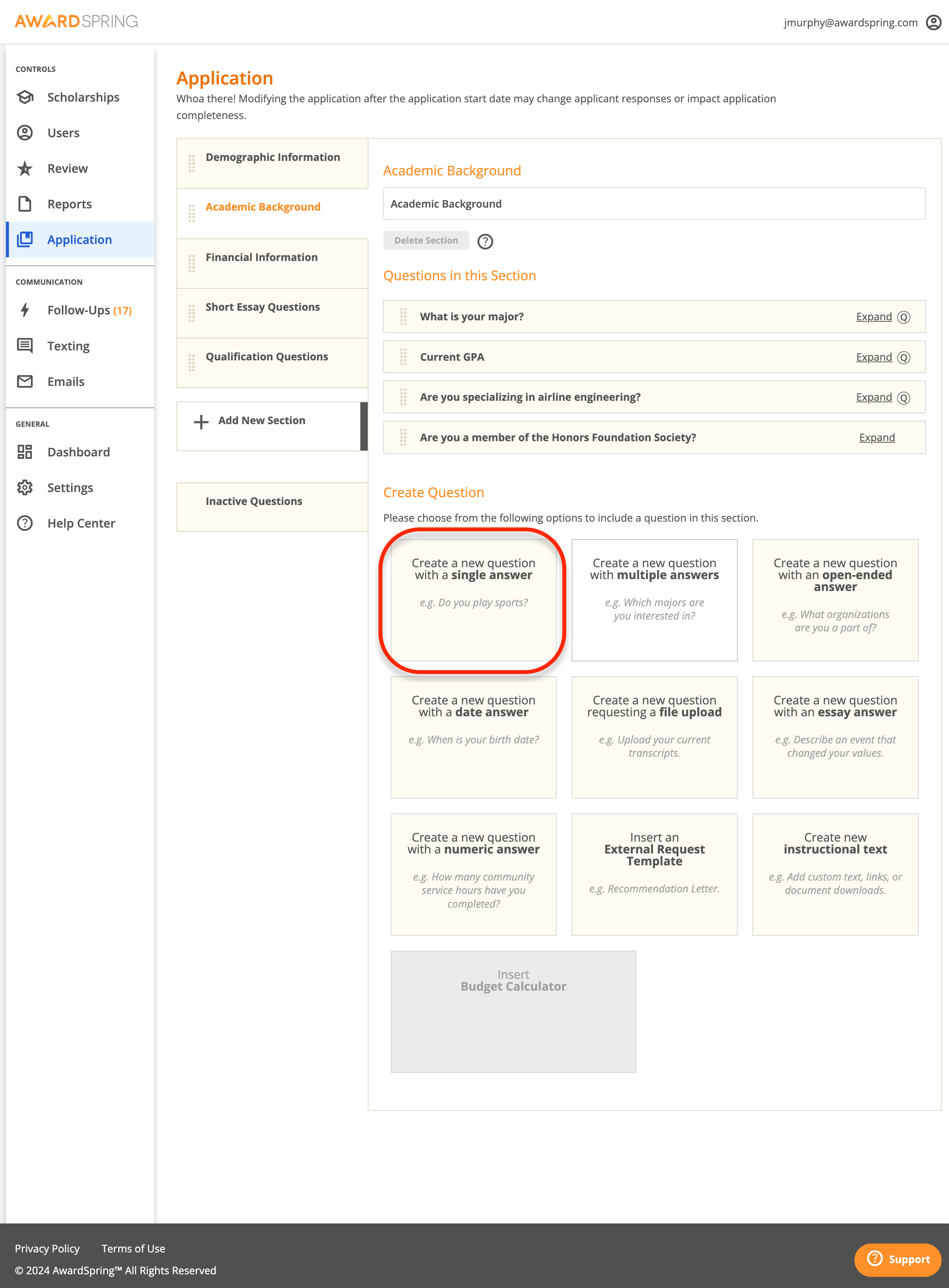
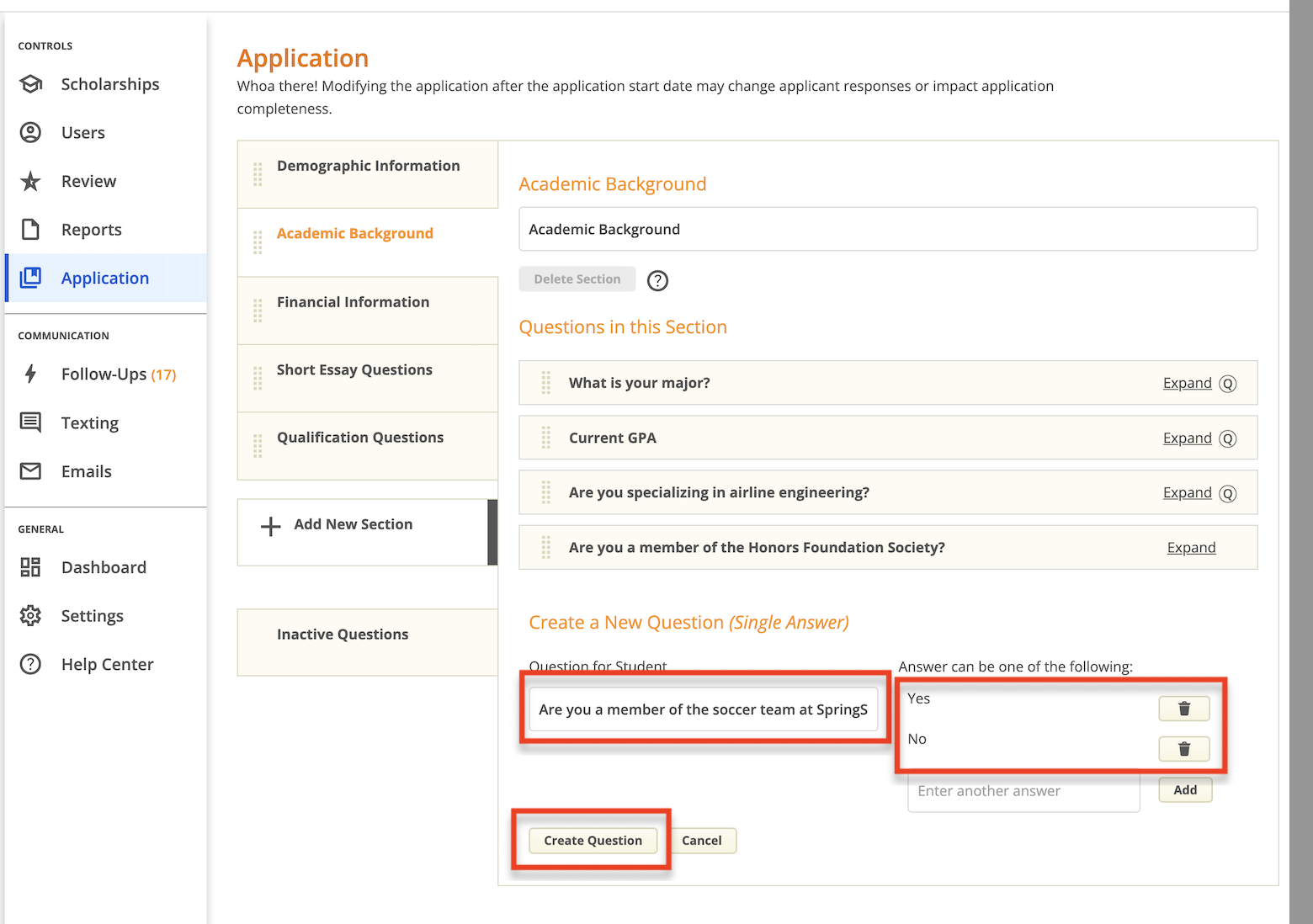
Tips for creating new questions
Because qualifications can be re-used across scholarships, consider that the question you create might need to be used for more than one scholarship. For example, if you have several music-related scholarships, you could create a question such as “What instrument(s) do you play?”, with a list of several instruments to select from. This contrasts with creating several questions such as “Do you play the flute?” or “Do you play the guitar?”, with only ‘yes’ or ‘no’ answers to pick from. For a deeper dive, consider the following scenario:
Flute Scholarship
- Question: Do you play the flute?
- Qualifying answer = yes
Flute Scholarship
- Question: What instrument(s) do you play?
- Qualifying answer = flute
Piano Scholarship
- Question: What instrument(s) do you play?
- Qualifying answer = piano
Music Scholarship
- Question: What instrument(s) do you play?
- Qualifying answers = piano, flute, guitar, bass
What instrument(s) do you play? is the more flexible question in this case because it can be used across multiple scholarships.
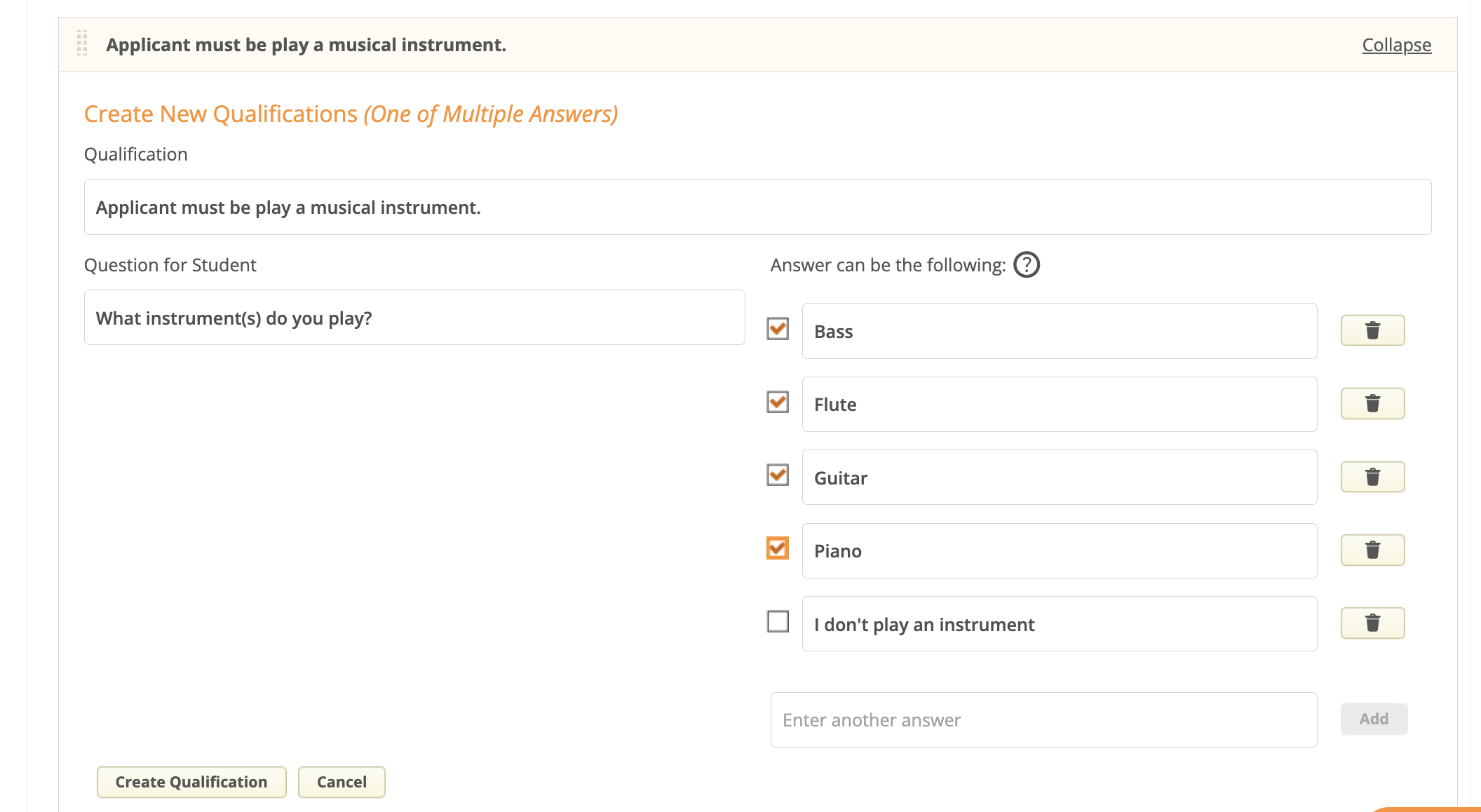
Re-using Qualifications
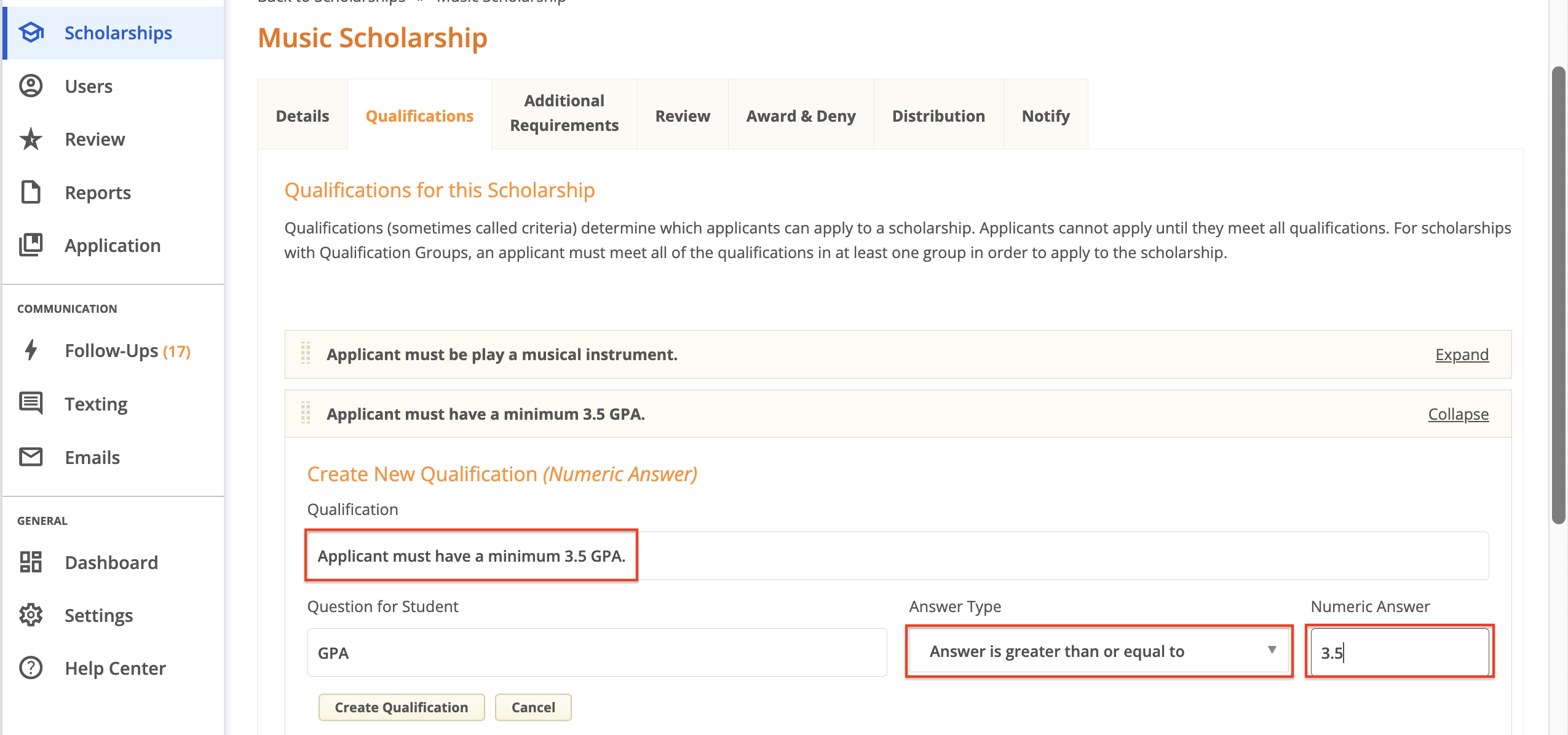
Let’s assume that you’re working on a different scholarship, the Music Scholarship. This scholarship requires a minimum 3.5 GPA. You’ll first need to select GPA from the existing question list again. You will then need to change the Qualification text and answer setup to reflect the specific needs of this scholarship.