
The external request feature allows you to gather information about applicants from external sources (e.g. guidance counselors, coaches, teachers, etc).
Use external requests to:
- Collect letters of recommendation or recommendation forms
- Collect high school transcripts
- Collect more structured responses from any external party
Workflow for external requests
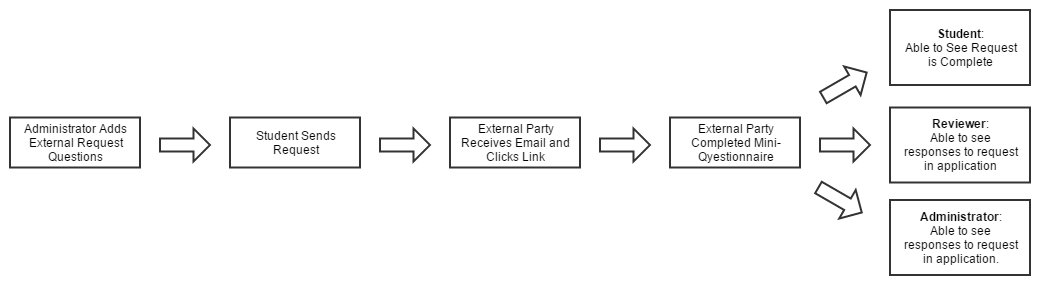
- Administrator creates a template and adds it to the application or to an individual scholarship
- Applicant sends the request from the application or individual scholarship
- External party receives the request via email and accesses the request via a hyperlink
- External party completes the request and submits it
Once the request is completed by the external party:
- Applicant is able to see that the request is complete but is not able to see the responses/content
- Applicant receives an email to notify them that the request has been completed. The email directs the applicant to log into AwardSpring to complete and submit their application, if necessary.
- Reviewers are able to see the responses from the external party on the student's application
- Administrators are able to see the responses from the external party (via the Users > Application tab; the Users > Scholarships tab; or the Award & Deny tab of an individual scholarship)
Configuration
There are two parts to setting up an external request:
- Creating the request template
- Adding the request to your application or to an individual scholarship
Creating Templates
Navigate to Settings from the main navigation menu, and select the External Requests tab.
Then select the 'Create New Request' button.
Fill out the request details and give the template a name (this is only visible to you and should describe the purpose of the template for reference).
Decide whether to 'Require response before request is considered complete':
- Leave this box unchecked to allow the applicant to send the request and submit the application while waiting for external party to complete the request.
- Check this box if the applicant is not permitted to submit their application until the request is completed.
Note: The applicant will need to login and submit the application once the request has been submitted by the external party and prior to the application deadline.
The Instructions for Applicant should tell the applicant what they need to know to complete the request. At a minimum, it should specify who the request should be sent to.
Adding a Message from Applicant to Recipient is optional. This message will be included in the email that is sent to the external party.
Instructions for Recipient will appear on the external party's form for completion. Use this to provide directions to the external party. Once you have completed the above fields, click on 'Save Template'.
You'll now have the opportunity to add questions to the request form. These are the questions the external party will complete when they access the request. You can select from the list of available question types.
Tip: You can use Instructional Text here too. Use it to include sample documents or to provide additional guidance.
Add the external request template to the Application
Navigate to your Application tab, scroll to the bottom and select 'Insert an External Request Template'.
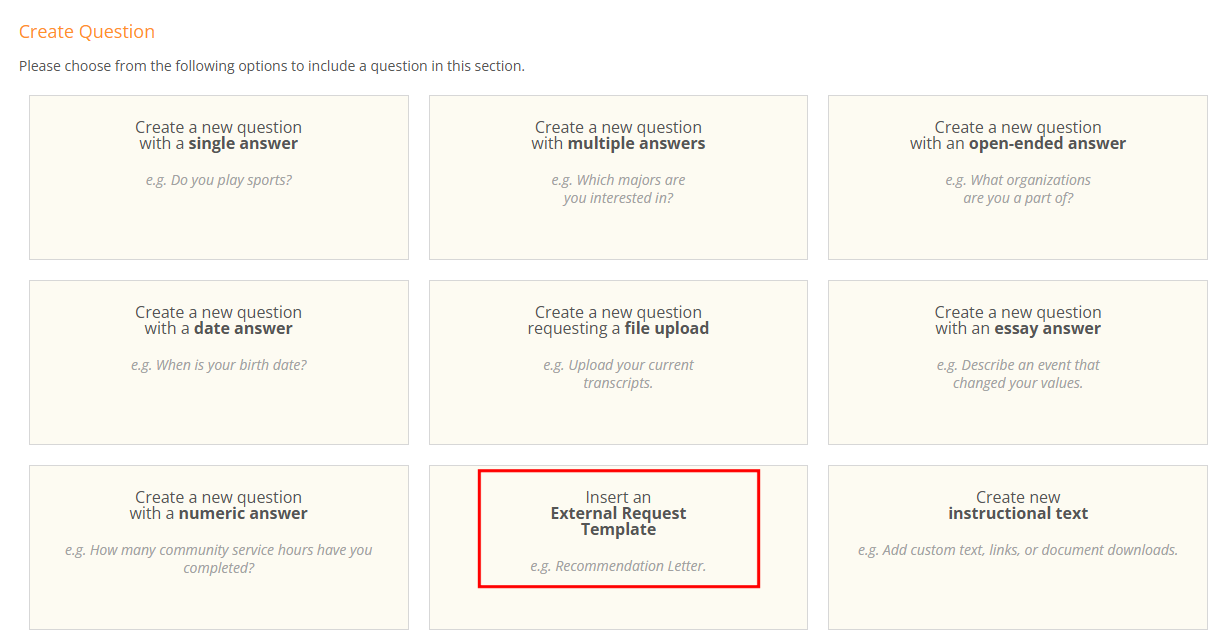
Select the template to insert it into the application:
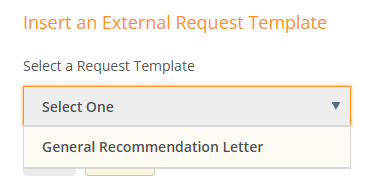
Add the external request template to a scholarship
Open the scholarship from the Scholarships tab and click on the Additional Requirements tab. Click on 'Add Question' in the section you wish to add the external request.
Select 'Insert an External Request Template', then select the template and name it.
Some things to keep in mind:
- You can use a template multiple times. Require two recommendation letters? Add your recommendation template twice.
- You can make external requests conditional. This means you could ask applicants if they have a recommendation letter to upload and if they do not, you could ask them to send a request.
- You can make external requests optional.
- You can place external requests in any section and reorder them just like other questions. Simply hover your cursor over the dotted area on the question, then drag and drop.
To learn about different ways to track and have more insight into the status of external requests, click here.