
Introduction to Qualifications
Qualifications (also referred to as scholarship eligibility requirements or criteria) are configured at the scholarship level and are used to match applicants to scholarships for which they’re eligible. Qualifications can be re-used an unlimited number of times across any number of scholarships. To configure Qualifications in your AwardSpring site, simply open the scholarship you’re working on and click on the Qualifications tab. Start by clicking ‘Add Qualification’.
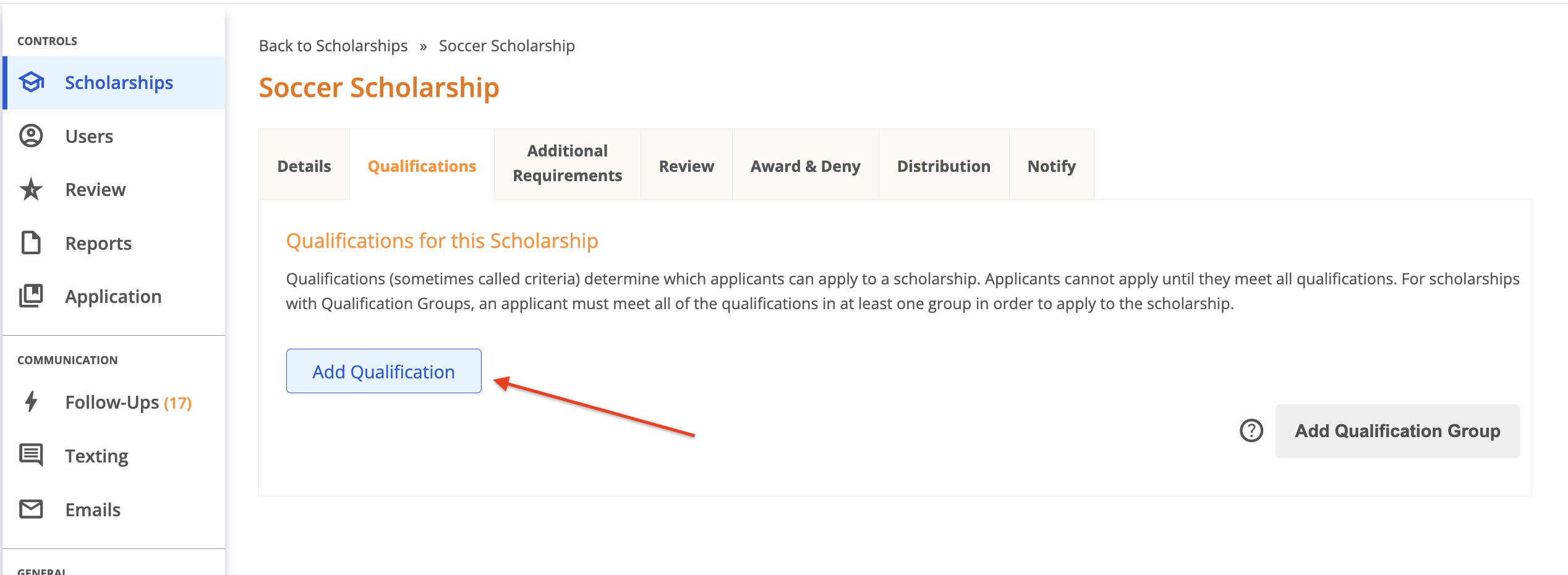
Next, you’ll need to decide which qualifying question is best suited to meet the needs of your scholarship requirements. Click the search box to view and select from the list of existing questions on your application.
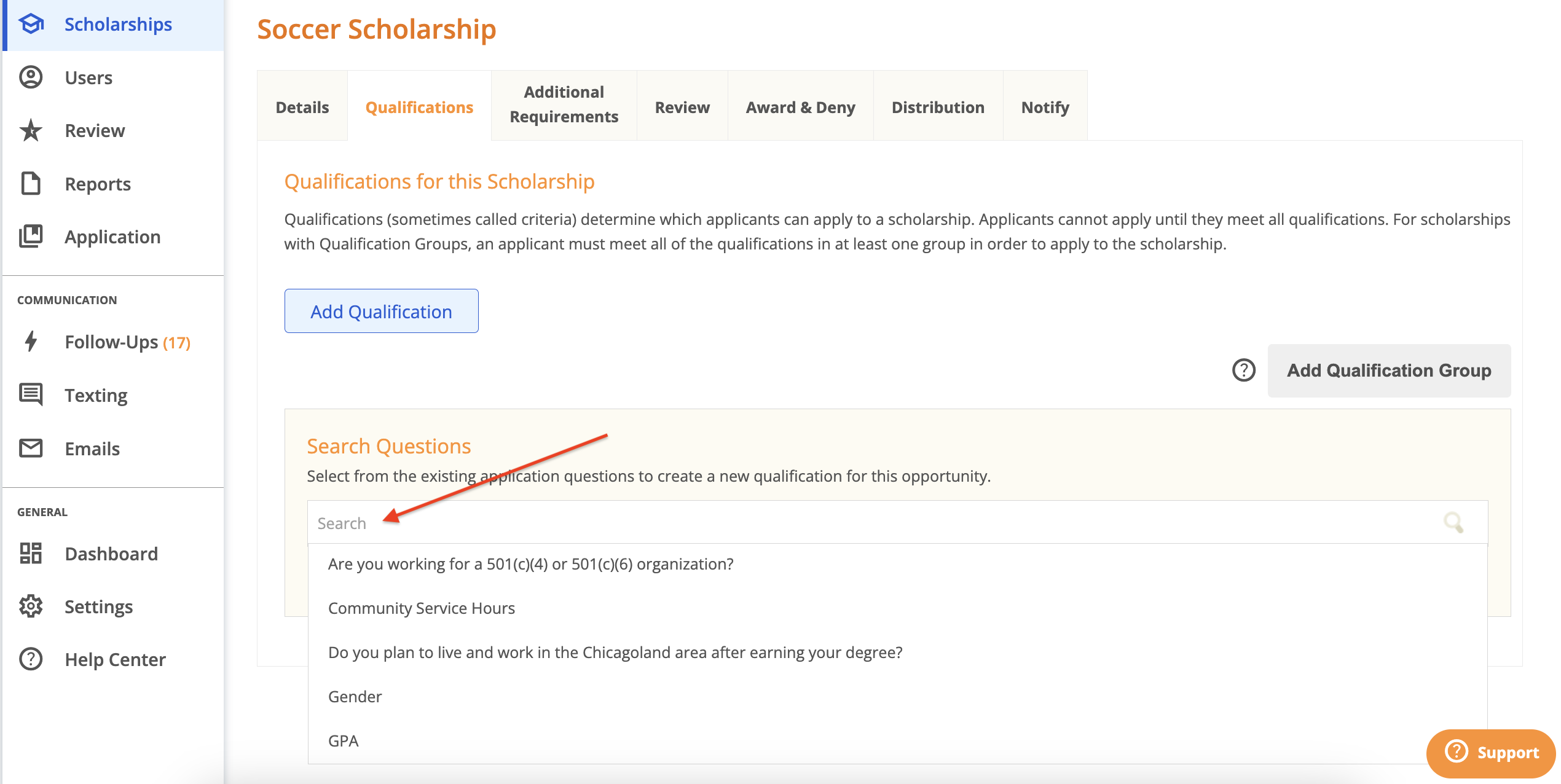
What types of questions are displayed in this list?
Single answer, multiple answer and numeric questions from your application are included in this list. Qualifications can be configured using any of the questions in this list. Below are examples of how qualifications can be configured using each question type.
Note: if you need to create a new question, navigate to the Application tab, create the question and then return to this page.
Configuring a qualification using a single or multiple answer question allows you to set one or more qualifying answers.
Example 1
- Qualification – Applicant must be a single parent.
- Question – Are you a single parent?
- Answer – must be ‘Yes’
Example 2
- Qualification - Applicant must participate in at least one of the following clubs: Jazz Club, French Club, Golf Club, Book Club.
- Question – Do you participate in any of the following clubs?
- Answer – can be any of the specified clubs
Configuring a qualification using a numeric question allows you to set a numeric value as the qualifying answer.
- Qualification – The Study Abroad Scholarship requires that applicants have at least 60 earned college credits.
- Question – How many college credits have you earned? (OR Earned Credits)
- Answer – must be at least 60
Configuring Qualifications
Let’s assume we’re working on the Soccer Scholarship, which requires that all applicants have at least a 3.0 GPA to be eligible. GPA is a numeric question included on the application, so you can easily configure it as a qualification by selecting the GPA question from the list. Simply click inside the Search box to find and select the question.
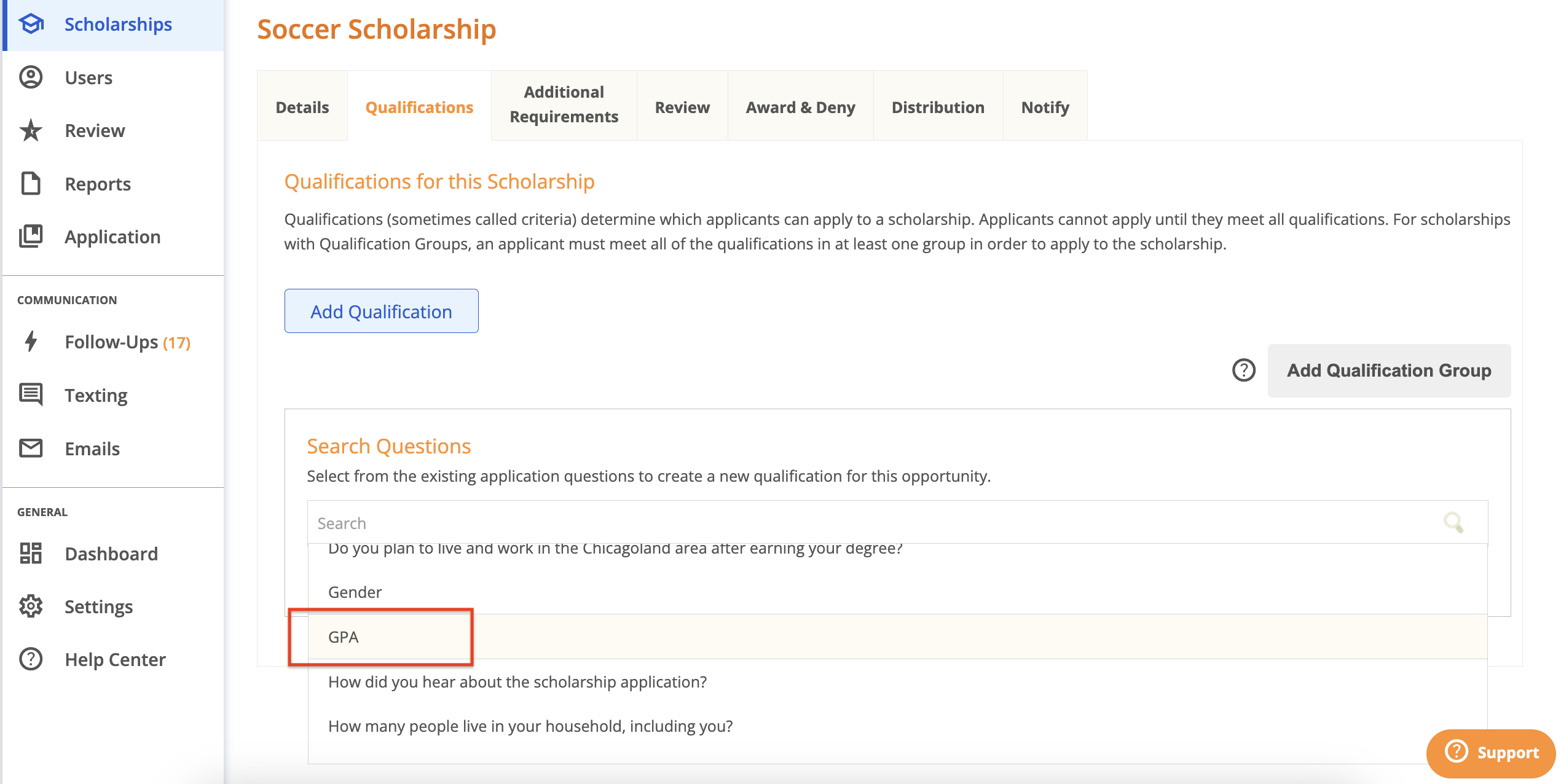
Once you select the GPA question, click on it to expand and configure the qualification.
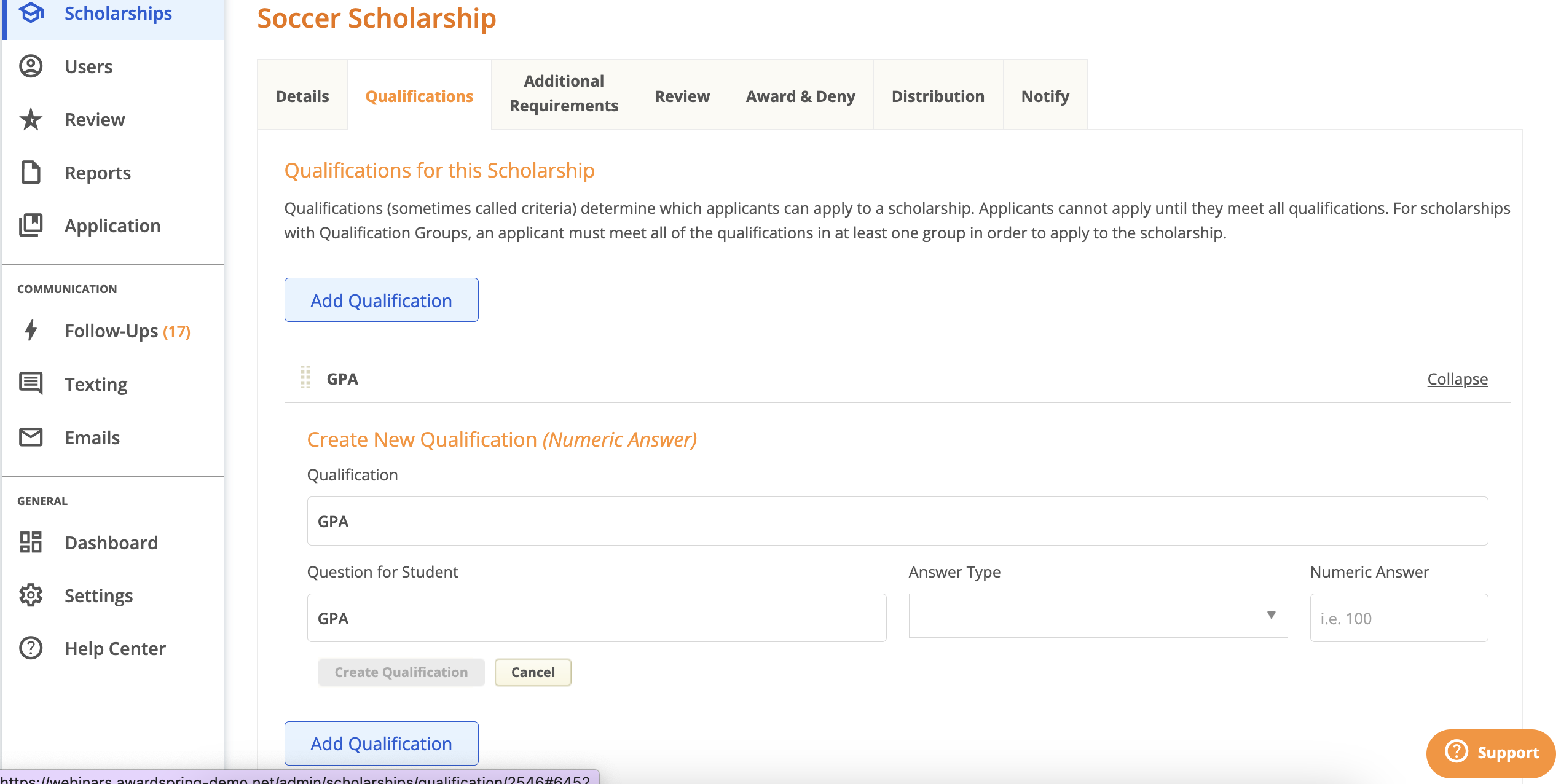
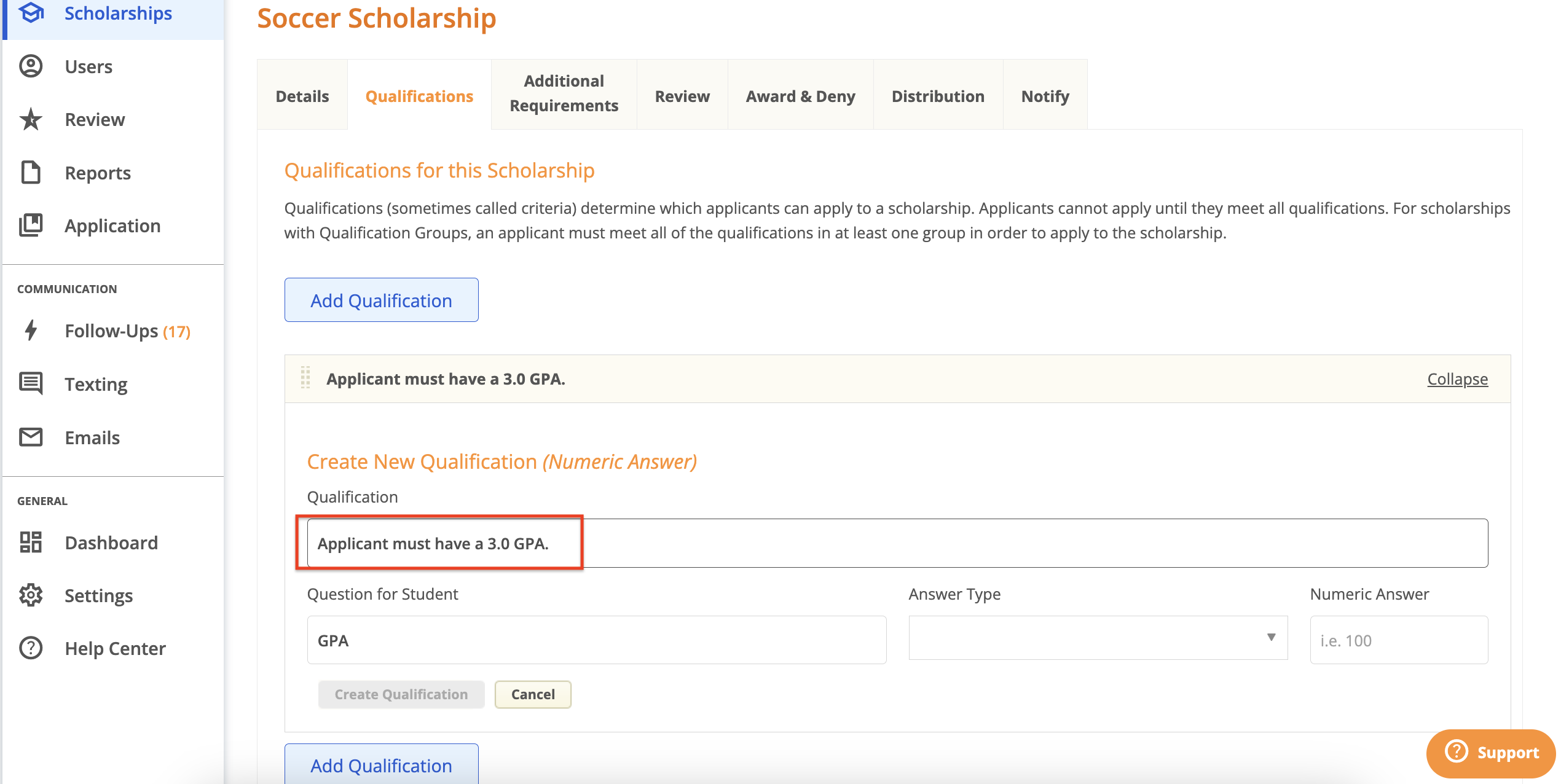
Qualification: enter a description of the eligibility requirement for the scholarship. What do you wish to convey about this requirement? In this case, we want to convey that the applicant must have a 3.0 or higher GPA.
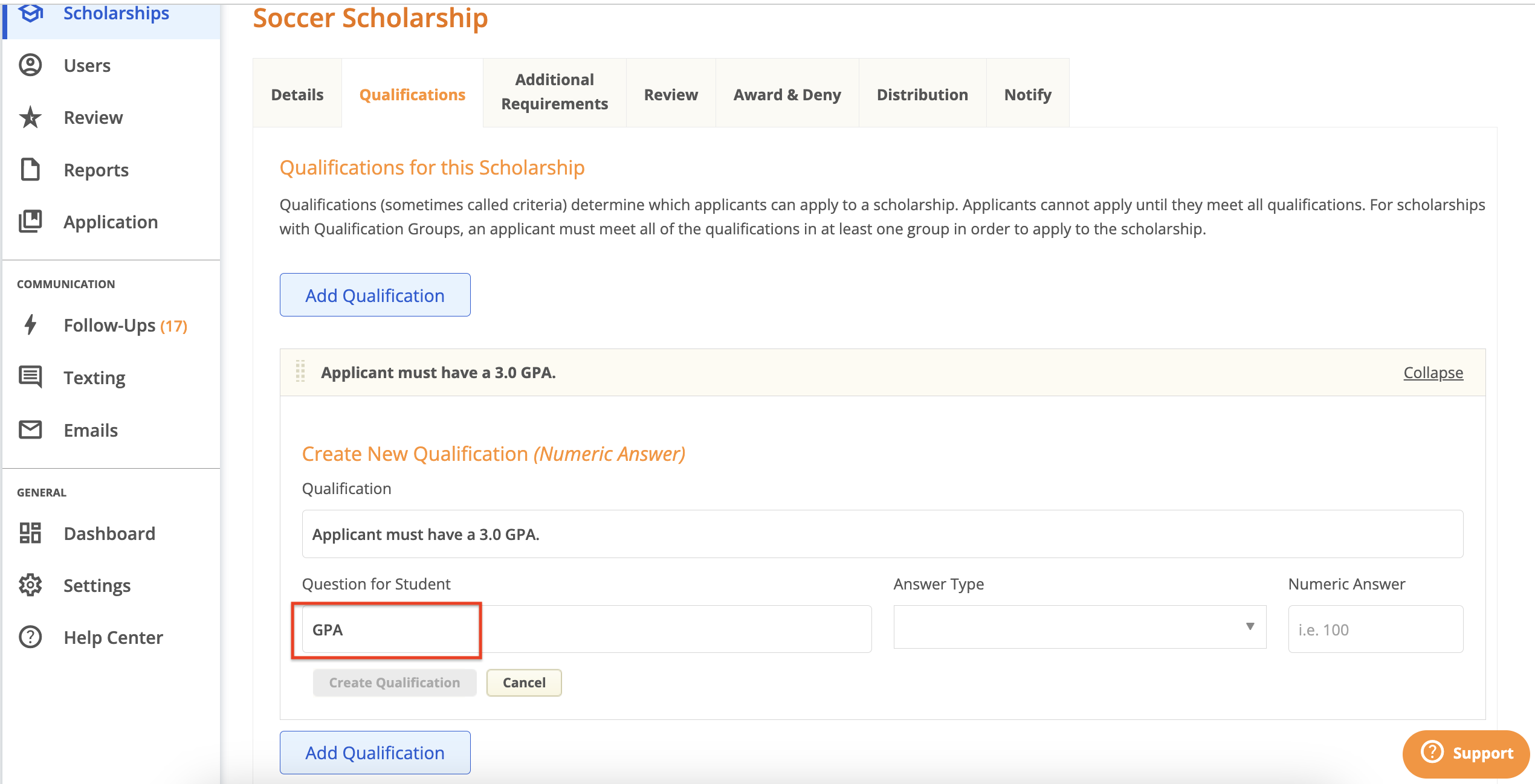
Question for Student: the question text on the general application. The question text can be adjusted here if need be, however keep in mind that the question text will change globally and not just on the scholarship you’re working on.
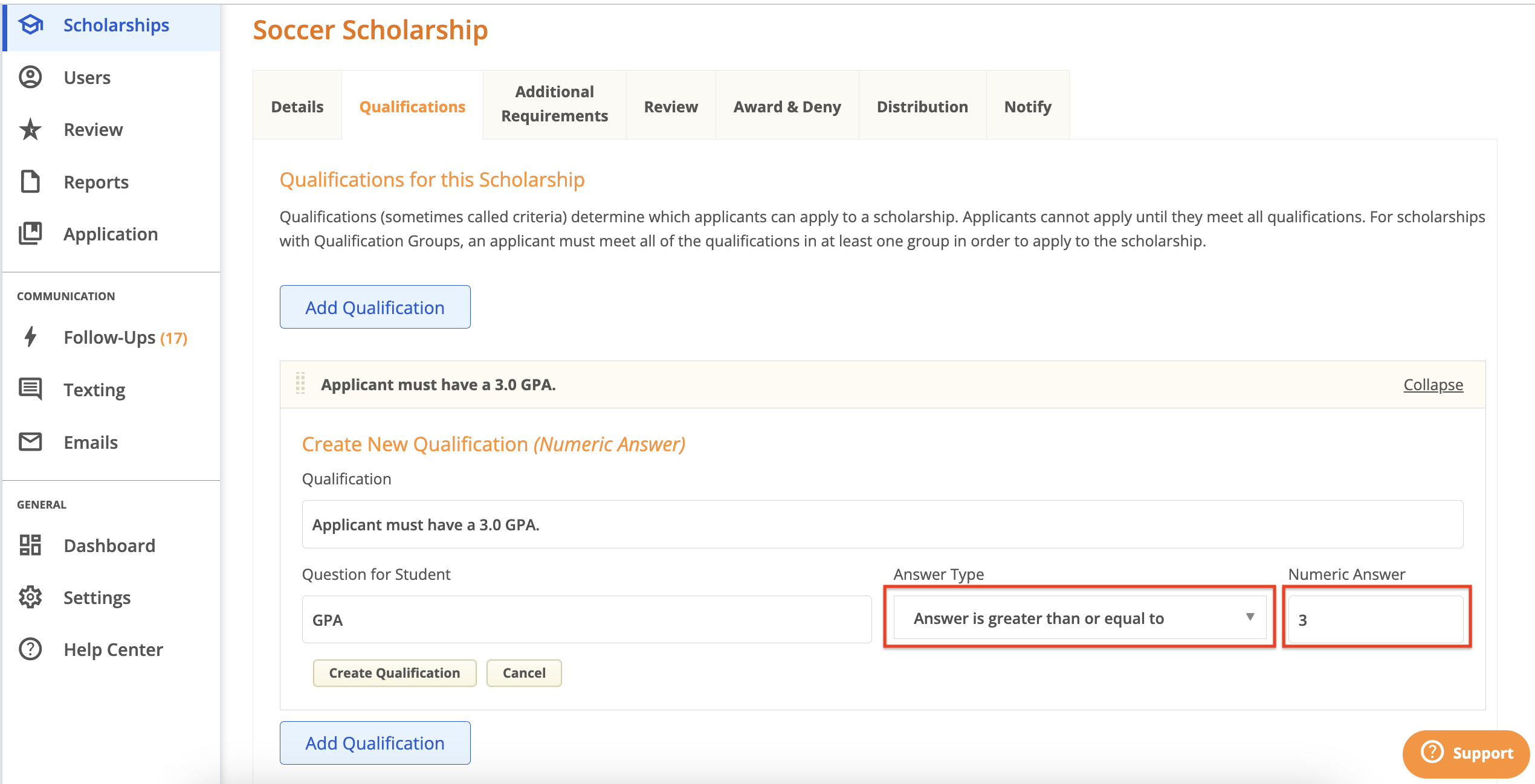
Answer Type (displayed on numeric qualifications): select whether the applicant’s response must be less than, equal to, or greater than the numeric answer you specify. In this example, we want applicants with a minimum 3.0 GPA, so we’ll select “Answer is great than or equal to” and type in “3” for the Numeric Answer.
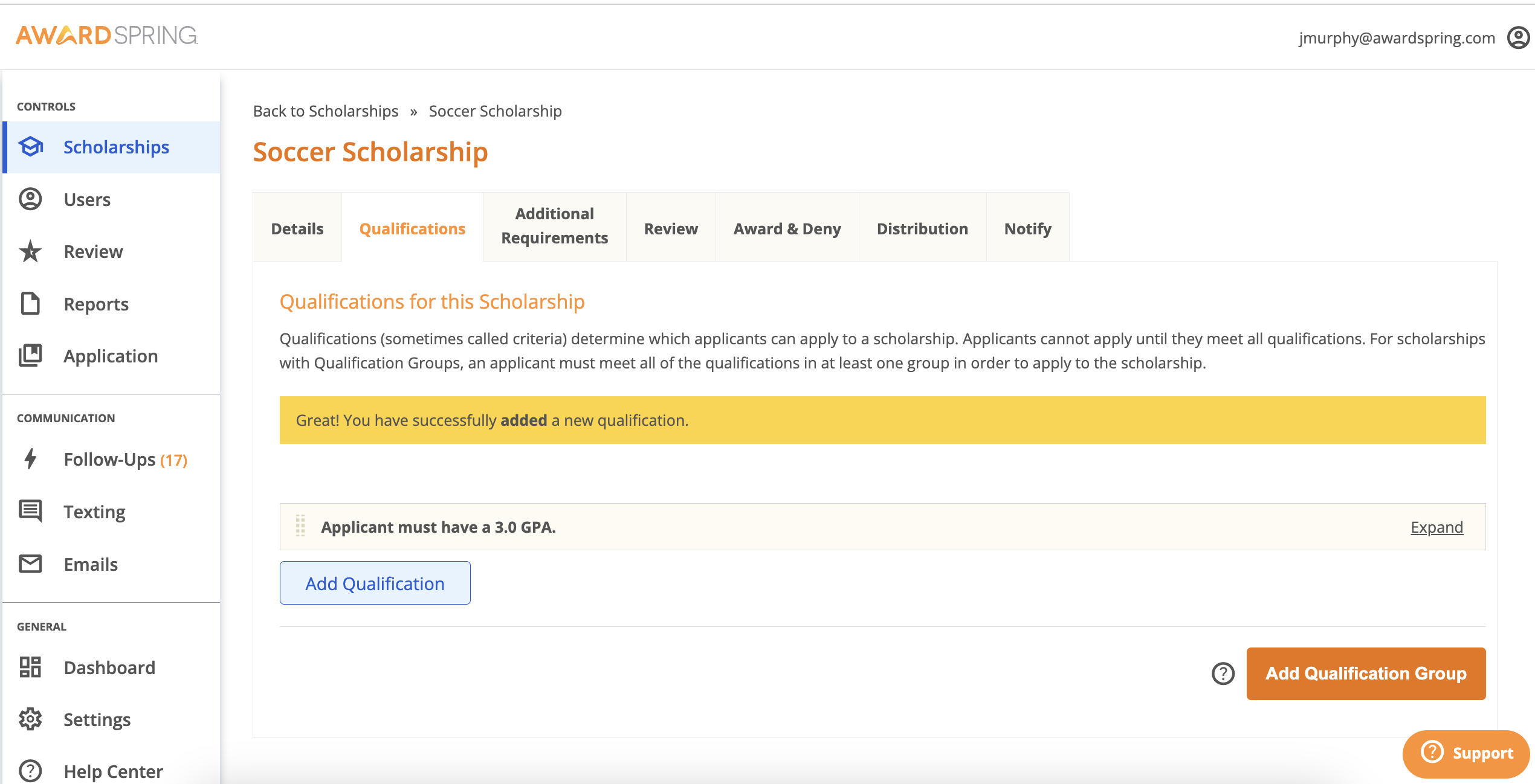
Once you click Create Qualification, you’ll receive confirmation that you’ve added a new qualification and it will appear under the Qualifications For This Scholarship section.
If you need to change the details of a Qualification, simply click “Expand”, make edits, and click Save. You will be notified that changing the required possible responses might result in applicants becoming unqualified for opportunities using this qualification.
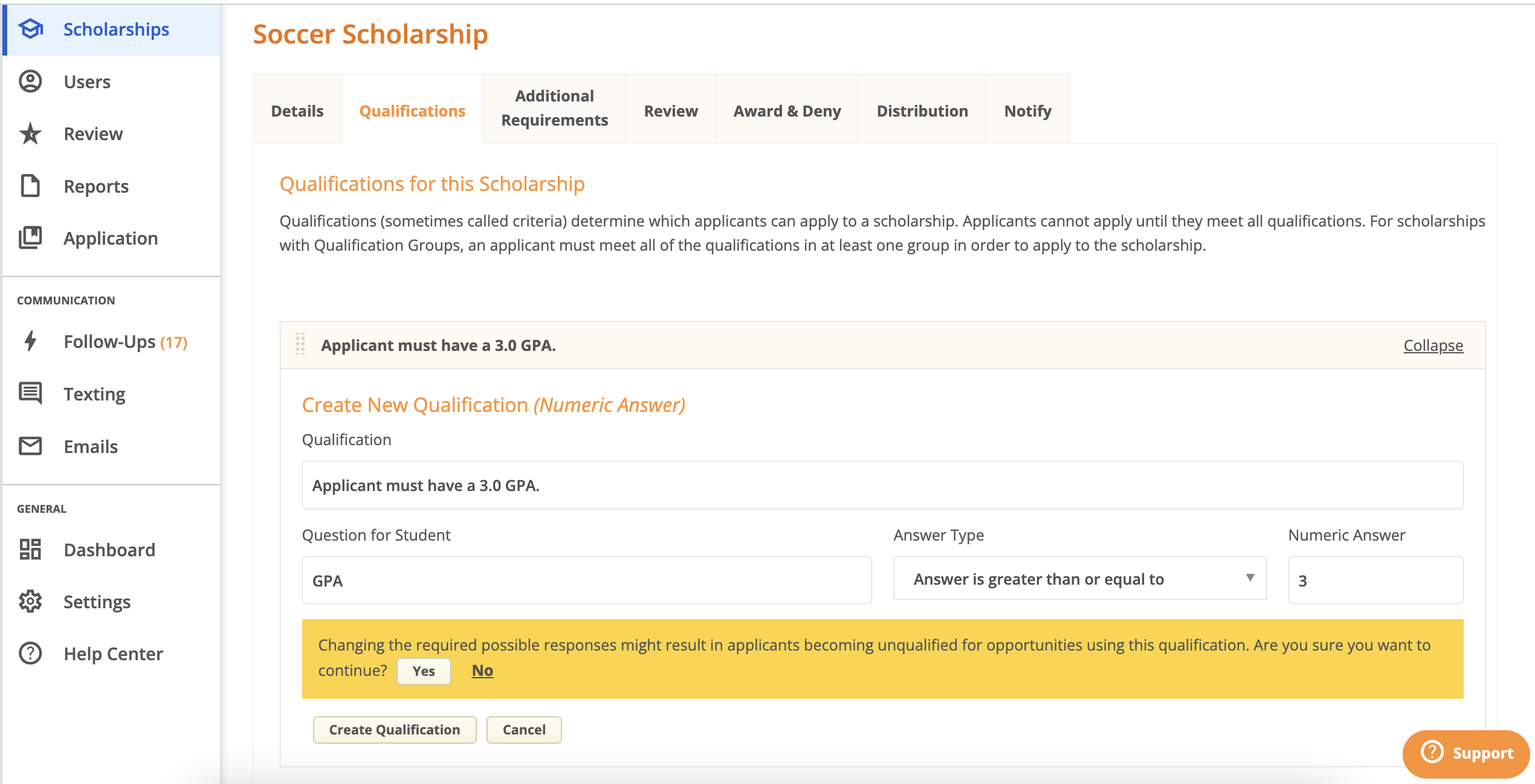
Click “Yes” to save your changes.
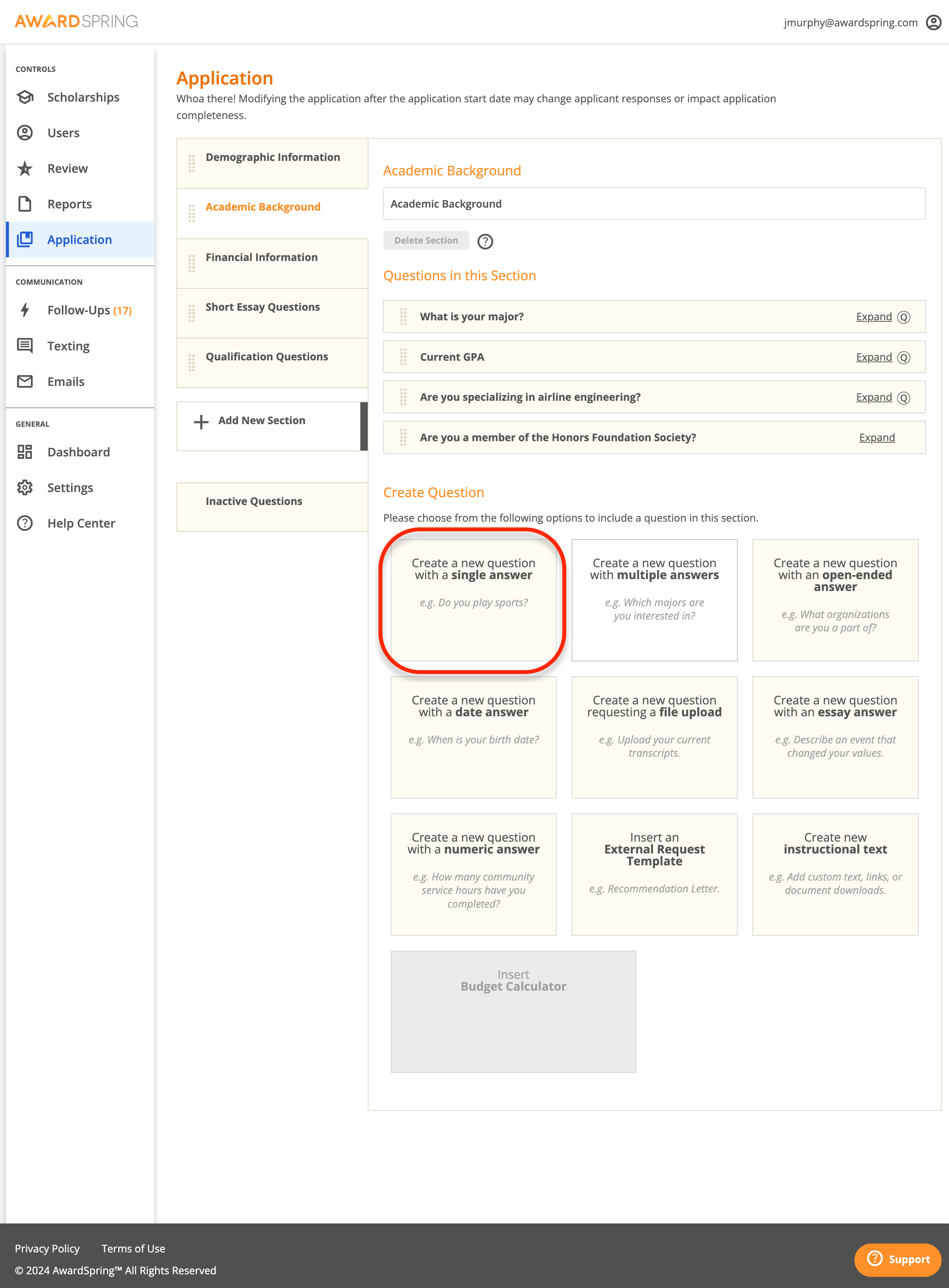
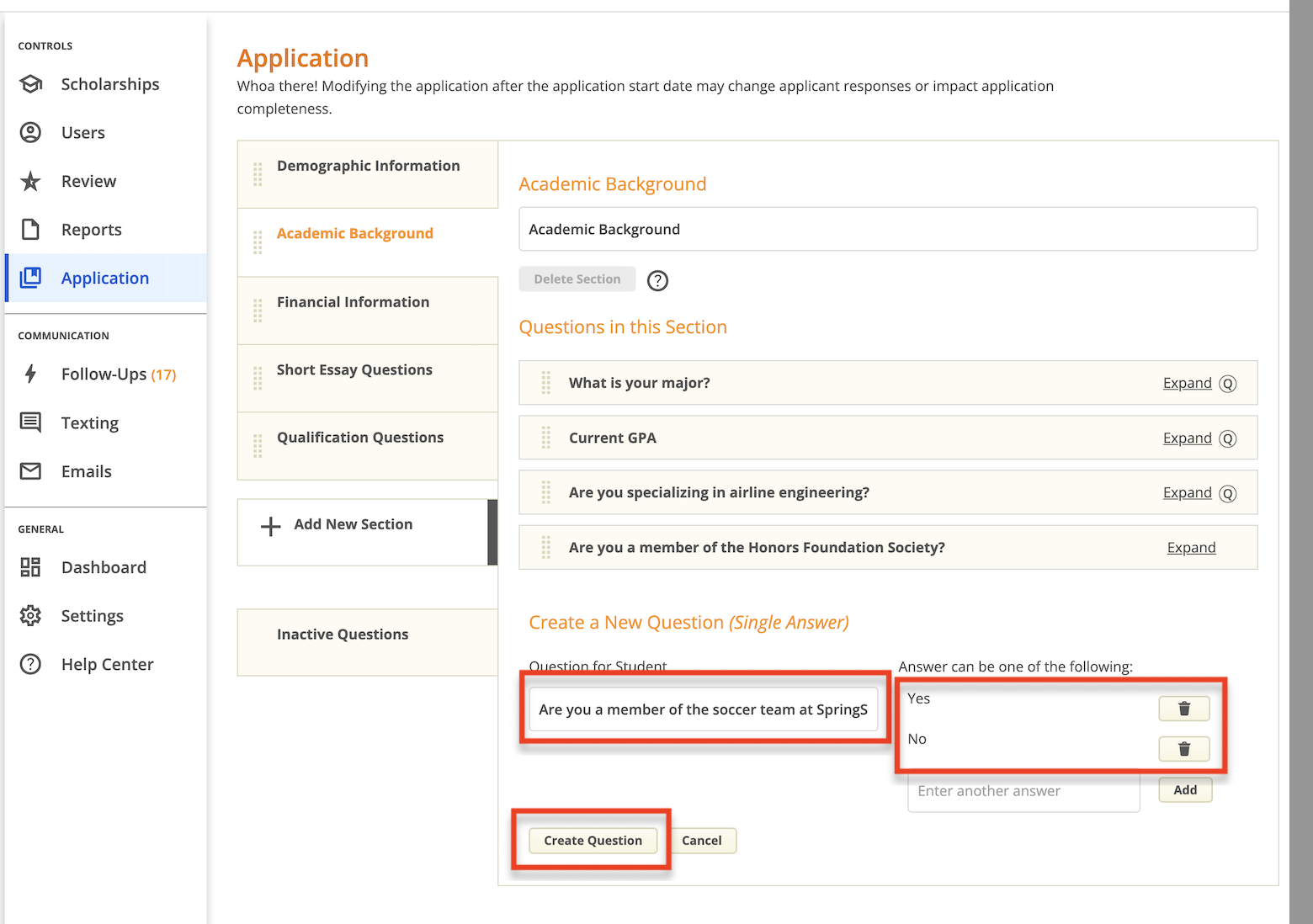
Let’s set up a second qualification for the Soccer Scholarship. We know that applicants must be a member of the soccer team at the university to be eligible and that there is no existing application question that relates to soccer. Therefore, we need to create a new application question. Assume we want to ask a question “Are you a member of the soccer team at SpringSquad University?”, which will allow us to set “Yes” as the qualifying answer on this scholarship. In this case, we’ll create a single answer question on the general application.
Tips for creating new questions
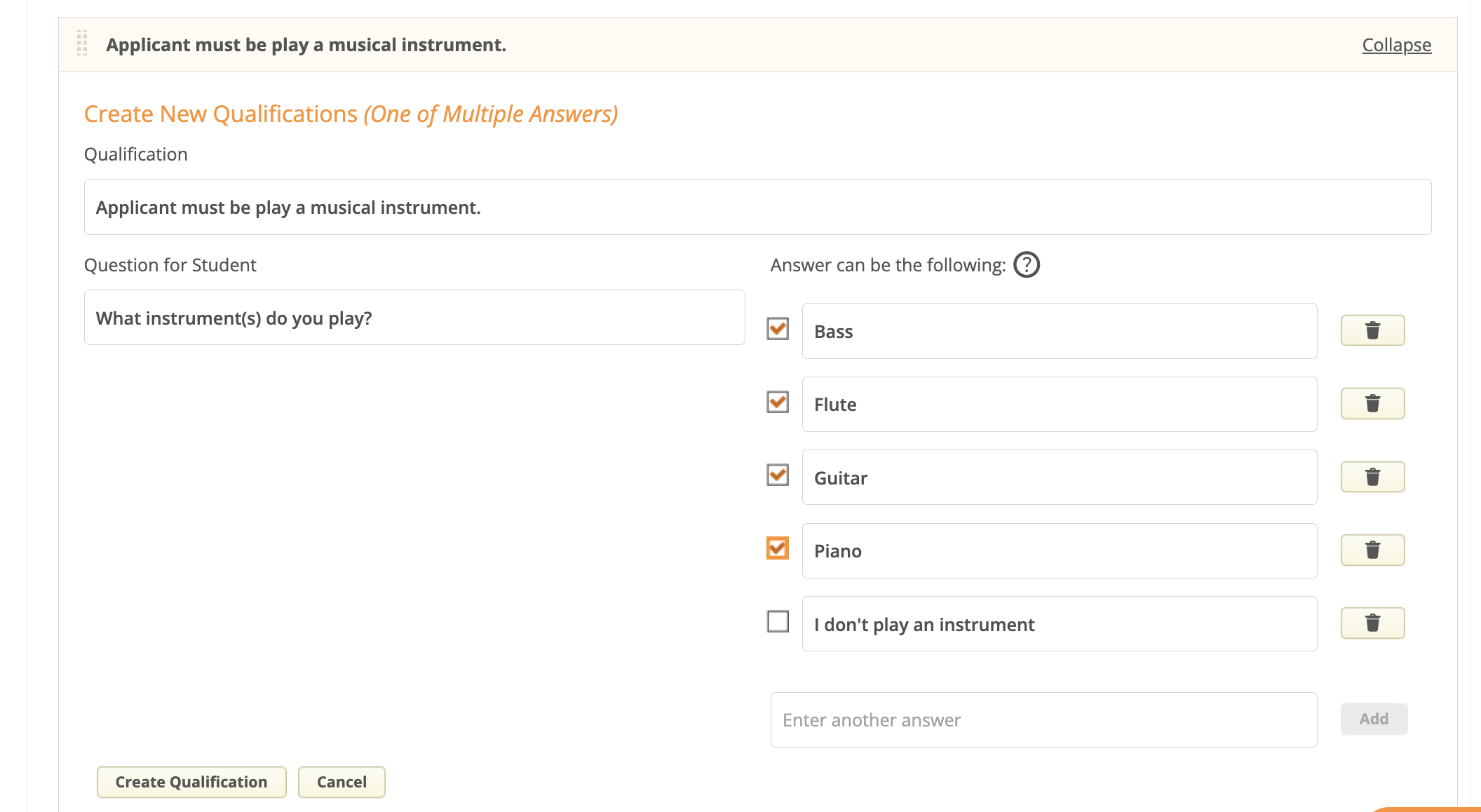
Because qualifications can be re-used across scholarships, consider that the question you create might need to be used for more than one scholarship. For example, if you have several music-related scholarships, you could create a question such as “What instrument(s) do you play?”, with a list of several instruments to select from. This contrasts with creating several questions such as “Do you play the flute?” or “Do you play the guitar?”, with only ‘yes’ or ‘no’ answers to pick from. For a deeper dive, consider the following scenario:
Flute Scholarship
- Question: Do you play the flute?
- Qualifying answer = yes
Flute Scholarship
- Question: What instrument(s) do you play?
- Qualifying answer = flute
Piano Scholarship
- Question: What instrument(s) do you play?
- Qualifying answer = piano
Music Scholarship
- Question: What instrument(s) do you play?
- Qualifying answers = piano, flute, guitar, bass
What instrument(s) do you play? is the more flexible question in this case because it can be used across multiple scholarships.
Re-using Qualifications
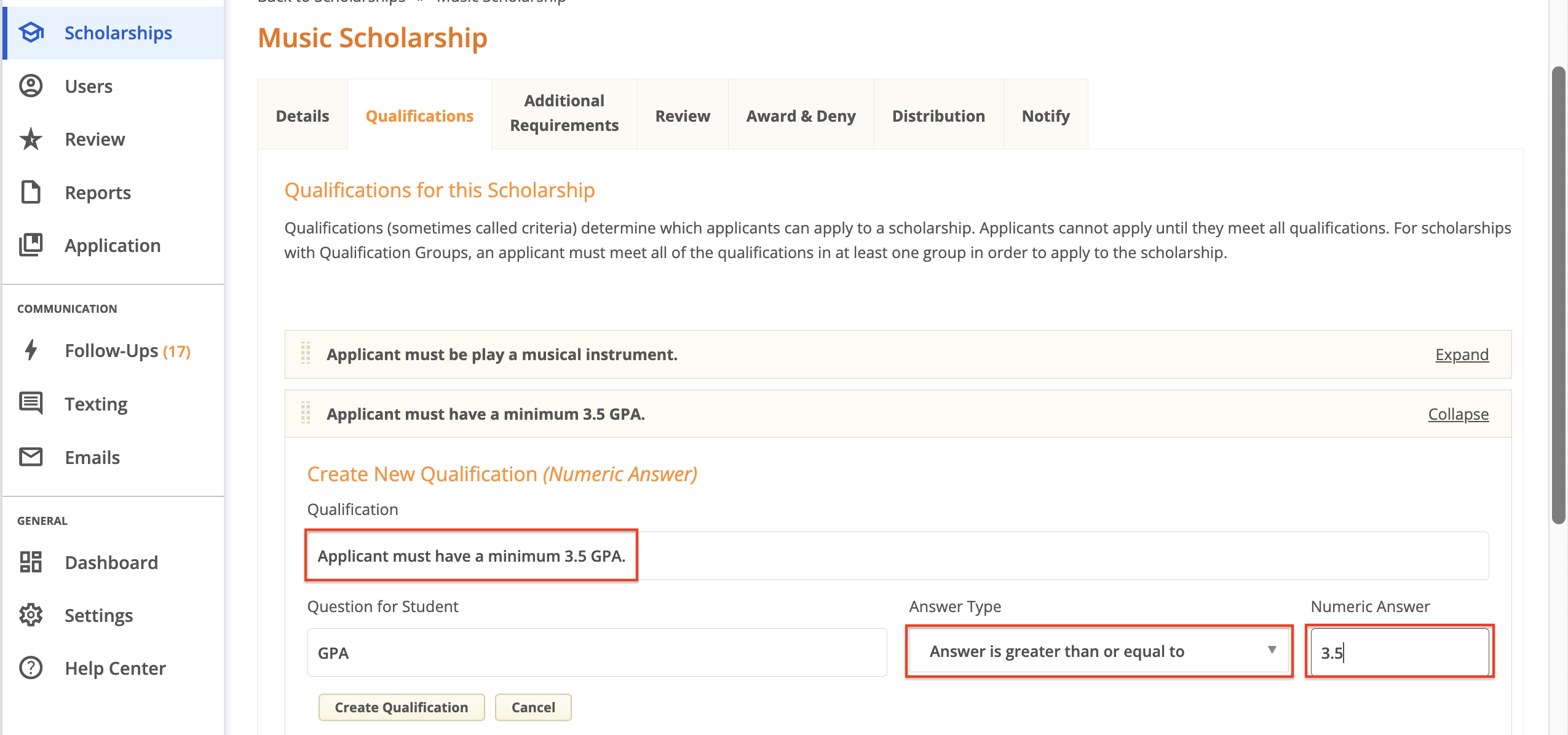
Let’s assume that you’re working on a different scholarship, the Music Scholarship. This scholarship requires a minimum 3.5 GPA. You’ll first need to select GPA from the existing question list again. You will then need to change the Qualification text and answer setup to reflect the specific needs of this scholarship.
Qualification Groups
This feature is available to PRO customers only.
Qualification Groups can be configured on a scholarship to capture multiple sets of criteria.
Example: Imagine that you are offering a Business scholarship that would consider any student that is enrolled in a Business major, but requires a GPA of 3.5 or higher. However, your incoming freshmen would not be able to be considered for this scholarship, as they do not have a GPA yet. This is where qualification groups comes in. You can ask your incoming freshmen to report their High School GPA, and create a separate qualification group that requires for their GPA to be higher than or equal to 3.0. This results in two qualification groups being set up for the Business scholarship, and allows you to manage all applicants in one place, instead of across two scholarships (in this case, or more in others).
In order for applicants to match to the scholarship, they need to match fully on one group's qualifications. Depending on the scholarship requirements, a student can match to two groups or more, but one is required in order for them to show in Qualified or Applied status.
Note: You can create up to 4 qualification groups on a scholarship.
How to Configure Qualification Groups
Navigate to the Qualification tab of the scholarship that requires qualification groups to be set up.
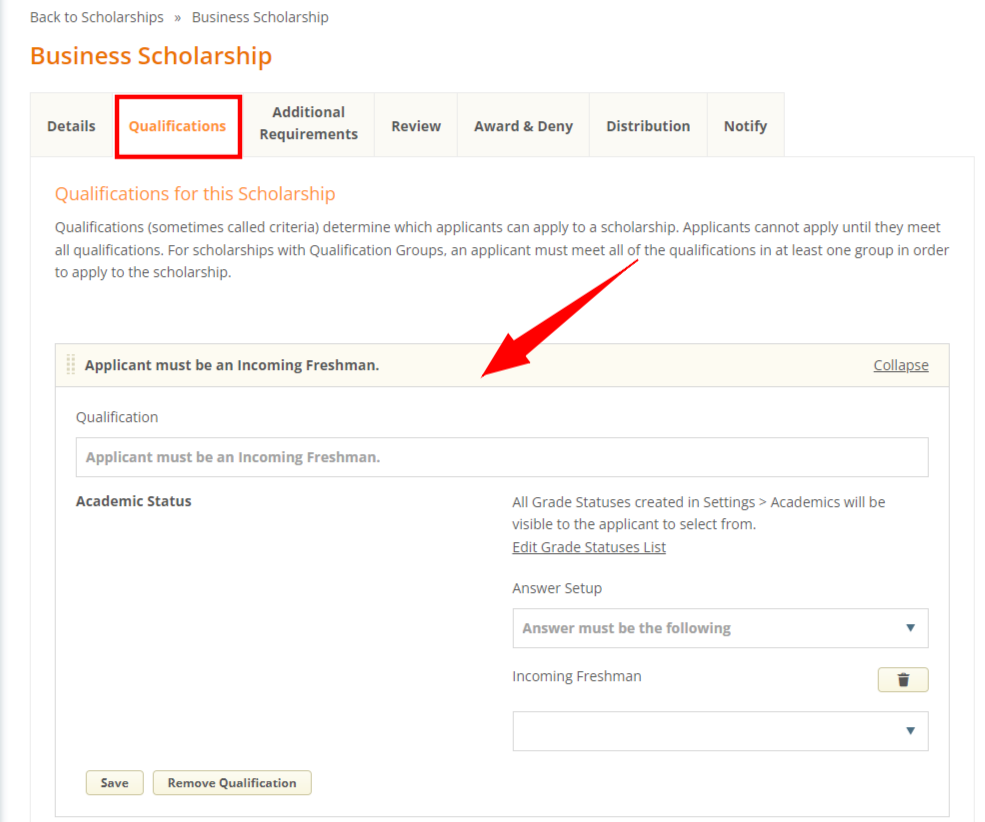
Click on 'Add Qualification' to start building the first qualification group. Following the scholarship example mentioned previously - we can add the Academic Status qualification question and select Incoming Freshmen as a qualifier.
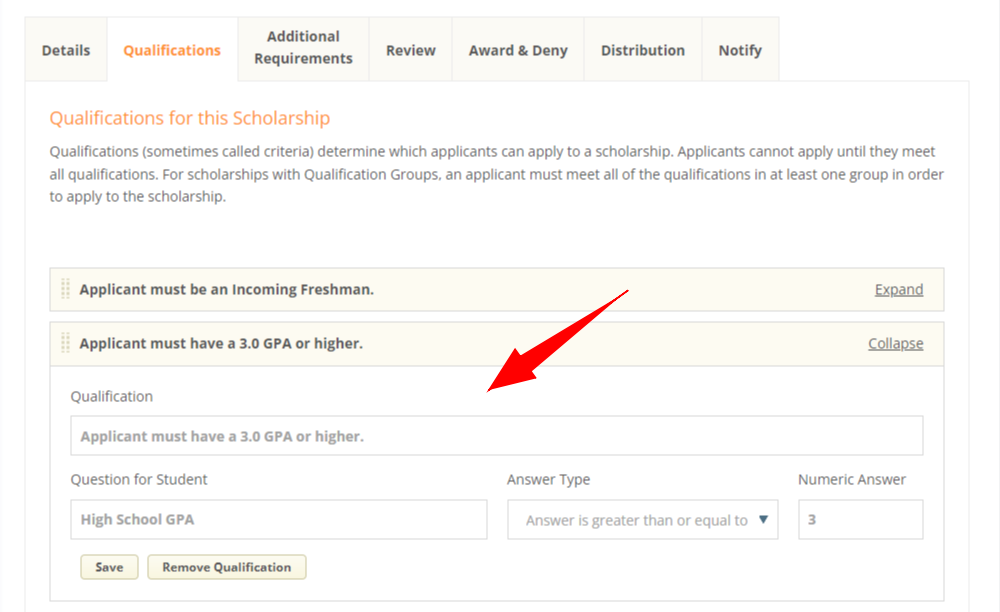
Then add the High School GPA question, setting the answer to be greater than or equal to 3.0.
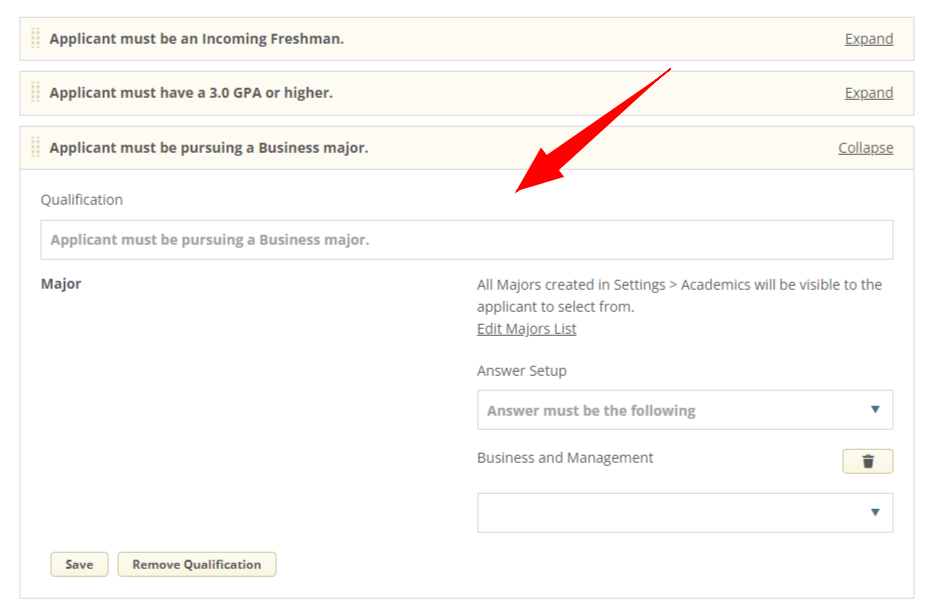
Lastly, add the Major question by clicking 'Add Qualification', and choose the Business major as a qualifier.
The first group is done, we can move on to creating the second qualification group. To do so, first click on 'Add Qualification Group'.

Then search for your Academic Status question, and select all statuses except Incoming Freshmen. Once you've saved the qualification, you'll notice that the second grouping appears.
Under the second qualification group, click on 'Add Qualification' and insert the College GPA question, setting the answer to be greater than or equal to 3.5.
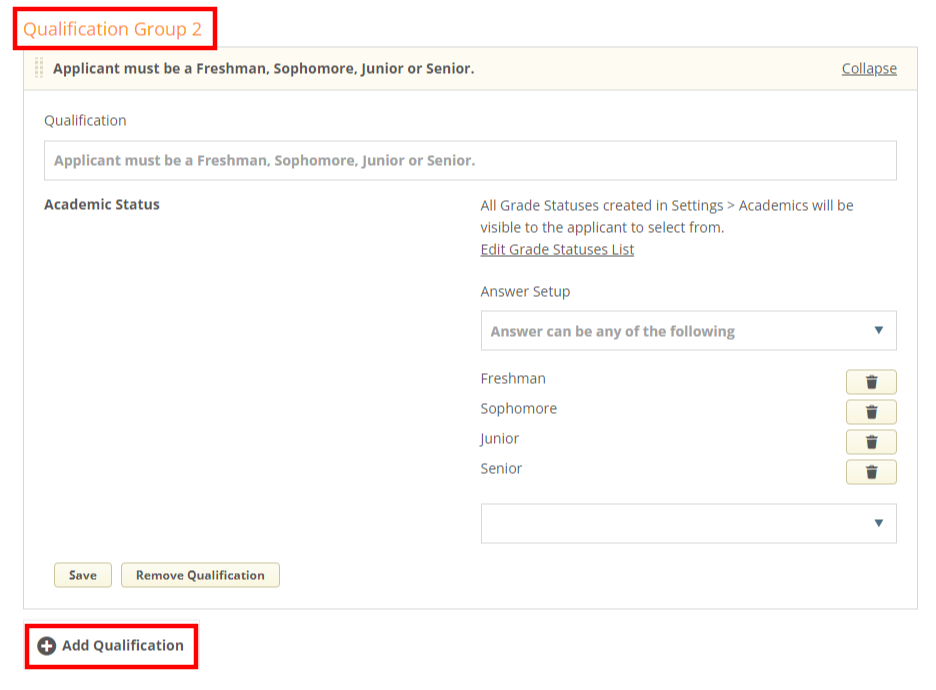
Lastly, click on 'Add Qualification' to add the Major question, and select the Business major as a qualifier.
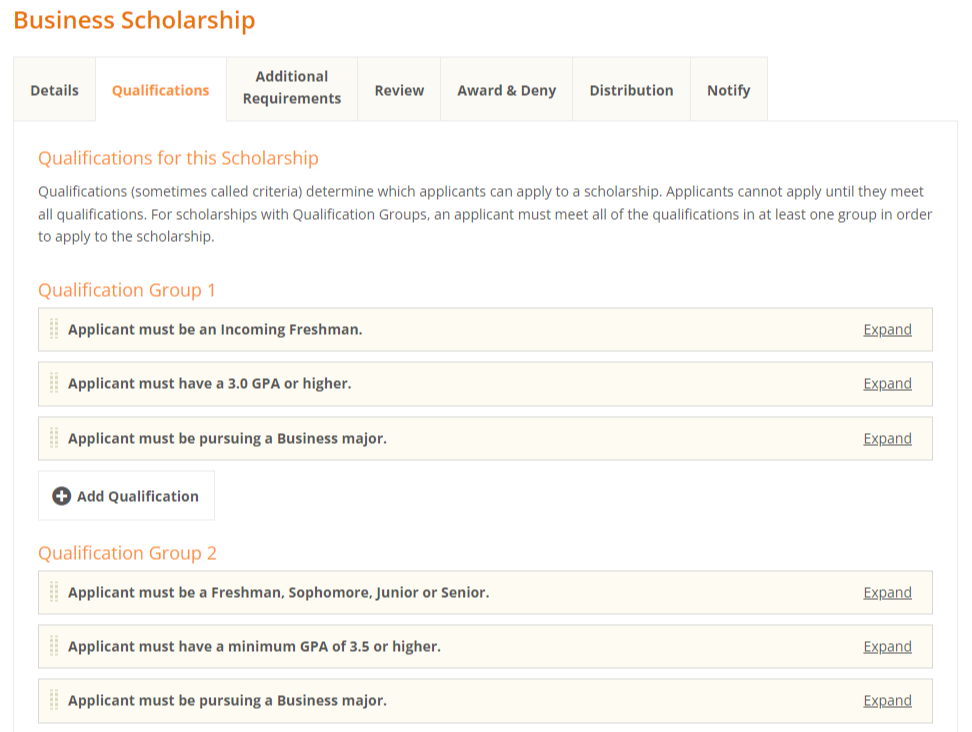
Voila! You've successfully set up qualification groups on your scholarship!
Note: In case you'd like to hide qualifications from your applicants, click here to learn how.