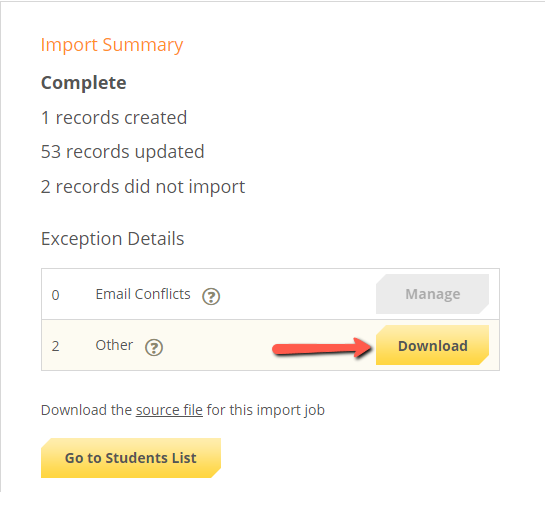
To merge records:
- Make sure you're logged into your AwardSpring site.
- Copy the following URL: [YOURURL].awardspring.com/Admin/HelpCenter/lastimport
- Replace the part in brackets with your URL. For example, sampleschool.awardspring.com/Admin/HelpCenter/lastimport
- Review your current data file mapping to ensure all fields are being mapped, as desired. The column on the left are the columns being sent from your institution to AwardSpring and the columns on the right are the questions on the application that data is being placed into.
- Click on ‘Exceptions for import on XX/XX/XXXX’.
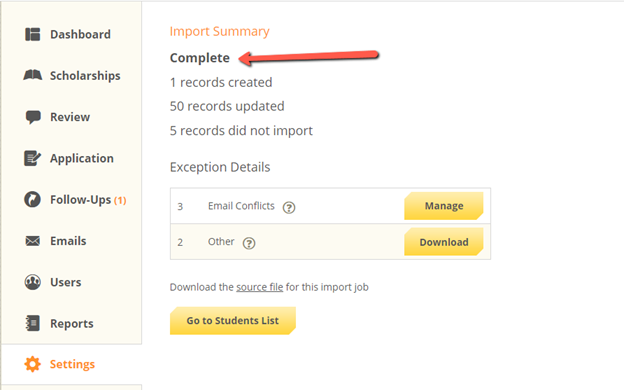
- Ensure the import completed successfully by verifying the ‘Complete’ status. If the status states there was an issue with your import, please contact support@awardspring.com
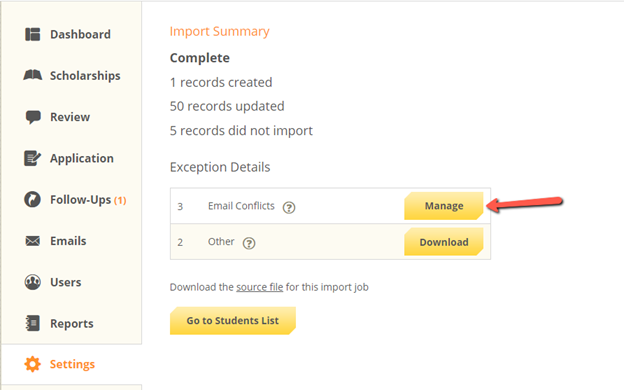
- Click on ‘Manage’ next to the Email Conflicts (if any). Email conflicts are accounts that already exist in your site with that email and are being imported for the first time. This allows you to verify that it is the same user account before merging the accounts and inputting the file data.
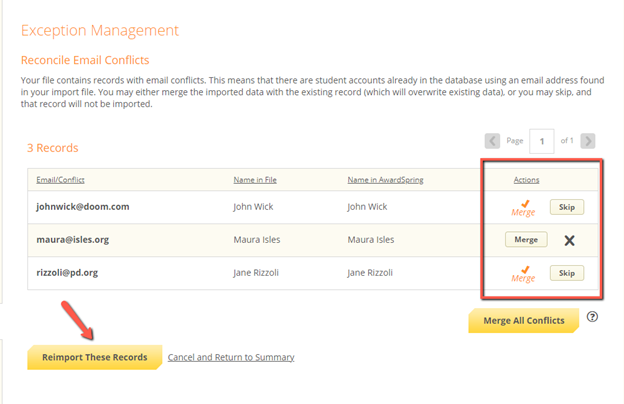
- Verify that the email address is correct and the names match and click on ‘Merge’ on that line. If the accounts should not be merged, click ‘Skip’ on that line. Once all lines have been checked and ‘Merge’ or ‘Skip’ selected, click on ‘Reimport These Records’ to import the data into these merged accounts.
- The import will run and you will be re-directed back to the exception management screen. This may take a few minutes.
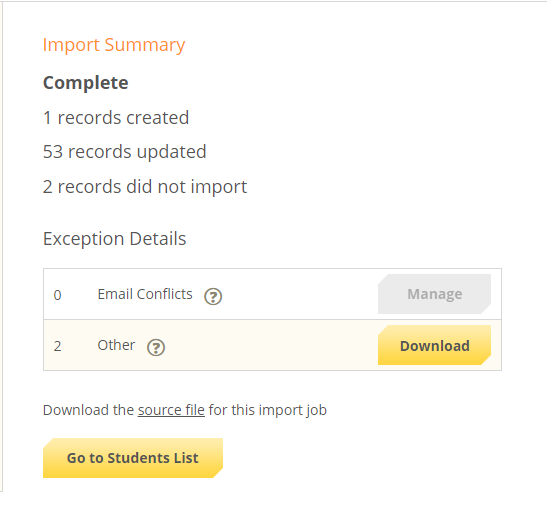
- Click on the ‘Download’ button to download an Excel workbook of students who failed to import for other reasons.